Dev Essentials — 09 · Versions and Dependencies — SemVer, Lockfiles, Safe Upgrades and Supply Chain
A typical web project has a handful of dependencies you chose and hundreds more that came along with them. Each one has a version number, a range that says which versions are acceptable, and a maintainer you have never met. This post explains what the numbers promise (SemVer), what ^, ~ and ~= really match, why lockfiles exist, and how to upgrade without breaking things. It then shows how real supply-chain attacks in 2024-2025 worked, and which settings defend against them in September 2026.
Series map: 01 Text Encoding → … → 08 Floating Point → 09 Versions & Dependencies (this post) → 10 Debugging → … → 24 Desk Health. Part B · Everyday skills.
Learning Outcome
- Read a SemVer version, including pre-release tags, build metadata and the special meaning of
0.x. - Predict exactly what npm
^/~, pip~=/==and Maven ranges will match. - Explain what a lockfile pins and why you commit it; use
npm ci,uv sync --lockedandpip install --require-hashes. - Find why a transitive dependency is installed (
npm explain,uv tree --invert,pipdeptree). - Follow a safe upgrade workflow, and automate it with Dependabot or Renovate plus audit tools.
- Describe real supply-chain attacks and apply the defences: lockfiles, release-age delays, install-script blocking, provenance and SBOMs.
Chapter 1 — Semantic Versioning 2.0.0
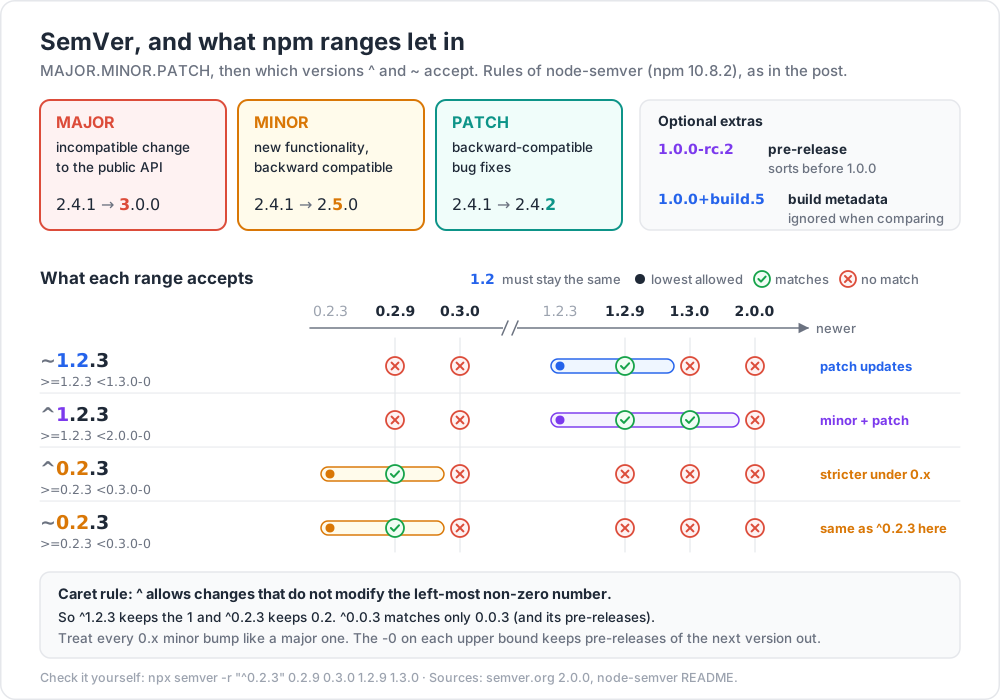
SemVer 2.0.0 (semver.org) gives a version three numbers, MAJOR.MINOR.PATCH:
| Bump | When | Example |
|---|---|---|
| MAJOR | An incompatible change to the public API | 2.4.1 → 3.0.0 |
| MINOR | New functionality, backward compatible | 2.4.1 → 2.5.0 |
| PATCH | Backward-compatible bug fixes | 2.4.1 → 2.4.2 |
Two optional parts can follow:
- Pre-release, after a hyphen:
1.0.0-alpha.1,1.0.0-rc.2. A pre-release sorts before the normal release. - Build metadata, after a plus:
1.0.0+build.5,1.0.0+sha.5114f85. It is ignored when comparing versions.
The spec's own precedence example (npm's semver library sorts it the same way):
1
2
1.0.0-alpha < 1.0.0-alpha.1 < 1.0.0-beta < 1.0.0-beta.2 < 1.0.0-beta.11 < 1.0.0-rc.1 < 1.0.0
Note beta.2 < beta.11: identifiers made only of digits compare as numbers, not as text.
The special meaning of 0.x. SemVer item 4 says major version zero is for initial development: "Anything MAY change at any time." So 0.4.0 → 0.5.0 may break you. The FAQ adds that software already used in production "should probably already be 1.0.0". Treat every 0.x minor bump like a major one.
SemVer is a promise, not a proof. The maintainer decides what counts as "breaking". A patch that fixes a bug you relied on still breaks you. Version numbers tell you where to look first; tests tell you whether it works.
Python is not SemVer. Python packages follow PEP 440 (now the "Version specifiers" spec on packaging.python.org). It looks similar but is spelled differently: 1.0.0a1, 1.0.0b2, 1.0.0rc1 (pre-releases), 1.0.0.post1 (post-release), 1.0.0.dev3 (development). Tools normalise other spellings, so 1.0.0-alpha.1 becomes 1.0.0a1.
Terminology
| Term | Meaning |
|---|---|
| Direct dependency | A package listed in your own manifest (package.json, pyproject.toml). |
| Transitive dependency | A dependency of a dependency. You never chose it. |
| Range / specifier | A rule for acceptable versions, like ^1.2.3 or >=2.28,<3. |
| Resolution | The package manager picking one concrete version for every package. |
| Lockfile | A record of one resolution, so it can be repeated exactly. |
Chapter 2 — Version ranges
npm (node-semver)
These expansions were produced with the semver library bundled in npm 10.8.2:
| You write | Means | 1.2.9 |
1.3.0 |
2.0.0 |
|---|---|---|---|---|
1.2.3 |
exactly 1.2.3 | no | no | no |
~1.2.3 |
>=1.2.3 <1.3.0-0 (patch updates) |
yes | no | no |
^1.2.3 |
>=1.2.3 <2.0.0-0 (minor + patch) |
yes | yes | no |
1.x |
>=1.0.0 <2.0.0-0 |
yes | yes | no |
The caret rule: allow changes that do not modify the left-most non-zero number. That makes ^ stricter under 0.x:
| You write | Means |
|---|---|
^0.2.3 |
>=0.2.3 <0.3.0-0: 0.2.9 matches, 0.3.0 does not |
^0.0.3 |
>=0.0.3 <0.0.4-0: only 0.0.3 (and its pre-releases) |
~0.2.3 |
>=0.2.3 <0.3.0-0: the same as ^0.2.3 here |
The -0 on the upper bound keeps pre-releases of the next version out. Ranges also skip pre-releases in general: ^1.2.3 does not match 1.3.0-beta.1 unless you pass includePrerelease.
1
2
3
npx semver -r "^0.2.3" 0.2.9 0.3.0 # prints only 0.2.9
npm view react versions --json # every published version of a package
npm install foo saves "foo": "^x.y.z" by default. npm install --save-exact foo, or save-exact=true in .npmrc, saves the exact version. The Next.js site behind this blog pins its framework exactly:
1
2
3
4
5
6
{
"dependencies": {
"next": "14.2.18"
}
}
Every install is then identical, but you only get fixes when you change the number yourself. Chapter 5 shows why that matters.
pip and PEP 440
| You write | Means | 1.4.5 |
1.4.9 |
1.5.0 |
2.0 |
|---|---|---|---|---|---|
==1.4.5 |
exactly 1.4.5 | yes | no | no | no |
~=1.4.5 |
>=1.4.5, ==1.4.* |
yes | yes | no | no |
~=1.4 |
>=1.4, ==1.* |
yes | yes | yes | no |
>=1.4,<2 |
explicit range | yes | yes | yes | no |
==1.4.* |
any 1.4.x | yes | yes | no | no |
~= ("compatible release") drops the last number you wrote and allows anything above it at that level. So ~=1.4.5 is patch-only and ~=1.4 allows minor and patch. The table was checked with the packaging library that pip uses.
Maven
Maven's POM reference separates soft and hard requirements:
| You write | Meaning |
|---|---|
1.0 |
Soft: use 1.0 unless another version appears earlier in the dependency tree |
[1.0] |
Hard: exactly 1.0 |
[1.0,2.0) |
Hard: 1.0 ≤ x < 2.0 |
[1.5,) |
Hard: ≥ 1.5 |
(,1.1),(1.1,) |
Hard: anything except 1.1 |
For soft versions, Maven's dependency mediation picks the nearest declaration in the tree, not the highest. With A → B → C → D 2.0 and A → E → D 1.0, you get D 1.0. To decide it yourself, declare the version directly or use <dependencyManagement>. (Java build basics: Java Development [Basic] Part 1.)
Chapter 3 — Lockfiles
A range like ^1.2.3 resolves to different versions on different days. A lockfile records one resolution exactly: every package, including transitive ones, with its version, its source URL and a hash of its content. A real entry from this blog's package-lock.json:
1
2
3
4
5
6
7
"node_modules/katex": {
"version": "0.16.11",
"resolved": "https://registry.npmjs.org/katex/-/katex-0.16.11.tgz",
"integrity": "sha512-RQrI8rlHY92OLf3rho/Ts8i/XvjgguEjOkO1BEXcU3N8BqPpSzBNwV/G0Ukr+P/l3ivvJUE/Fa/CwbS6HesGNQ==",
"dependencies": { "commander": "^8.3.0" }
}
Thanks to integrity, a tampered tarball fails to install, even when it comes from the right URL.
| Tool | Manifest | Lockfile | Install exactly the lock |
|---|---|---|---|
| npm | package.json |
package-lock.json |
npm ci |
| pnpm | package.json |
pnpm-lock.yaml |
pnpm install --frozen-lockfile |
| Yarn (Berry) | package.json |
yarn.lock |
yarn install --immutable |
| uv | pyproject.toml |
uv.lock |
uv sync --locked |
| Poetry | pyproject.toml |
poetry.lock |
poetry install |
| pip | requirements.in |
requirements.txt with hashes |
pip install --require-hashes -r requirements.txt |
Commit the lockfile. uv's docs say uv.lock "should be checked into version control", and the same holds for the others. Without it, CI and your teammates install a different tree from the one you tested. Never edit a lockfile by hand; let the tool rewrite it.
npm ci vs npm install
According to the npm docs, npm ci:
- needs an existing
package-lock.json; - fails if
package.jsonand the lock disagree, instead of updating the lock; - deletes
node_modulesfirst, then installs; - never writes to
package.jsonor the lockfile.
Use npm install when you change dependencies on your machine, and npm ci in CI and deployment. uv has the same split: uv add and uv lock change the lock, uv sync --locked fails if the lock is out of date, and uv sync --frozen uses the lock without checking it.
Hash-checked pip installs
1
2
3
4
5
6
7
# Generate a fully pinned, hashed requirements file (either command works)
uv pip compile requirements.in --generate-hashes -o requirements.txt
uv export --format requirements-txt -o requirements.txt # from uv.lock; hashes on by default
# Install: every package must match a listed hash, or pip stops
pip install --require-hashes -r requirements.txt
1
2
3
4
# The same in PowerShell
uv export --format requirements-txt -o requirements.txt
python -m pip install --require-hashes -r requirements.txt
Watch out: a lockfile protects the next install. It does not help if you run
npm install some-new-packageon the day that package was compromised: the fresh version goes straight into the lock. The delay settings in Chapter 8 close that gap.
Chapter 4 — Transitive dependencies
Five direct dependencies may pull in hundreds of packages. You need to know what is installed, why it is there, and which version it is.
1
2
3
4
5
6
7
8
9
10
11
# npm
npm ls --all | wc -l # rough size of the tree
npm ls debug # every path that leads to "debug"
npm explain debug # why each copy is installed
npm outdated # current vs wanted vs latest
# uv / pip
uv tree --depth 2
uv tree --invert --package certifi # who depends on certifi
pip install pipdeptree && pipdeptree -r -p certifi
1
2
3
4
npm ls --all | Measure-Object -Line
npm explain debug
uv tree --invert --package certifi
Sometimes a transitive package has a known bug or vulnerability and its parent has not shipped a fix. Then you can force a version:
1
2
3
4
5
6
{
"overrides": {
"some-parent": { "vulnerable-child": "2.3.4" }
}
}
That is npm's overrides field in package.json. pnpm also uses overrides, Yarn uses resolutions, and uv uses override-dependencies under [tool.uv] in pyproject.toml. Remove each override once the parent catches up, or it quietly pins you forever.
Chapter 5 — A safe upgrade workflow
- See what is behind.
npm outdated,pnpm outdated,uv tree --outdated,pip list --outdated. - Read the changelog or release notes, and the migration guide for majors. Search for "breaking", "removed", "deprecated", "minimum Node", "minimum Python".
- One major at a time, on its own branch. Patch and minor updates can be grouped.
- Let the tool change the lock:
npm install foo@^5,uv lock --upgrade-package foo. - Run the tests, the build and a quick manual check. Read the lockfile diff. An upgrade that adds 40 new transitive packages deserves a second look.
- Merge small, deploy, watch. One small change is easy to revert or bisect (see Dev Essentials 10 · Debugging).
Drift in this blog's own CI
The Hexo build workflow behind this blog still says:
1
2
3
4
- uses: actions/setup-node@v3
with:
node-version: 16
Two separate things have aged here:
- The Node used for the build: 16. Node.js 16 reached end-of-life on September 11, 2023. The date was moved seven months earlier to match the end of support for OpenSSL 1.1.1. It gets no security fixes.
- The action's own runtime.
actions/setup-node@v3declaresusing: 'node16'in itsaction.yml. GitHub began forcing Node 16 actions onto Node 20 on June 3, 2024. It made Node 24 the runner default from June 16, 2026, and removed Node 20 from runners on September 23, 2026. The current major of the action is v7 (July 2026).
Today (September 2026), per Node's release schedule, Node 24 is Active LTS until 2026-10-20 and then in maintenance until 2028-04-30. Node 22 is in maintenance until 2027-04-30, and Node 26 becomes LTS on 2026-10-28. A safe plan is to move the build to Node 24 and the action to its current major in one small branch. Run the Hexo build, compare the generated site, then merge. Exercise 6 walks through it. (Workflows in depth: Dev Essentials 16 · CI/CD.)
The cost of an exact pin
The Next.js pin from Chapter 2, "next": "14.2.18", is inside the affected range of CVE-2025-29927. That is a critical (CVSS 9.1) authorization bypass in Next.js middleware, published March 21, 2025. It affects 14.0 up to but not including 14.2.25, and 14.2.25 fixes it. Whether it matters depends on use: only apps that rely on middleware for authorization are exposed. A static export (output: "export") produces plain files and does not support middleware at all, so a statically exported site like this blog is not exposed — but the pin would still carry the bug into any future server deployment. The lesson is general, though. An exact pin never moves by itself, so pair it with a bot that proposes updates and an audit in CI.
Chapter 6 — Automated updates and audits
Dependabot
.github/dependabot.yml:
1
2
3
4
5
6
7
8
9
10
11
12
13
14
version: 2
updates:
- package-ecosystem: "npm"
directory: "/"
schedule:
interval: "weekly"
cooldown:
default-days: 7 # wait 7 days after a release before proposing it
semver-major-days: 14
- package-ecosystem: "github-actions"
directory: "/"
schedule:
interval: "weekly"
GitHub's docs state that cooldown applies to version updates only, not security updates, so security fixes still arrive at once.
Renovate
renovate.json:
1
2
3
4
5
6
{
"$schema": "https://docs.renovatebot.com/renovate-schema.json",
"extends": ["config:recommended"],
"minimumReleaseAge": "3 days"
}
minimumReleaseAge makes Renovate wait until a release is that old before it opens a PR. The default is null (no wait).
Audits
1
2
3
4
5
6
7
npm audit # known advisories for the installed tree
npm audit --omit=dev # only what ships to production
npm audit signatures # verify registry signatures and provenance attestations
pip install pip-audit && pip-audit -r requirements.txt # PyPA tool; PyPI or OSV data
osv-scanner scan -L package-lock.json # OSV-Scanner v2, many ecosystems
osv-scanner scan -r .
These tools compare your exact versions with advisory databases such as the GitHub Advisory Database and OSV (osv.dev). Read the results with judgement. A vulnerable function you never call, in a dev-only tool, matters less than a vulnerable web framework in production. Still, fix or document every finding rather than muting the scanner.
Common pitfall: running
npm audit fix --forceblindly. It can jump major versions to reach a fixed release, which is the "big bang upgrade" Chapter 5 warns against.
Chapter 7 — Supply-chain attacks: how they really happen
An attacker who cannot break into your app can break into something your app installs. The main patterns:
- Typosquatting — a malicious package whose name is one typo away from a popular one.
- Dependency confusion — a public package with the same name as your private internal one, which a misconfigured installer prefers.
- Compromised maintainer account — a stolen password or token, or a phished 2FA code, followed by a malicious release of a real, trusted package.
- Malicious install scripts —
preinstall/postinstallcode runs on your laptop or CI runner the moment you install, before you import anything. - Takeover of an abandoned asset — a domain, CDN or package that passes to a new owner.
Real incidents
| When | What happened | Source |
|---|---|---|
| March 2024 | xz-utils 5.6.0 and 5.6.1 contained malicious code (CVE-2024-3094). CISA advised downgrading to an uncompromised version such as 5.4.6. | CISA alert, March 29, 2024 |
| Feb-June 2024 | The polyfill.io domain and its GitHub account were bought in February 2024. The CDN then injected malware into mobile visits of sites that embedded cdn.polyfill.io; the researchers counted over 100,000 affected sites. |
Sansec report, June 25, 2024 |
| September 8, 2025 | A well-known npm maintainer was phished with a fake 2FA-reset email. The attacker published malicious versions of chalk, debug and other packages that silently rewrote cryptocurrency transactions in browsers. They were live for about two hours. Vendors put the combined reach at over 2 billion weekly downloads. | Wiz; StepSecurity (vendor figures) |
| September 2025 | Shai-Hulud, "a self-replicating worm", spread through compromised maintainer accounts via malicious post-install scripts. GitHub was notified on September 14 and removed 500+ packages. | GitHub blog, September 22, 2025 |
| November 2025 | Shai-Hulud 2.0 ran in the preinstall phase and stole GitHub and cloud credentials. Wiz counted about 700 compromised packages; Datadog counted 796. |
Wiz; Datadog Security Labs (vendor figures) |
How the platforms responded
- GitHub announced a plan to limit npm publishing to local publishing with 2FA, short-lived granular tokens, and trusted publishing (September 22, 2025).
- npm revoked all classic tokens on December 9, 2025.
npm loginnow gives a two-hour session. - npm trusted publishing (OIDC from CI, no long-lived token) needs npm CLI 11.5.1+ and Node 22.14.0+. For public packages built from public repos on GitHub Actions or GitLab, it also produces provenance automatically.
- pnpm 10 stopped running dependencies' install scripts by default. pnpm 11.0 (April 28, 2026) also refuses versions less than one day old by default.
- npm 12.0.0 (July 8, 2026) blocks dependency lifecycle scripts (
preinstall,install,postinstall) unless the root package'sallowScriptspolicy allows them. It also stops resolving git and remote-URL dependencies unless you opt in.
Chapter 8 — Mitigations you can apply today
1. Lock, and install exactly
Commit lockfiles, and use npm ci, pnpm install --frozen-lockfile or uv sync --locked in CI (Chapter 3). A malicious new release cannot enter a build that installs only locked, hashed versions.
2. Wait before adopting new versions
Most malicious releases are found and removed within hours or days. A minimum release age makes your tools ignore anything newer than a set age. Names and units differ, so be careful:
| Tool | Setting | Unit | Available since |
|---|---|---|---|
| npm | min-release-age in .npmrc |
days | npm 11.10.0 |
| pnpm | minimumReleaseAge in pnpm-workspace.yaml |
minutes | 10.16; default 1440 from 11.0 |
| Yarn (Berry) | npmMinimalAgeGate in .yarnrc.yml |
duration (a plain number means minutes) | 4.10.0 |
| Bun | install.minimumReleaseAge in bunfig.toml |
seconds | see Bun docs |
| uv | exclude-newer under [tool.uv] |
timestamp or duration ("7 days", "P7D") |
see uv docs |
| pip | --uploaded-prior-to |
ISO 8601 timestamp, or a duration like P3D |
26.0; durations from 26.1 |
| Renovate | minimumReleaseAge |
duration ("3 days") |
— |
| Dependabot | cooldown (default-days, …) |
days | — |
1
2
3
# .npmrc (npm 11.10.0 or later)
min-release-age=7
1
2
3
4
5
# pnpm-workspace.yaml
minimumReleaseAge: 10080 # minutes = 7 days
minimumReleaseAgeExclude:
- "@my-company/*" # your own packages can skip the wait
1
2
3
4
# pyproject.toml (uv)
[tool.uv]
exclude-newer = "7 days"
1
2
pip install --uploaded-prior-to P7D -r requirements.in # pip 26.1 or later
Watch out: a release-age delay also delays security fixes. Keep an exclude list for urgent patches; Dependabot's cooldown already skips security updates. For Yarn, check your version's default with
yarn config get npmMinimalAgeGate, because recent releases changed it.
3. Do not run install scripts you did not approve
- npm 12+: dependency scripts are blocked by default. Approve the ones you need with
npm install-scripts approve, which records them in the rootallowScriptspolicy, then runnpm rebuild. - Older npm:
ignore-scripts=truein.npmrcstops all scripts. Packages with native parts may then need a manualnpm rebuild <pkg>. - pnpm 10+: scripts are off by default.
pnpm approve-buildsadds the packages you approve toallowBuildsinpnpm-workspace.yaml.
4. Check where packages came from
Provenance links a published package to the source repository and the CI build that produced it, signed through Sigstore. As a consumer, run npm audit signatures. As a maintainer, publish from CI with trusted publishing, or with npm publish --provenance and the id-token: write permission in GitHub Actions. PyPI supports trusted publishing too. npm's docs are careful here: provenance shows where a package came from, but it does not promise the code is free of malware.
5. Know what you ship: SBOMs
A Software Bill of Materials lists every component and version in a build, in a standard format (CycloneDX or SPDX). When the next xz-style advisory appears, you search your SBOMs instead of guessing.
1
2
3
4
npm sbom --sbom-format cyclonedx > sbom.cdx.json
npm sbom --sbom-format spdx > sbom.spdx.json
uv export --format cyclonedx1.5 -o sbom.cdx.json
6. Protect your own publishing
Use passkeys or hardware keys, which resist phishing, instead of TOTP codes on registry accounts. Prefer trusted publishing to long-lived tokens, and give CI tokens the smallest scope.
7. Add fewer dependencies
Before adding a package, check who maintains it, when it last released, whether it has install scripts, and how many transitive packages it brings. A 10-line helper you write yourself has no supply chain.
Practice Exercises
Exercise 1 — Which versions match?
For each range, which of 0.2.9, 0.3.0, 1.2.9, 1.3.0 match: ^0.2.3, ~1.2.3, ^1.2.3? And which of 2.2, 2.9, 3.0 match pip's ~=2.2?
Solution
| Range | Matches |
|---|---|
^0.2.3 |
0.2.9 only (the left-most non-zero number is the minor, so <0.3.0) |
~1.2.3 |
1.2.9 only |
^1.2.3 |
1.2.9, 1.3.0 |
~=2.2 |
2.2, 2.9 (it means >=2.2, ==2.*) |
Check with npx semver -r "^0.2.3" 0.2.9 0.3.0 1.2.9 1.3.0.
Exercise 2 — Pick the bump
A library is at 3.4.2. Give the next version for: (a) a fix for a crash on empty input; (b) a new optional timeout parameter; (c) renaming connect() to open(); (d) the same rename when the library is at 0.9.2.
Solution
(a) 3.4.3 (PATCH). (b) 3.5.0 (MINOR, backward compatible). (c) 4.0.0 (MAJOR, breaking). (d) 0.10.0 by convention. Under 0.x anything may change, and the SemVer FAQ suggests bumping the minor for each release. Users of ^0.9.2 will not get it automatically, which is what you want.
Exercise 3 — "It works on my machine"
CI runs npm install and sometimes fails with errors nobody sees locally. package-lock.json is listed in .gitignore. Explain the cause and the fix.
Solution
Without a committed lock, every CI run resolves the ranges again and may pick newer transitive versions than your machine has. Fix: remove package-lock.json from .gitignore, run npm install once, commit the lockfile, and change CI to npm ci. Now CI fails loudly when package.json and the lock disagree, instead of quietly installing something new.
Exercise 4 — Why is it here?
An audit flags vulnerable-child@1.0.2, which is not in your package.json. Find who brings it in, and fix it if the parent has no update yet.
Solution
1
2
3
npm explain vulnerable-child # e.g. your-dep > some-parent > vulnerable-child
npm view vulnerable-child versions --json
First try upgrading the parent (read its changelog). If no fixed parent exists, add an override and test:
1
2
{ "overrides": { "some-parent": { "vulnerable-child": "1.0.3" } } }
Run npm install, confirm with npm ls vulnerable-child, and leave a note to remove the override later. In Python: uv tree --invert --package vulnerable-child, then override-dependencies under [tool.uv].
Exercise 5 — A calm update bot
Write a Dependabot config for a repo with npm and GitHub Actions. It should check weekly, wait 7 days before proposing npm releases (14 days for majors), and still deliver security fixes at once.
Solution
The dependabot.yml in Chapter 6 does exactly this. The cooldown block gives the 7- and 14-day waits. Security updates ignore cooldown, so they still arrive at once, as long as Dependabot security updates are turned on in the repository settings.
Exercise 6 — Plan the Node upgrade for the Hexo CI
The workflow uses actions/setup-node@v3 with node-version: 16. Write the steps to bring it up to date safely.
Solution
- Create a branch:
git switch -c ci/node-24. - Read the setup-node release notes from v3 up to the current major (v7) for changed inputs. Check that Hexo and its plugins support Node 24 (their
enginesfields and changelogs). - Change the step:
1
2
3
4
- uses: actions/setup-node@v7
with:
node-version: 24
- Locally, install Node 24 (for example with nvm-windows), delete
node_modules, runnpm ci, thennpx hexo clean && npx hexo generate. Compare thepublic/output with a build from the old setup. - Push the branch and let CI run. Merge only when the build passes and the site looks the same.
- Add the
github-actionsecosystem to Dependabot so the action does not drift again.
Cheat-sheet
| Task | npm / pnpm | Python (uv / pip) |
|---|---|---|
| Exact install from lock | npm ci · pnpm install --frozen-lockfile |
uv sync --locked · pip install --require-hashes -r requirements.txt |
| Change a dependency | npm install foo@^2 |
uv add "foo>=2,<3" · uv lock --upgrade-package foo |
| Save an exact version | npm install --save-exact foo |
uv add "foo==2.1.0" |
| What is outdated | npm outdated |
uv tree --outdated · pip list --outdated |
| Why is X installed | npm explain X · pnpm why X |
uv tree --invert --package X · pipdeptree -r -p X |
| Force a transitive version | "overrides" in package.json |
override-dependencies under [tool.uv] |
| Known vulnerabilities | npm audit --omit=dev |
pip-audit -r requirements.txt |
| Any ecosystem | osv-scanner scan -r . |
same |
| Verify provenance | npm audit signatures |
— |
| SBOM | npm sbom --sbom-format cyclonedx |
uv export --format cyclonedx1.5 |
| Release-age delay | min-release-age=7 (days) · minimumReleaseAge: 10080 (minutes) |
exclude-newer = "7 days" · --uploaded-prior-to P7D |
| Range | Matches |
|---|---|
^1.2.3 |
>=1.2.3 <2.0.0 |
^0.2.3 |
>=0.2.3 <0.3.0 |
~1.2.3 |
>=1.2.3 <1.3.0 |
~=1.4.5 (pip) |
>=1.4.5, ==1.4.* |
[1.0,2.0) (Maven) |
1.0 <= x < 2.0 |
What's next
Post 10 · Debugging closes Part B. It covers reading stack traces, building a minimal reproduction, using git bisect to find the commit (or dependency bump) that broke things, debuggers, and profilers.
References
- Semantic Versioning 2.0.0
- node-semver README (npm ranges); npm docs —
npm ci; npm docs — config - Python packaging — Version specifiers (PEP 440); pip install options
- uv: Project layout (uv.lock) · Locking and syncing · Resolution · Settings
- Maven: POM reference — version ranges · Dependency mechanism
- pnpm — Mitigating supply chain attacks; pnpm 11.0 release; Yarn — .yarnrc.yml settings; Bun — bunfig.toml
- npm CLI v12.0.0 release notes; GitHub changelog — npm install-time security
- Dependabot options (cooldown); Renovate configuration options
- pip-audit; OSV-Scanner; OSV database
- npm — trusted publishing; npm — provenance; PyPI — trusted publishers
- Incidents: CISA — xz-utils (CVE-2024-3094) · Sansec — polyfill.io · Wiz — chalk/debug compromise · GitHub — Our plan for a more secure npm supply chain · GitHub changelog — classic tokens revoked · Wiz — Shai-Hulud 2.0 · Datadog — Shai-Hulud 2.0
- Node and Actions: Node.js 16 end-of-life · Node.js release schedule · GitHub — Node 20 removed from Actions runners · Next.js advisory CVE-2025-29927
Note: this post is in progress. Planned additions: private registries and dependency-confusion defences in detail, vendoring, reproducible builds, and a worked Renovate setup for a monorepo.