Containers Course — 02 · Networking, Volumes and Compose
A single container is rarely the whole system. Real services talk to a database, cache things in Redis, and need their data to survive a redeploy — which means two subjects that beginners consistently get wrong: networking (why one container cannot reach another by name, why localhost inside a container is not your laptop) and storage (why the database was empty after docker rm, why a bind-mounted directory is suddenly owned by root). This post covers both from the mechanics upward, then assembles everything into a Docker Compose stack — web application, PostgreSQL, and Redis — that starts in the right order, waits for dependencies to be genuinely ready, and can be run end to end from the file listings here.
Series map: 00 Containers from First Principles → 01 Images and Dockerfiles → 02 Networking, Volumes and Compose (this post) → 03 Registries, Supply Chain and Security → 04 Kubernetes Architecture and Core Objects → 05 Config, Storage and Stateful Workloads → 06 Scheduling, Resources, Probes and Rollouts → 07 Ingress, Observability, RBAC and GitOps.
Learning Outcome
- Explain Docker's network drivers, why only a user-defined bridge provides DNS by container name, and what publishing a port does to the host's firewall rules.
- Use
host.docker.internalwith the right platform-specific caveats. - Choose between named volumes, bind mounts, and tmpfs using a decision table, and know exactly what
docker rm -vdestroys. - Diagnose and fix UID/permission mismatches on bind mounts, and know why they are slow on macOS and Windows.
- Write a modern Compose file (v2 spec, no
version:key) with health-gateddepends_on, env files, named volumes, profiles, and resource limits. - Run, inspect, log, and tear down a multi-service stack, with log rotation configured so it cannot fill the disk.
Chapter 1 — Docker networking
Terminology
- Network driver — the mechanism implementing a Docker network:
bridge,host,none,overlay,macvlan,ipvlan. - Default bridge — the
bridgenetwork (docker0on the host) containers join when you specify nothing; a user-defined bridge is one you create withdocker network create, and it behaves better in every way. - Embedded DNS — Docker's resolver at
127.0.0.11inside containers on user-defined networks; resolves container names and network aliases (extra names set with--network-aliasornetworks.<net>.aliases). - Publishing — mapping a container port onto a host port with
-p.
The drivers
| Driver | Isolation | Reaching other containers | Reaching the host network | Typical use |
|---|---|---|---|---|
bridge (default) |
own netns, NAT to host | by IP only — no DNS by name | via published ports | legacy default; avoid for multi-container work |
user-defined bridge |
own netns, NAT to host | by container name and alias | via published ports | the normal choice; what Compose creates |
host / none |
shares the host netns / only lo |
direct on localhost / nothing | direct, no NAT / nothing | latency-sensitive workloads (Linux) / offline batch jobs |
overlay |
multi-host, VXLAN | across hosts by name | — | Swarm; Kubernetes uses its own CNI plugins instead |
macvlan / ipvlan |
own MAC/IP on the physical LAN | as a LAN peer | as a LAN peer | legacy apps that need a real LAN address |
Default bridge vs user-defined bridge
This is the single most useful networking fact in Docker:
1
2
3
4
5
6
7
docker run -d --name db redis:7-alpine # default bridge
docker run --rm alpine ping -c1 db # ping: bad address 'db'
docker network create appnet # user-defined bridge
docker run -d --name db2 --network appnet redis:7-alpine
docker run --rm --network appnet alpine ping -c1 db2 # 64 bytes from 172.19.0.2 ...
Why: on a user-defined network the container's /etc/resolv.conf points at Docker's embedded DNS server (127.0.0.11), which knows every container name and alias on that network and updates as containers come and go. The default bridge has no such service — the old --link flag filled that gap and is legacy today.
Other differences follow: user-defined networks are isolated from each other (a container on frontend cannot reach one on backend unless attached to both), containers can be attached and detached while running (docker network connect/disconnect appnet web), and every container on the network can reach every other on all ports without any publishing.
Trick: the correct mental default is "one user-defined network per application stack". Compose does this for you automatically: every project gets a network named
<project>_default, and every service is reachable from every other by its service name.
Inter-container communication
Within one user-defined network, address peers by service/container name and the container's own port — not the published host port:
1
2
3
4
web → postgres:5432 ✓ container-to-container, on the container's own port
web → localhost:5432 ✗ localhost inside `web` is `web` itself (same for 127.0.0.1)
web → host-ip:15432 ✗ works, but hairpins out to the host and back
localhost inside a container means that container. This one line prevents most first-week networking bugs.
Publishing ports
1
2
3
4
docker run -d -p 8080:80 nginx # 0.0.0.0:8080 on the host → :80 in the container
docker run -d -p 127.0.0.1:8080:80 nginx # loopback only — not reachable from the LAN
docker run -d -P --name web nginx; docker port web # every EXPOSEd port on a random high port; show mappings
Format: [host-ip:]host-port:container-port[/protocol]. Omitting the host IP binds all interfaces, which on a machine with a public IP means the port is on the internet.
Watch out: on Linux, Docker publishes ports by writing
iptablesrules in thenattable'sDOCKERchain, which are consulted before theINPUTrules that host firewalls likeufwmanage. Aufw deny 8080therefore does not block a published container port. The fixes: publish to127.0.0.1explicitly, put the container behind a reverse proxy, or configure Docker withiptablesintegration adjusted per the official networking documentation.
Reaching the host from a container
| Platform | How | Notes |
|---|---|---|
| Docker Desktop (macOS, Windows) | host.docker.internal |
provided automatically by Desktop |
| Docker Engine on Linux | --add-host=host.docker.internal:host-gateway, or extra_hosts: in Compose |
not present unless you add it (Engine 20.10+) |
host networking itself has a platform caveat: it is native on Linux, whereas on Docker Desktop the "host" is the Linux VM, so support arrived only in recent Desktop versions and behaves differently. For portable stacks, do not depend on --network host.
Debugging a network
1
2
3
4
5
6
docker network inspect appnet --format '{{json .Containers}}' | tr ',' '\n'
docker exec web cat /etc/resolv.conf # expect nameserver 127.0.0.11
docker exec web getent hosts db # does DNS resolve the peer?
docker exec web nc -zv db 5432 # is the port open from here?
docker run --rm --network container:web nicolaka/netshoot ss -tulpn # full toolbox
The last line attaches a debug container to another container's network namespace — the same relationship every container in a Kubernetes Pod has with its peers (Post 04).
Chapter 2 — Storage
Terminology
- Named volume — storage managed by Docker, referenced by name, under the daemon's data root (
/var/lib/docker/volumes/<name>/_dataon Linux). An anonymous volume is the same thing with a generated name, created when an imageVOLUMEpath has nothing mounted on it. - Bind mount — a host path mounted into the container. Not managed by Docker; the host's permissions and inode semantics apply.
- tmpfs mount — an in-memory filesystem inside the container, never written to disk (Linux only). The container's writable layer (Post 00) is not storage at all: it dies with the container.
Decision table
| Named volume | Bind mount | tmpfs | |
|---|---|---|---|
| Lives where | Docker's data root | anywhere on the host | RAM |
| Managed by Docker | yes (docker volume …) |
no | yes |
Survives docker rm |
yes | yes (it is host data) | no |
Survives docker rm -v |
yes if named; anonymous ones are deleted | yes | no |
| Host UID/permission surprises | few — Docker seeds ownership from the image on first use | many | none |
| Performance on macOS/Windows | good | poor (crosses the VM boundary) | good |
| Editable live from the host | not conveniently | yes — the point of it | no |
| Right for | databases, uploads, caches, any production data | source code in development, config files, host sockets | secrets in memory, scratch space, read-only-rootfs writable paths |
1
2
3
4
5
docker volume create pgdata # named volume
docker run -d --name db -v pgdata:/var/lib/postgresql/data postgres:16-alpine
docker run --rm -it --mount type=bind,source="$PWD"/src,target=/app/src,readonly node:22-alpine sh
docker run --rm --tmpfs /tmp:rw,size=64m,mode=1777 alpine df -h /tmp # tmpfs, in RAM
Trick:
-v ./typo:/appsilently creates a directory when the source does not exist;--mount type=bind,source=./typo,target=/apperrors instead. Prefer--mountin anything you intend to keep.
Volume lifecycle and what docker rm -v destroys
1
2
3
4
5
docker volume ls; docker volume inspect pgdata # what exists, and where
docker volume rm pgdata # refuses while a container still references it
docker volume prune -a # deletes ALL volumes no container uses (without -a: only anonymous ones, Docker 23+)
docker run --rm -v pgdata:/d alpine du -sh /d # size on disk
The rules, precisely:
docker rm <container>— removes the container and its writable layer; named volumes are untouched.docker rm -vadditionally removes the anonymous volumes attached to it, and still leaves named ones alone.docker volume prune -a— removes every volume no container currently references (since Docker Engine 23.0, plaindocker volume pruneremoves only unused anonymous volumes). It deletes real data with no summary of contents; a stopped container counts as a reference, one you already removed does not.docker compose down— removes containers and the project network, keeps named volumes.docker compose down -valso removes the named volumes declared in the file — the command that wipes your development database.
Watch out:
docker system prune -a --volumesis the most destructive command in everyday Docker use. Read the confirmation prompt before typingy.
Back up a volume without knowing anything about its internals by mounting it into a throwaway container and tarring it out: docker run --rm -v pgdata:/data:ro -v "$PWD":/backup alpine tar czf /backup/pgdata.tar.gz -C /data .. For a database, prefer its own dump tool (pg_dump, mongodump) over a filesystem tar of a running instance — a raw copy of live data files is not guaranteed to be consistent.
The bind-mount permission problem
A bind mount carries the host's numeric UIDs and GIDs straight through. The kernel compares numbers, not names; it does not care that UID 1000 is alice on the host and node in the image.
Both directions hurt: a non-root container cannot write into a host-owned directory, and a root container writes files the host user then cannot edit.
1
2
3
4
5
docker run --rm -u 10001:10001 -v "$PWD":/app -w /app alpine touch out.txt
# touch: out.txt: Permission denied
docker run --rm -v "$PWD":/app -w /app node:22-alpine npm install
ls -l node_modules # owned by root:root — your editor cannot delete it
Fixes, best first:
1
2
3
4
5
6
7
# 1. run as your host user (in Compose: user: "${UID:-1000}:${GID:-1000}")
docker run --rm -u "$(id -u):$(id -g)" -v "$PWD":/app -w /app node:22-alpine npm ci
# 2. align ownership on the host once
sudo chown -R "$(id -u):$(id -g)" .
# 3. keep generated directories out of the bind mount (also the performance fix)
docker run --rm -v "$PWD":/app -v node_modules_vol:/app/node_modules -w /app node:22-alpine npm ci
A fourth option belongs in the image: create the user and the writable directories at build time (RUN adduser -u 10001 -D app && chown -R 10001:10001 /app, then USER 10001:10001) so the container's UID is stable and known.
On macOS and Windows Docker Desktop remaps ownership for you in most cases, which is why the problem often appears only when a colleague on Linux (or CI) runs the same stack. Rootless Docker and Podman add another layer: with user namespaces, container UID 0 maps to your host UID, so files land owned by you.
Bind-mount performance on macOS and Windows
Every I/O operation on a bind mount crosses from the container into the Linux VM's file-sharing layer and out to the host filesystem (VirtioFS on current Docker Desktop for Mac; the 9p/drvfs path for Windows files accessed from WSL2). Directories with tens of thousands of small files — node_modules, .venv, vendor, target — are worst affected.
Mitigations, in order of effect: keep dependency directories in a named volume or inside the image and bind-mount only your source; on Windows keep the project inside the WSL2 filesystem (~/project in the distro), not on /mnt/c; use :cached/:delegated consistency flags where your Desktop version still honours them; and for large builds, build inside the container or in CI rather than bind-mounting a host build tree.
Measure your own numbers rather than trusting a blog figure: docker run --rm -v "$PWD":/m alpine sh -c 'time find /m -type f | wc -l', then the same against a named volume.
Chapter 3 — Docker Compose
Terminology
- Compose file —
compose.yaml(ordocker-compose.yml), declaring the services of one application, grouped into a project whose name defaults to the directory and prefixes every container, network, and volume. - Service — one container specification, scalable to several replicas. A profile is a label that keeps optional services out of the default
up.
Compose v2 is a Go plugin invoked as docker compose (no hyphen); the Python docker-compose v1 is end-of-life. The Compose Specification made the top-level version: key obsolete — current versions warn if you include it. Modern files start straight with services:.
Service keys you will actually use
1
2
3
4
5
6
7
8
9
10
11
12
13
14
15
16
17
18
19
20
21
22
23
24
name: shopdemo # project name (optional; defaults to the directory)
services:
web:
build: { context: ., target: runtime, args: { BUILD_REV: "${GIT_SHA:-dev}" } }
image: ghcr.io/acme/web:1.4.0 # build … and/or name/pull a prebuilt image
command: ["gunicorn", "--bind", "0.0.0.0:8000", "app.main:app"]
ports: ["8000:8000", "127.0.0.1:9000:9000"] # host:container; second is loopback-only
environment:
DATABASE_URL: postgresql://app:${POSTGRES_PASSWORD}@db:5432/app
env_file: [.env] # key=value lines; do NOT commit this file
volumes:
- ./src:/app/src:ro # bind mount, read-only
- uploads:/app/uploads # named volume
depends_on:
db: { condition: service_healthy }
restart: unless-stopped
healthcheck:
test: ["CMD", "curl", "-fsS", "http://localhost:8000/healthz"]
interval: 10s
timeout: 3s
retries: 5
start_period: 20s # grace period before failures count
build and image together mean "build it and tag the result with that name" (so docker compose push works); image alone means "pull it".
depends_on — the trap
Plain depends_on only orders container start. It does not wait for the process inside to be ready. A PostgreSQL container is "started" milliseconds after docker run, and is not accepting connections for several seconds after that — so a plain depends_on: [db] reliably produces connection refused on the first application boot.
1
2
3
4
5
6
7
depends_on: # ✗ starts db first; says nothing about readiness
- db
depends_on: # ✓ waits for db's healthcheck, and for a migration job to finish
db: { condition: service_healthy }
migrate: { condition: service_completed_successfully }
| Condition | Meaning |
|---|---|
service_started |
the container has been started (the old default behaviour) |
service_healthy |
its healthcheck reports healthy |
service_completed_successfully |
it ran and exited with code 0 (migrations, seeders) |
The dependency must therefore have a health check. Add restart: true under the dependency to have Compose restart the dependent service when the dependency is restarted.
Common pitfall: health-gated startup makes local runs pleasant, but it is not a substitute for application-level retry. Kubernetes has no
depends_onat all (Post 06), so any service that cannot survive its database being briefly unavailable will fail there. Write the reconnect loop anyway.
Configuration through the environment
The discipline, which carries directly into Kubernetes ConfigMaps and Secrets (Post 05): the image is identical in every environment (nothing environment-specific baked in at build time); all configuration arrives as environment variables or mounted files at run time; secrets come from a secret store, never from a committed file and never from ARG/ENV at build time (Post 03); and defaults are sensible while failures are explicit — missing optional config falls back, missing required config aborts at startup with a clear message.
1
2
3
4
5
6
environment:
# ${VAR} from the shell or the .env file beside compose.yaml; ${VAR:-default} falls back;
# ${VAR:?message} fails the `up` with that message when unset
DATABASE_URL: postgresql://app:${POSTGRES_PASSWORD:?set POSTGRES_PASSWORD}@db:5432/app
LOG_LEVEL: ${LOG_LEVEL:-info}
environment (inline) beats env_file for a handful of values; env_file is right for longer sets and keeps the file out of version control. Note that Compose's own ${…} interpolation reads the .env file beside the Compose file, which is a different mechanism from env_file: (which is passed to the container). Both exist; do not confuse them.
Profiles
Keep optional services out of the default run:
1
2
3
4
5
6
7
services:
adminer:
image: adminer:4
ports: ["8081:8080"]
profiles: ["debug"]
seed: { build: ./seed, profiles: ["tools"] }
1
2
3
4
docker compose up -d # web + db only
docker compose --profile debug up -d # + adminer
docker compose --profile tools run --rm seed
Resource limits
1
2
3
4
5
6
7
services:
web:
deploy:
resources:
limits: { cpus: "1.5", memory: 512M }
reservations: { memory: 256M }
Compose v2 applies deploy.resources.limits to plain docker compose up (the keys map onto the same cgroup settings as --cpus/--memory from Post 00). Verify rather than assume:
1
2
3
docker inspect $(docker compose ps -q web) --format 'NanoCpus={{.HostConfig.NanoCpus}} Memory={{.HostConfig.Memory}}'
docker stats --no-stream # live CPU/memory against those limits
Logging
Container stdout/stderr go to the daemon's logging driver — json-file by default, which grows without bound. A chatty service can fill a disk in days.
1
2
3
4
5
6
7
8
services:
web:
logging:
driver: json-file
options:
max-size: "10m"
max-file: "3"
Set the same as a daemon-wide default in /etc/docker/daemon.json so it applies to everything:
1
2
{ "log-driver": "json-file", "log-opts": { "max-size": "10m", "max-file": "3" } }
Reading logs:
1
2
3
4
docker compose logs -f # all services, interleaved and colour-coded
docker compose logs -f --tail=100 web # one service, last 100 lines
docker compose logs --since 10m db
The rule your application must follow: log to stdout/stderr, one event per line, no log files inside the container. Log files in a container's writable layer are invisible to docker logs, invisible to Kubernetes (Post 07), and deleted with the container.
Chapter 4 — A complete worked stack
A FastAPI web service, PostgreSQL, and Redis, with health-gated startup, named volumes for the data, and a debug profile. Create these four files in an empty directory and run it.
compose.yaml
1
2
3
4
5
6
7
8
9
10
11
12
13
14
15
16
17
18
19
20
21
22
23
24
25
26
27
28
29
30
31
32
33
34
35
36
37
38
39
40
41
42
43
44
45
46
47
name: shopdemo
services:
web:
build: { context: ., dockerfile: Dockerfile }
ports: ["8000:8000"]
environment:
DATABASE_URL: postgresql://app:${POSTGRES_PASSWORD:?set POSTGRES_PASSWORD in .env}@db:5432/app
REDIS_URL: redis://cache:6379/0
LOG_LEVEL: ${LOG_LEVEL:-info}
depends_on:
db: { condition: service_healthy }
cache: { condition: service_healthy }
healthcheck:
test: ["CMD", "python", "-c", "import urllib.request;urllib.request.urlopen('http://127.0.0.1:8000/healthz')"]
interval: 10s
timeout: 3s
retries: 5
start_period: 15s
restart: unless-stopped
deploy: { resources: { limits: { cpus: "1.0", memory: 512M } } }
db:
image: postgres:16-alpine
environment:
POSTGRES_USER: app
POSTGRES_PASSWORD: ${POSTGRES_PASSWORD:?set POSTGRES_PASSWORD in .env}
POSTGRES_DB: app
volumes: ["pgdata:/var/lib/postgresql/data"]
healthcheck: { test: ["CMD-SHELL", "pg_isready -U app -d app"], interval: 5s, timeout: 3s, retries: 10 }
restart: unless-stopped
# no `ports:` — nothing outside the project network needs to reach it
cache:
image: redis:7-alpine
command: ["redis-server", "--appendonly", "yes", "--save", ""]
volumes: ["redisdata:/data"]
healthcheck: { test: ["CMD", "redis-cli", "ping"], interval: 5s, retries: 10 }
restart: unless-stopped
adminer: # only started with --profile debug
image: adminer:4
ports: ["127.0.0.1:8081:8080"]
profiles: ["debug"]
volumes: { pgdata: , redisdata: }
Dockerfile
1
2
3
4
5
6
7
8
9
10
11
# syntax=docker/dockerfile:1
FROM python:3.12-slim
ENV PYTHONUNBUFFERED=1 PYTHONDONTWRITEBYTECODE=1
WORKDIR /app
COPY requirements.txt .
RUN --mount=type=cache,target=/root/.cache/pip pip install -r requirements.txt \
&& useradd --uid 10001 --create-home app
COPY --chown=10001:10001 app.py .
USER 10001:10001
CMD ["uvicorn", "app:api", "--host", "0.0.0.0", "--port", "8000"]
requirements.txt — fastapi==0.115.*, uvicorn[standard]==0.32.*, psycopg[binary]==3.2.*, redis==5.2.*, one per line.
app.py
1
2
3
4
5
6
7
8
9
10
11
12
13
14
15
16
17
18
19
20
21
22
23
24
25
26
27
import os
import psycopg, redis
from fastapi import FastAPI
api = FastAPI()
DATABASE_URL = os.environ["DATABASE_URL"]
cache = redis.Redis.from_url(os.environ["REDIS_URL"], decode_responses=True)
@api.get("/healthz") # cheap and local: liveness must not depend on other services
def healthz():
return {"status": "ok"}
@api.get("/readyz") # readiness may check dependencies
def readyz():
with psycopg.connect(DATABASE_URL, connect_timeout=3) as conn:
conn.execute("SELECT 1")
cache.ping()
return {"status": "ready"}
@api.get("/hits")
def hits():
n = cache.incr("hits")
with psycopg.connect(DATABASE_URL) as conn:
conn.execute("CREATE TABLE IF NOT EXISTS visits (n bigint, at timestamptz default now())")
conn.execute("INSERT INTO visits (n) VALUES (%s)", (n,))
return {"hits": n}
.env — POSTGRES_PASSWORD=devpassword and LOG_LEVEL=debug. Never commit it; add it to .gitignore and .dockerignore.
Run it:
1
2
3
4
5
6
7
8
docker compose up -d --build
docker compose ps # STATUS column shows (healthy)
curl -s localhost:8000/readyz; curl -s localhost:8000/hits
docker compose logs -f web # Ctrl-C to detach; the stack keeps running
docker compose exec db psql -U app -d app -c 'SELECT count(*) FROM visits;' # data landed
docker compose --profile debug up -d # add Adminer on 127.0.0.1:8081
docker compose down && docker compose up -d # recreated, pgdata kept; `down -v` wipes it
Things to notice in that file, because each is a deliberate choice:
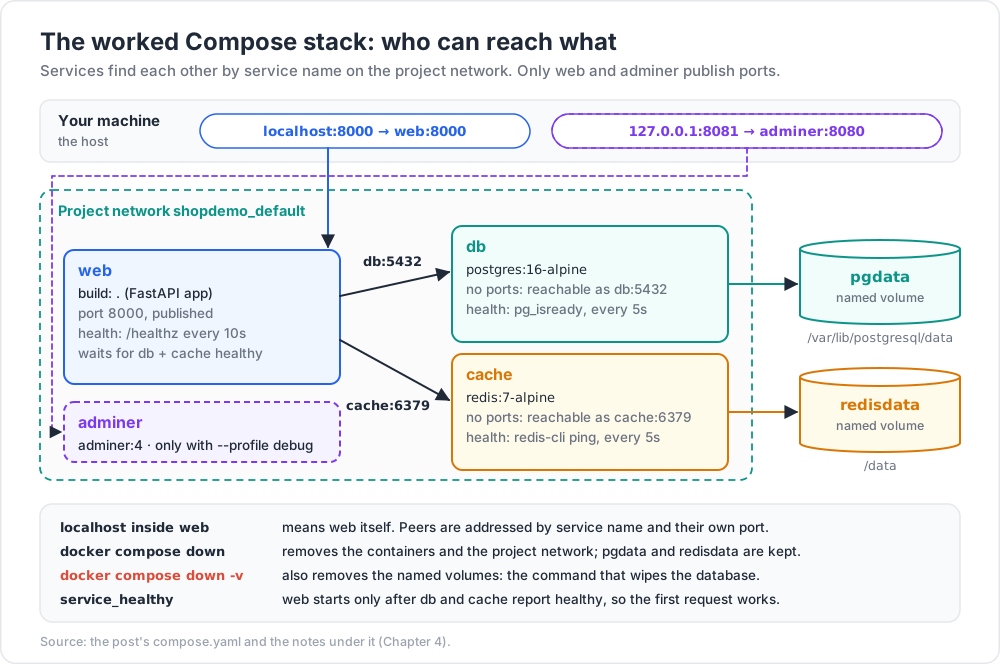
dbandcachepublish no ports — they are reachable atdb:5432andcache:6379from inside the project network only, andwebaddresses them by service name, never by IP orlocalhost.condition: service_healthymeans the first request afterupworks instead of racing PostgreSQL's startup. The data volumes are named, sodocker compose downis safe anddown -vis the explicit reset, and every password comes from the environment rather than the image./healthzis local and cheap while/readyzchecks dependencies — the distinction Kubernetes formalises as liveness vs readiness probes (Post 06).
Compose command reference
1
2
3
4
5
6
7
8
docker compose up -d --build # build if needed, start detached
docker compose ps / logs -f --tail=50 web / exec web sh
docker compose run --rm web pytest # one-off container, not the long-running one
docker compose pull / build --no-cache web / restart web / stop / start / down [-v]
docker compose config # render the fully-resolved file — best debugging tool
docker compose up -d --scale worker=3 # N replicas (only if the service publishes no fixed port)
docker compose watch # sync files / rebuild on change, for development
Trick:
docker compose configprints the file after interpolation, profile resolution, and merging of override files. When a variable "isn't being picked up", this is the command that tells you what Compose actually sees.
Practice Exercises
Exercise 1 — Prove the DNS difference
Start two containers on the default bridge and show that name resolution fails. Repeat on a user-defined network and show it succeeds. Then explain, using /etc/resolv.conf, why.
Solution
1
2
3
4
5
6
docker run -d --name a alpine sleep 600
docker run --rm alpine ping -c1 a # bad address 'a'
docker network create demo && docker run -d --name b --network demo alpine sleep 600
docker run --rm --network demo alpine ping -c1 b # works
docker run --rm --network demo alpine cat /etc/resolv.conf # nameserver 127.0.0.11
Exercise 2 — Publishing and exposure
Publish nginx on 8080 twice: once on all interfaces, once on loopback only. From another machine (or from ip addr's address on the same machine) confirm which is reachable. State the security implication in one sentence.
Exercise 3 — Destroy your data on purpose
Run PostgreSQL with a named volume, create a table, then in turn: docker rm -f the container, docker compose down, and docker compose down -v. Record after each step whether the table still exists.
Solution
1
2
3
4
5
6
7
docker compose up -d db
docker compose exec db psql -U app -d app -c 'CREATE TABLE t (x int); INSERT INTO t VALUES (1);'
q() { docker compose exec db psql -U app -d app -c 'SELECT * FROM t;'; }
docker compose rm -sf db && docker compose up -d db && q # still there
docker compose down && docker compose up -d db && q # still there
docker compose down -v && docker compose up -d db && q # ERROR: relation "t" does not exist
Only -v removes the named volume.
Exercise 4 — Fix a permission mismatch
Bind-mount an empty directory into node:22-alpine and run npm init -y as root; check the ownership on the host. Then repeat with -u "$(id -u):$(id -g)" and compare.
Solution
1
2
3
4
5
6
7
mkdir demo && cd demo
docker run --rm -v "$PWD":/app -w /app node:22-alpine npm init -y
ls -l package.json # root root — your editor cannot delete it
rm -f package.json
docker run --rm -u "$(id -u):$(id -g)" -v "$PWD":/app -w /app node:22-alpine npm init -y
ls -l package.json # your user
Exercise 5 — Health-gated startup
Remove the condition: service_healthy from the worked stack, run docker compose up from a cold start, and capture the web service's first log lines. Restore it and compare.
Exercise 6 — Log rotation and a new service
Set max-size/max-file for one service, verify with docker inspect, and find where the JSON log file lives on a Linux host. Then add a worker service that shares the web image, runs a different command, publishes no ports, and depends on both db and cache being healthy; scale it to three replicas and confirm with docker compose ps.
Cheat-sheet
| What | How |
|---|---|
| Create a network / attach a container | docker network create appnet / docker network connect appnet web |
| DNS by container name | requires a user-defined network (embedded DNS at 127.0.0.11) |
| Publish a port / show mappings | -p 8080:80 (-p 127.0.0.1:8080:80 for loopback only) / docker port web |
| Reach the host | host.docker.internal (Desktop); --add-host=host.docker.internal:host-gateway (Linux) |
Inside a container, localhost |
means that container — use the service name for peers |
| Named volume / bind mount / tmpfs | -v pgdata:/data; --mount type=bind,source="$PWD",target=/app; --tmpfs /tmp:rw,size=64m |
| Volume commands | docker volume inspect / prune; docker rm -v removes anonymous volumes only; docker compose down -v removes the project's named volumes |
| Bind-mount UID fix | -u "$(id -u):$(id -g)", or user: in Compose |
| Compose file | compose.yaml, no version: key, docker compose (v2) |
| Readiness / one-shot dependency | depends_on: {db: {condition: service_healthy}}; service_completed_successfully |
| Optional services | profiles: ["debug"] + --profile debug |
| Resolved configuration / logs | docker compose config; docker compose logs -f --tail=100 web |
| Cap log growth | logging.options.max-size and max-file, or /etc/docker/daemon.json |
| Resource limits / one-off command | deploy.resources.limits.{cpus,memory}; docker compose run --rm web pytest |
What's next
Post 03 follows the image out of your machine: Registries, Supply Chain and Security — how a registry stores manifests and content-addressed blobs, why tags are mutable and digests are not, multi-arch manifest lists, pushing to Docker Hub, GHCR, and ECR, vulnerability scanning with Trivy and Grype without drowning in CVE output, SBOMs, signing and provenance with cosign and Sigstore, runtime hardening (non-root, read-only root filesystem, dropped capabilities), and the secret-leak patterns that survive in image layers.
References
- Docker networking overview — drivers, embedded DNS, published ports.
- Docker storage: volumes, bind mounts, tmpfs — the authoritative comparison.
- Compose Specification and the Docker Compose documentation — the vendor-neutral spec, plus CLI, profiles,
depends_onconditions, and watch mode. - Configure logging drivers — rotation and alternative drivers; and The Twelve-Factor App: Config for the configuration-through-environment discipline.
postgresandredis— official image docs for the environment variables and data paths used above.
Note: this post is in progress. Planned additions:
docker compose watchdevelopment workflow in depth; a macvlan walkthrough for legacy LAN services; measured VirtioFS vs named-volume figures on Apple silicon.