Containers Course — 00 · Containers from First Principles
Containers are the packaging and isolation unit that most modern deployment runs on: CI pipelines, Kubernetes clusters, serverless container platforms, and local development environments all assume them. The trouble is that the popular one-line explanation — "a container is a lightweight VM" — is wrong in a way that produces bad decisions later, especially around security and state. This first post builds the correct model from the Linux primitives upward: a container is an ordinary process whose view of the system has been narrowed by namespaces, whose resource usage has been capped by cgroups, and whose root filesystem has been swapped for an image. Everything else in this course — Dockerfiles, Compose, registries, Kubernetes pods — is machinery layered on top of that one sentence.
Series map: 00 Containers from First Principles (this post) → 01 Images and Dockerfiles → 02 Networking, Volumes and Compose → 03 Registries, Supply Chain and Security → 04 Kubernetes Architecture and Core Objects → 05 Config, Storage and Stateful Workloads → 06 Scheduling, Resources, Probes and Rollouts → 07 Ingress, Observability, RBAC and GitOps.
Learning Outcome
- Define a container in terms of namespaces, cgroups, and a root filesystem — and state precisely where the "lightweight VM" analogy breaks.
- Name the Linux namespaces and what each one virtualises, and read a process's namespace set from
/proc. - Explain how cgroups v2 enforces CPU, memory, and I/O limits, and read those limits from inside a running container.
- Describe overlayfs and copy-on-write layering, and predict what happens to a file written inside a container.
- Compare containers and VMs on startup, density, and isolation, including the shared-kernel security caveat.
- Place the OCI specifications and the Docker CLI → dockerd → containerd → runc stack, and say where Podman fits.
- Install Docker on Linux, macOS, or Windows and run, inspect, and remove your first container.
Chapter 1 — What a container actually is
Terminology
- Container — a process (or small process tree) running on the host kernel with a restricted view of the system: its own namespaces, a cgroup limiting its resources, and a root filesystem taken from an image.
- Image — a read-only, layered filesystem plus metadata (entrypoint, environment, exposed ports). The template.
- Namespace — a kernel feature that gives a process a private instance of a global resource (process IDs, mounts, network stack, hostname, …).
- cgroup (control group) — a kernel mechanism that accounts for and limits a group of processes' CPU, memory, I/O, and process count.
- Container runtime — the software that turns an image plus a config into a running process. Low-level:
runc,crun. High-level:containerd,CRI-O. - Host kernel — the single Linux kernel that every container on a machine shares. There is no second kernel.
The one-sentence definition
On Linux, this is a container:
1
2
3
4
5
6
a normal process
+ namespaces (it sees a private PID space, mounts, network, hostname, …)
+ cgroup limits (it may use at most N CPUs, M bytes of RAM)
+ a root filesystem unpacked from an image (chroot-like, via overlayfs)
+ a security profile (dropped capabilities, seccomp filter, LSM labels)
Nothing is emulated. Nothing is virtualised in the hardware sense. docker run nginx results in an nginx process visible in the host's process table. Prove it on a Linux host:
1
2
3
4
5
6
docker run -d --name web nginx:1.27-alpine
pid=$(docker inspect -f '{{.State.Pid}}' web)
ps -o pid,ppid,comm -p "$pid" # the container's PID 1, as seen by the host
sudo ls -l /proc/$pid/ns # the namespaces it was placed into
sudo cat /proc/$pid/cgroup # the cgroup it was placed into
Inside the container that same process believes it is PID 1. Outside, it is just another entry in ps aux. Both views are true; they differ only by namespace.
Where "lightweight VM" fails
The analogy is seductive because both give you "a box that looks like its own machine". It fails on four concrete points, and every one of them bites in production:
- There is no guest kernel. A VM boots its own kernel on virtual hardware. A container calls the host's kernel directly. A kernel panic, a kernel CVE, or a
sysctlthat must differ per workload is therefore not isolated by a container. - There is no boot. A VM boots firmware → bootloader → kernel → init → services, in seconds to a minute. A container is
clone()+execve()in milliseconds. That is why "one container per process" is normal and "one VM per process" is absurd. - The isolation boundary is a kernel API surface, not a hardware boundary. A VM escape requires defeating the hypervisor's narrow virtual-device interface. A container escape requires defeating one of 300-plus syscalls, plus every cgroup, namespace, and filesystem interface the kernel exposes. The attack surface is orders of magnitude wider.
- The filesystem is layered and disposable by default. A VM has a disk that persists. A container's writable layer is thrown away with
docker rmunless you explicitly mount a volume. Treating a container like a small server — SSH in, edit a config, restart — loses your edit the moment the container is replaced.
Watch out: the fourth point is the most common beginner failure. Anything a container writes that is not on a mounted volume is temporary storage attached to that container instance, not to the image and not to the service.
Images vs containers — classes and instances
If you know object-oriented programming, this mapping is exact enough to use:
| OOP | Containers | Notes |
|---|---|---|
| Class | Image | Immutable definition, versioned, shared. |
| Instance | Container | Created from an image, has its own state and lifetime. |
| Constructor arguments | docker run flags, env vars, mounts |
Same image, different behaviour per instance. |
| Static/shared data | Image layers | Shared read-only across every container from that image. |
| Instance fields | The container's writable layer | Discarded with the instance. |
One image, a hundred containers: the read-only layers exist once on disk and once in page cache. Only each container's thin writable layer is private. That is the density story, and it is a filesystem property, not a virtualisation one.
Chapter 2 — The Linux primitives
Terminology
clone(2)— the syscall that creates a process; namespace flags such asCLONE_NEWPIDdecide which namespaces the child gets fresh.unshare(1)/unshare(2)— move the current process into new namespaces without creating a container runtime.- Copy-on-write (CoW) — a write to a shared read-only file first copies it into a private layer, then modifies the copy.
- Capability — one slice of root's power (e.g.
CAP_NET_BIND_SERVICE= bind ports below 1024), grantable independently. - seccomp — a kernel filter that decides, per syscall, whether a process may make that call.
Namespaces
Each namespace virtualises exactly one global resource.
| Namespace | Flag | Virtualises | Visible effect |
|---|---|---|---|
| pid | CLONE_NEWPID |
process IDs | the container's first process is PID 1; it cannot see host PIDs |
| net | CLONE_NEWNET |
interfaces, routes, iptables, sockets | its own lo, its own eth0, its own port space |
| mnt | CLONE_NEWNS |
mount table | its own /, its own /proc, host mounts hidden |
| uts | CLONE_NEWUTS |
hostname, domainname | hostname returns the container ID by default |
| ipc | CLONE_NEWIPC |
System V IPC, POSIX message queues | shared memory segments are not shared with the host |
| user | CLONE_NEWUSER |
UID/GID mappings | UID 0 inside can map to an unprivileged UID outside |
| cgroup | CLONE_NEWCGROUP |
the cgroup hierarchy root | /sys/fs/cgroup shows the container's own root, not the host's |
| time | CLONE_NEWTIME |
boot/monotonic clock offsets (Linux 5.6+) | rarely used by container runtimes today |
Build one by hand — no Docker involved:
1
2
3
4
5
# a "container" with its own PID and mount namespace
sudo unshare --pid --fork --mount --mount-proc /bin/bash
ps aux # only bash and ps: you are PID 1 in a new PID namespace
exit
Read the namespace identity of any process; two processes in the same namespace share the same inode number:
1
2
3
4
readlink /proc/$$/ns/pid # your shell, e.g. pid:[4026531836]
docker run -d --name web nginx:1.27-alpine
sudo readlink /proc/$(docker inspect -f '{{.State.Pid}}' web)/ns/pid
The user namespace is the one that changes the security story: with it, a process can be UID 0 inside while being an unprivileged UID outside. That is what makes rootless containers (rootless Docker, Podman's default) possible.
cgroups v2
cgroups v1 had one hierarchy per controller and a pile of inconsistencies. cgroups v2 (the unified hierarchy) is the default on all current mainstream distributions and is what Kubernetes and Docker assume today. Controllers you will actually meet:
| Controller | Key files | What it does |
|---|---|---|
cpu |
cpu.max, cpu.weight |
bandwidth cap (quota period in µs) and relative share |
memory |
memory.max, memory.high, memory.current |
hard limit (OOM kill), soft throttle limit, live usage |
io |
io.max, io.stat |
per-device IOPS and bandwidth caps |
pids |
pids.max |
fork-bomb protection |
Read the limits from inside a container — with cgroup namespaces the container sees its own cgroup root:
1
2
3
4
5
docker run --rm --memory=256m --cpus=0.5 alpine \
sh -c 'cat /sys/fs/cgroup/memory.max; cat /sys/fs/cgroup/cpu.max'
# 268435456
# 50000 100000 → 50 ms of CPU per 100 ms period = 0.5 CPU
Two behaviours to internalise now, because they reappear in Kubernetes (Post 06):
- Memory over the limit = the kernel OOM-kills the process (exit code 137). It is not paged out, it is not throttled, it is killed.
- CPU over the limit = throttling, not killing. The process is simply not scheduled for the rest of the period, which shows up as latency, not as a crash.
Common pitfall: language runtimes that read
/proc/cpuinfoor host memory instead of the cgroup limit will size their thread pools and heaps for the whole machine. Modern JVMs (UseContainerSupport, on by default since JDK 10) and Go 1.25's cgroup-awareGOMAXPROCShandle this; older runtimes and many libraries do not.
overlayfs and copy-on-write layers
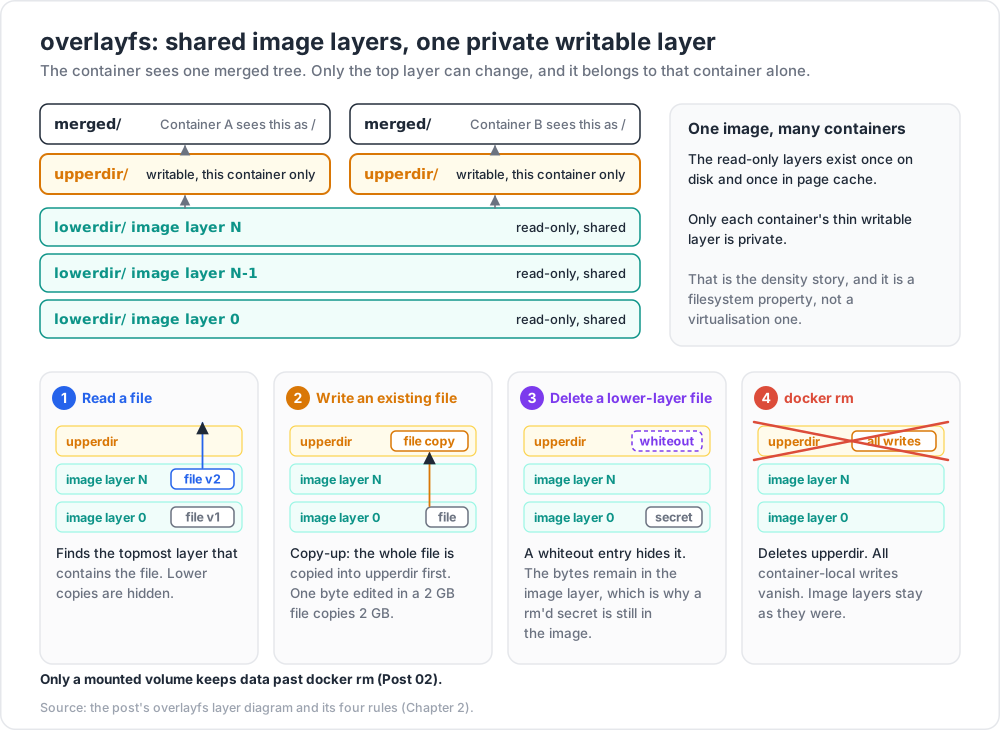
An image is a stack of read-only directories. overlayfs presents them, plus one writable directory, as a single tree:
1
2
3
4
5
6
7
merged/ ← what the container sees as /
▲
├── upperdir/ writable layer (this container only)
├── lowerdir/ image layer N (read-only, shared)
├── lowerdir/ image layer N-1 (read-only, shared)
└── lowerdir/ image layer 0 (read-only, shared)
Rules that follow directly from that structure:
- Reading a file finds the topmost layer that contains it.
- Writing an existing file triggers a copy-up: the whole file is copied into
upperdirfirst. Editing one byte of a 2 GB file copies 2 GB. - Deleting a file from a lower layer creates a whiteout entry in
upperdir. The bytes remain in the image layer — which is exactly why a secret added in one Dockerfile layer andrm'd in the next is still in the image (Post 03). docker rmdeletesupperdir. All container-local writes vanish.
Inspect the layer chain of a running container:
1
2
docker inspect -f '{{json .GraphDriver.Data}}' web | tr ',' '\n'
Trick: because copy-up is per-file and whole-file, databases and other write-heavy workloads should always write to a volume, not to the writable layer. You get both better performance and persistence. Post 02 covers volumes properly.
Capabilities and seccomp — the introductory version
Traditional UNIX has a binary answer to "are you root?". Linux splits root's power into ~40 capabilities, so a process can bind port 80 (CAP_NET_BIND_SERVICE) without also being able to load kernel modules (CAP_SYS_MODULE).
A container started by Docker does not get full root even when it runs as UID 0. The daemon drops all but a small default set (CHOWN, DAC_OVERRIDE, FOWNER, FSETID, KILL, SETGID, SETUID, SETPCAP, NET_BIND_SERVICE, NET_RAW, SYS_CHROOT, MKNOD, AUDIT_WRITE, SETFCAP). Tighten it:
1
2
3
# drop everything, add back only what the app needs
docker run --cap-drop=ALL --cap-add=NET_BIND_SERVICE nginx:1.27-alpine
seccomp filters syscalls. Docker applies a default profile that blocks roughly 40 of the 300-plus syscalls — things like mount, reboot, kexec_load, and old clone flags — with no measurable cost for typical applications.
1
2
3
# see what happens without it (do NOT do this in production)
docker run --rm --security-opt seccomp=unconfined alpine echo hi
Add AppArmor (Debian/Ubuntu) or SELinux (Fedora/RHEL) labels on top, and you have the four layers of the runtime sandbox: namespaces (what you can see), cgroups (how much you can use), capabilities + seccomp (what you can ask the kernel to do), LSM (what the policy engine permits). Post 03 turns all of this into a hardening checklist.
Chapter 3 — Containers vs VMs, honestly
| Dimension | Container | Virtual machine |
|---|---|---|
| Kernel | shares the host kernel | own guest kernel |
| Boot/start | milliseconds (clone + execve) |
seconds to a minute (firmware → kernel → init) |
| Image size | tens of MB typical | hundreds of MB to GB |
| Density per host | hundreds | tens |
| Memory overhead | ~the process itself | guest kernel + guest services, per VM |
| Isolation boundary | kernel syscall/namespace surface | hypervisor + virtual hardware |
| Different OS kernel | no (Linux containers need a Linux kernel) | yes (any guest OS) |
Custom sysctl/kernel module |
mostly no — shared kernel | yes |
| Live migration | not a native concept | mature |
| Best at | packaging and scaling application processes | multi-tenant isolation, OS diversity, kernel-level work |
The security caveat, stated plainly
A shared kernel is a shared attack surface. Container isolation is enforced by the same kernel that a compromised container is talking to. A kernel privilege-escalation bug that a container can reach is, in the worst case, a host compromise — and from the host, every other container on that machine. VM escapes exist too, but the interface an attacker must break is far narrower.
Practical consequences:
- Do not treat containers as a hard multi-tenant boundary for untrusted code. Running arbitrary customer code? Put a VM or a sandboxed runtime (gVisor, Kata Containers, Firecracker microVMs) around it.
--privilegeddisables almost every layer described above (capabilities, device restrictions, and typically seccomp). It converts "isolated process" into "root on the host with extra steps". Post 03 covers the alternatives.- Mounting
/var/run/docker.sockinto a container is equivalent to granting root on the host: whoever can talk to the daemon can start a privileged container mounting/. - Patch the host kernel. No amount of rebuilding your images fixes a host kernel CVE.
Watch out: "containers are more secure than VMs" and "containers are insecure" are both marketing. The accurate statement is: containers give strong workload isolation with a wide kernel attack surface; use them for your own code, and add a VM boundary when the tenant is untrusted.
Chapter 4 — OCI specs and the runtime stack
Terminology
- OCI (Open Container Initiative) — the Linux Foundation body that standardised container formats, so images are not a Docker-only artifact.
- Image spec — how an image is laid out: a manifest, a config JSON, and content-addressed layer blobs.
- Runtime spec — how a runtime turns an unpacked filesystem bundle plus a
config.jsoninto a running process. - Distribution spec — the HTTP API registries speak (
/v2/...) for pushing and pulling those blobs. - CRI (Container Runtime Interface) — the gRPC API Kubernetes uses to talk to a runtime. Not an OCI spec; it sits above one.
Because of these specs, an image built by Docker's BuildKit runs unchanged under containerd, CRI-O, or Podman, and can be stored in Docker Hub, GHCR, ECR, Harbor, or a plain object store fronted by a registry.
The stack, top to bottom
1
2
3
4
5
6
7
8
9
10
11
12
docker CLI you type `docker run`
│ REST over /var/run/docker.sock
dockerd Docker Engine daemon: builds, networks, volumes, API
│ gRPC
containerd image pull, snapshot (overlayfs) management, container lifecycle
│ fork/exec
containerd-shim one per container; keeps it alive across daemon restarts, reaps exit codes
│ exec
runc sets up namespaces/cgroups/seccomp, then execve()s your process
│
your process PID 1 inside the container
runc is a short-lived program: it configures the sandbox, starts the process, and exits. The shim, not the daemon, is the process's parent — which is why systemctl restart docker does not kill running containers on a modern Engine.
Kubernetes (Post 04) removes the top two layers entirely: the kubelet talks CRI to containerd (or CRI-O) directly. This is the whole content of the December 2020 "Kubernetes deprecates Docker" story (dockershim was deprecated in 1.20 and removed in 1.24, in 2022) — the image format never changed, only the shim Kubernetes used to reach the runtime.
Where Podman fits
| Docker | Podman | |
|---|---|---|
| Architecture | client → long-running root daemon | daemonless; the CLI forks the runtime directly |
| Default user | root daemon (the docker group ≈ root) |
rootless by default via user namespaces |
| Per-container supervisor | containerd-shim |
conmon |
| Low-level runtime | runc |
crun (default on most distros) or runc |
| Compose | docker compose (v2, built in) |
podman compose / podman-compose |
| Kubernetes affinity | — | podman generate kube, podman play kube, native pod concept |
| CLI | docker ... |
podman ... — deliberately argument-compatible |
Podman's pods (a group of containers sharing a network namespace) are the same idea Kubernetes calls a Pod, which makes Podman a pleasant local mirror of cluster semantics. Everything in this course works with alias docker=podman except a handful of daemon-specific commands; where they differ, the post says so.
Chapter 5 — Installing Docker, and what "Docker on macOS" really means
Linux — Docker Engine (the real thing)
Debian/Ubuntu, using the official repository rather than the distro package:
1
2
3
4
5
6
7
8
9
10
11
12
13
14
15
16
17
18
19
20
# 1. remove distro packages that conflict
sudo apt remove -y docker docker-engine docker.io containerd runc
# 2. add Docker's repository (see docs.docker.com for the current key steps)
sudo apt update && sudo apt install -y ca-certificates curl gnupg
sudo install -m 0755 -d /etc/apt/keyrings
curl -fsSL https://download.docker.com/linux/ubuntu/gpg \
| sudo gpg --dearmor -o /etc/apt/keyrings/docker.gpg
echo "deb [arch=$(dpkg --print-architecture) signed-by=/etc/apt/keyrings/docker.gpg] \
https://download.docker.com/linux/ubuntu $(. /etc/os-release && echo $VERSION_CODENAME) stable" \
| sudo tee /etc/apt/sources.list.d/docker.list
# 3. install engine + CLI + Compose v2 + BuildKit
sudo apt update
sudo apt install -y docker-ce docker-ce-cli containerd.io \
docker-buildx-plugin docker-compose-plugin
# 4. verify
sudo docker run --rm hello-world
To use docker without sudo:
1
2
sudo usermod -aG docker "$USER" # then log out and back in
Watch out: membership of the
dockergroup is equivalent to root on that host, because any member can start a privileged container that mounts/. On a shared or production machine, prefer rootless mode or Podman.
macOS and Windows — there is a Linux VM under there
Linux containers need a Linux kernel. macOS and Windows do not have one, so Docker Desktop ships a small Linux VM and runs the engine inside it:
| Host | Mechanism | Notes |
|---|---|---|
| macOS | Apple Virtualization framework (or the older HyperKit) running a Linux VM | file sharing via VirtioFS by default in current Desktop versions |
| Windows (recommended) | WSL2 — a real Linux kernel in a lightweight utility VM | Docker Desktop integrates with your WSL2 distros |
| Windows (legacy) | Hyper-V backend | slower start, more memory pinned |
| Windows containers | native Windows kernel isolation, on Windows hosts only | separate image ecosystem (mcr.microsoft.com/windows/...) |
Consequences you will feel every day:
- The "host" your container sees is the VM, not your laptop. A port published with
-p 8080:80is forwarded by Docker Desktop from the VM to your machine, which is why it still works — but a container reaching your laptop's other services must usehost.docker.internal, notlocalhost(Post 02). - Bind mounts cross a filesystem boundary and are slow. Every
read()on a mounted source tree traverses VirtioFS/9p into the VM. Node'snode_modules, Python's site-packages, and large monorepo builds are the usual victims. Keeping dependencies in a named volume or inside the image instead of a bind mount typically restores most of the speed. - On Windows, keep your code inside the WSL2 filesystem (
\\wsl$\Ubuntu\home\you\project), not onC:\. Crossing the Windows/Linux filesystem boundary is the single largest performance cliff in the WSL2 setup. - CPU/memory are the VM's, not the machine's. Docker Desktop's resource sliders cap what any container can use.
Measure it on your own machine rather than trusting a number from a blog post:
1
2
3
4
5
6
# rough bind-mount read throughput vs image-internal read throughput
mkdir -p /tmp/bmtest && dd if=/dev/urandom of=/tmp/bmtest/blob bs=1M count=256
docker run --rm -v /tmp/bmtest:/data alpine sh -c 'time cat /data/blob > /dev/null'
docker run --rm -v bmvol:/data alpine sh -c \
'dd if=/dev/urandom of=/data/blob bs=1M count=256 >/dev/null 2>&1; time cat /data/blob > /dev/null'
On a native Linux host the two numbers are close. On macOS or Windows with a bind mount they usually are not.
Chapter 6 — First commands
The lifecycle
1
2
3
4
5
6
7
8
9
docker pull ──► image on disk
│ docker run (= create + start)
▼
[created] ──start──► [running] ──stop──► [exited] ──rm──► gone
│ ▲ │
pause│ │unpause │ start
▼ │ ▼
[paused] [running]
The commands you need on day one
| Task | Command |
|---|---|
| Run interactively, delete on exit | docker run --rm -it alpine sh |
| Run detached with a name and port | docker run -d --name web -p 8080:80 nginx:1.27-alpine |
| List running containers | docker ps |
| List all containers, including exited | docker ps -a |
| Follow logs | docker logs -f web |
| Last 50 log lines with timestamps | docker logs --tail 50 -t web |
| Shell into a running container | docker exec -it web sh |
| Run a one-off command inside it | docker exec web nginx -v |
| Stop (SIGTERM, then SIGKILL after 10 s) | docker stop web |
| Kill immediately | docker kill web |
| Remove a stopped container | docker rm web |
| Stop and remove in one step | docker rm -f web |
| Live resource usage | docker stats |
| Inspect full config as JSON | docker inspect web |
| Processes inside the container | docker top web |
| Copy a file out | docker cp web:/etc/nginx/nginx.conf ./ |
| List images | docker images |
| Reclaim space | docker system df then docker system prune |
A five-minute walkthrough
1
2
3
4
5
6
7
8
9
10
11
12
13
14
15
16
17
18
19
20
21
docker run -d --name web -p 8080:80 nginx:1.27-alpine
curl -s localhost:8080 | head -3
docker logs web # the access log line you just generated
docker exec -it web sh
# inside:
hostname # the container ID — uts namespace
ps aux # nginx is PID 1 — pid namespace
cat /sys/fs/cgroup/memory.max # cgroup limit ("max" if none set)
ip addr # its own eth0 — net namespace
echo "scratch" > /tmp/note.txt
exit
docker stop web && docker start web
docker exec web cat /tmp/note.txt # still there: same container, same writable layer
docker rm -f web
docker run -d --name web -p 8080:80 nginx:1.27-alpine
docker exec web cat /tmp/note.txt # gone: new container, new writable layer
docker rm -f web
That last pair of commands is the whole persistence lesson: the writable layer belongs to the container instance, not to the image and not to the name.
Trick:
--rmon every exploratorydocker runkeeps your machine clean. Reserve un---rm'd containers for things you actually intend to restart, and rundocker system dfweekly — stopped containers, dangling images, and orphaned volumes add up to tens of GB surprisingly fast.
Practice Exercises
Exercise 1 — Build a container by hand
Without Docker, on a Linux host, create a process with its own PID, UTS, and mount namespaces, confirm it sees itself as PID 1, and give it the hostname handmade.
Solution
1
2
3
4
5
6
7
8
sudo unshare --pid --fork --mount --uts --mount-proc /bin/bash
hostname handmade
hostname # handmade
ps aux # only bash and ps
echo $$ # 1
exit
# back on the host, the hostname is unchanged — that is the uts namespace
Exercise 2 — Prove the shared kernel
Run uname -r on your Linux host and inside three containers built from different distributions (alpine, debian, fedora). Explain the result in one sentence.
Solution
1
2
3
4
5
6
7
uname -r
docker run --rm alpine uname -r
docker run --rm debian:12 uname -r
docker run --rm fedora:40 uname -r
# All four print the same kernel version: the images supply userspace only.
# The distribution differences are libc, package manager, and file layout — not the kernel.
Exercise 3 — Watch a cgroup limit take effect
Start a container with --memory=64m and make it allocate more than that. Record the exit code and explain it.
Solution
1
2
3
4
docker run --rm --memory=64m python:3.12-alpine \
python -c 'x = bytearray(256 * 1024 * 1024)'
echo $? # 137 = 128 + 9 (SIGKILL): the kernel OOM killer enforced memory.max
Compare with a CPU limit, which throttles instead of killing:
1
2
time docker run --rm --cpus=0.25 alpine sh -c 'i=0; while [ $i -lt 3000000 ]; do i=$((i+1)); done'
Exercise 4 — Namespace archaeology
Start nginx detached. Using only host-side tools (ps, /proc, readlink), find its host PID, list the eight namespaces it belongs to (seven on kernels older than 5.6, which have no time namespace), and confirm that its PID namespace inode differs from your shell's.
Exercise 5 — The disappearing file
Reproduce the writable-layer lesson: write a file inside a container, restart the container, confirm the file survives; then remove and recreate the container from the same image and confirm the file is gone. Write one sentence explaining which layer held the file.
Exercise 6 — Measure your own bind-mount penalty
Using the dd + cat pair from Chapter 5, measure read throughput from a bind mount and from a named volume on your machine. Record both numbers and your platform. If you are on Linux, note how close they are; on macOS or Windows, note the gap.
Exercise 7 — Capability probe
Run alpine normally and with --cap-drop=ALL, and in each case try chown nobody /etc/hostname. Explain which capability the failure corresponds to.
Cheat-sheet
| What | How |
|---|---|
| Definition of a container | process + namespaces + cgroups + image rootfs + security profile |
| Namespaces list | pid, net, mnt, uts, ipc, user, cgroup (+ time, 5.6+) |
| See a process's namespaces | sudo ls -l /proc/<pid>/ns |
| Make namespaces by hand | sudo unshare --pid --fork --mount-proc /bin/bash |
| cgroup v2 memory limit | --memory=256m → /sys/fs/cgroup/memory.max |
| cgroup v2 CPU limit | --cpus=0.5 → cpu.max = 50000 100000 |
| Over memory limit | OOM kill, exit code 137 |
| Over CPU limit | throttled, not killed |
| Image layers | read-only overlayfs lowerdirs, shared between containers |
| Container writes | copy-up into a private upperdir, deleted with the container |
| OCI specs | image-spec, runtime-spec, distribution-spec |
| Runtime stack | docker → dockerd → containerd → containerd-shim → runc |
| Kubernetes path | kubelet → CRI → containerd/CRI-O → runc |
| Podman | daemonless, rootless by default, conmon + crun |
| Run and clean up | docker run --rm -it <image> sh |
| Detached with port | docker run -d -p 8080:80 --name web <image> |
| Logs / exec / stop / rm | docker logs -f, docker exec -it … sh, docker stop, docker rm -f |
| Disk usage / cleanup | docker system df, docker system prune |
| Docker group warning | docker group ≈ root on that host |
| macOS/Windows reality | a Linux VM; bind mounts cross a filesystem boundary |
What's next
Post 01 moves from running other people's images to building your own: Images and Dockerfiles — the layer/manifest/config anatomy of an image, every meaningful Dockerfile instruction with its exact semantics, build-cache mechanics and the instruction ordering that makes rebuilds fast, .dockerignore, multi-stage builds for Node and Python, base-image choice, BuildKit cache and secret mounts, and measured image-size reduction you can reproduce.
References
- Docker documentation — installation, Engine, CLI reference.
- Open Container Initiative — image, runtime, and distribution specifications.
runcandcontainerd— the reference low-level and high-level runtimes.- Linux
namespaces(7),cgroups(7),capabilities(7)— the authoritative primitive documentation. - Linux kernel: control group v2 — the unified hierarchy in detail.
- Linux kernel: overlayfs — layering and copy-up semantics.
- Podman — daemonless, rootless alternative with a compatible CLI.
- Docker rootless mode — running the daemon without root.
Note: this post is in progress. Planned additions: a from-scratch
runcbundle walkthrough usingrunc spec; a diagram of the overlayfs copy-up path; notes on gVisor and Kata Containers as sandboxed runtimes.