Three.js Course — 02 · Cameras, Controls, and Coordinate Systems
Camera defines what the user sees; controls let them navigate. Three.js ships several of each, and the right choice depends on the experience you want — a product viewer (OrbitControls), a first-person walker (PointerLockControls), a top-down map (MapControls), or a CAD-style turntable (TrackballControls). This post covers the camera types, the built-in controls, how the coordinate system works, and the most useful camera utilities (lookAt, frustum culling, raycasting from screen, helper visualisations).
Series map: 00 Foundations → 01 Geometry & Materials → 02 Cameras & Controls (this post) → 03 Lighting & Shadows → 04 Textures & PBR → 05 Asset Pipeline → 06 Animation → 07 Instancing & Batching → 08 Low-End Perf → 09 Shaders → 10 Post-Processing → 11 Physics → 12 R3F → 13 AI 3D.
Learning Outcome
- Choose between
PerspectiveCameraandOrthographicCamera. - Tune FOV, near, far planes correctly.
- Use
OrbitControls,MapControls,PointerLockControls,TrackballControls,ArcballControls,FirstPersonControls,FlyControls. - Manipulate position + lookAt in world and local space.
- Use helpers (
CameraHelper,AxesHelper,GridHelper) for debugging. - Pick objects with a
Raycasterfrom a mouse click.
Chapter 1 — Coordinate system + units
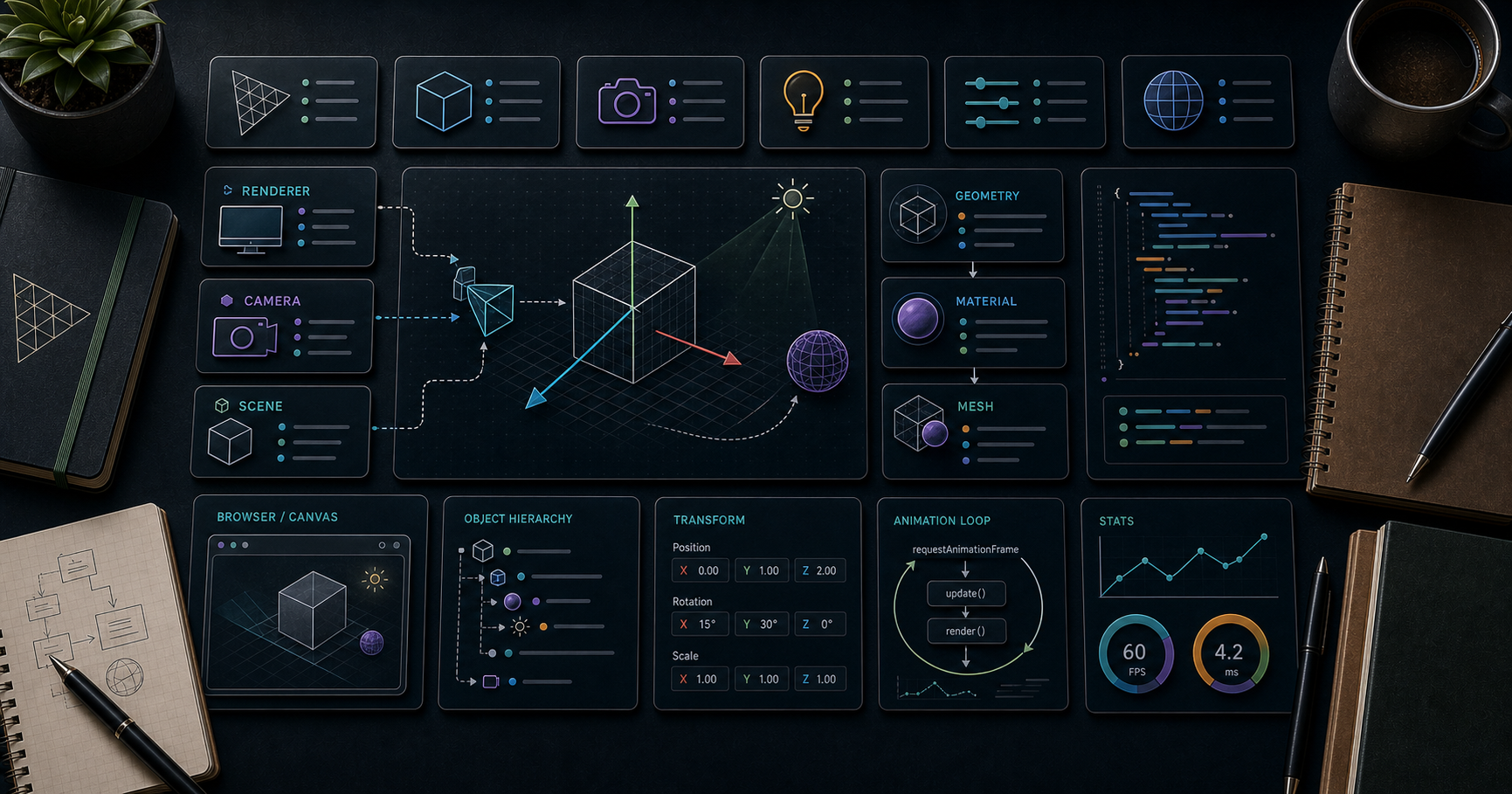
Three.js uses a right-handed coordinate system with Y-up:
1
2
3
4
5
6
7
8       +Y (up)
        │
        │
        └────── +X (right)
       /
      /
    +Z (towards viewer)
- Units are arbitrary — pick one (often metres for physics-friendly scenes) and stay consistent.
- Default camera sits at the origin looking down
-Z. - A
BoxGeometry(1, 1, 1)is centred at the local origin, sides of length 1.
Trick: mismatched scales across imported assets (one in mm, one in m, one in inches) is the #1 "why is my model invisible / dust-sized" bug. Standardise the unit before importing. Most exporters offer a scale factor.
Chapter 2 — PerspectiveCamera
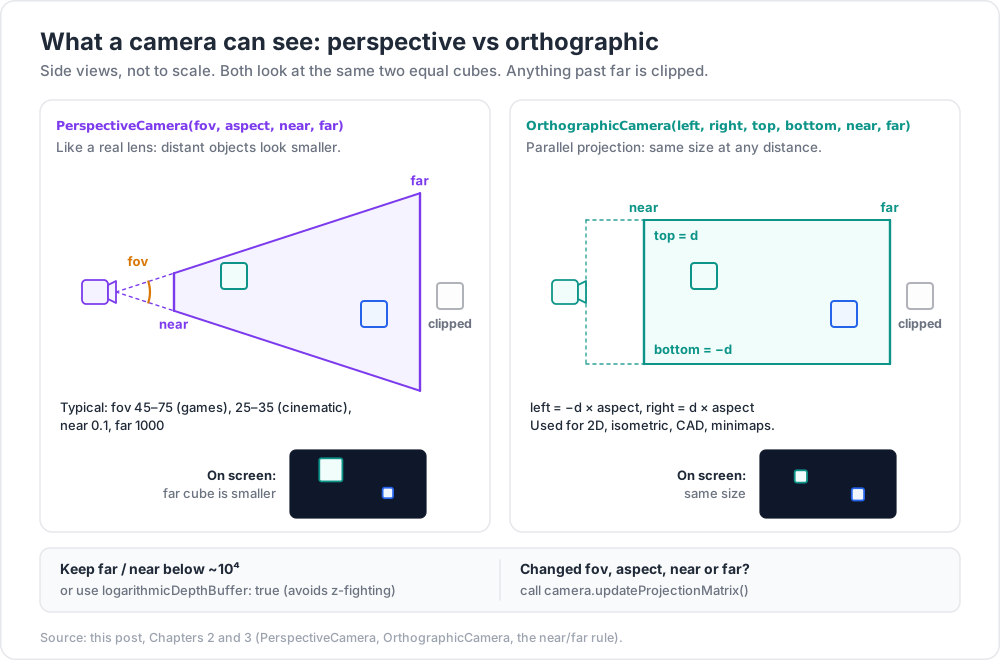
Mimics a real lens: distant objects appear smaller, parallel lines converge.
1
2
3
4
5
6
7
const camera = new THREE.PerspectiveCamera(
fov, // vertical field of view in degrees (typical 35-75)
aspect, // canvas width / height
near, // near clip plane (must be > 0)
far // far clip plane
);
| Knob | Effect | Typical |
|---|---|---|
fov |
wider = more in frame, more "fish-eye" feel | 45-75 game; 25-35 cinematic |
aspect |
match canvas size | w/h |
near |
nearer than this is clipped | 0.1 (units of metres ≈ 10 cm) |
far |
further than this is clipped | 1000 |
The near/far depth problem
Depth buffer precision is non-linear — most precision is packed near the camera. A huge far / near ratio (e.g., 0.001 / 10000 = 10⁷) causes z-fighting (flickering coplanar surfaces).
Rule: keep far / near < ~10⁴. If your scene needs both centimetre detail and kilometres of distance, use a logarithmic depth buffer: new THREE.WebGLRenderer({ logarithmicDepthBuffer: true }).
Update after change
Every time you change fov, aspect, near, or far:
1
2
camera.updateProjectionMatrix();
Chapter 3 — OrthographicCamera
Parallel projection — no perspective foreshortening. Used for 2D / isometric / CAD / minimaps.
1
2
3
4
const camera = new THREE.OrthographicCamera(
left, right, top, bottom, near, far
);
To keep things sized correctly with the window, derive from the aspect ratio:
1
2
3
4
5
6
const aspect = innerWidth / innerHeight;
const d = 10; // view height in world units
const camera = new THREE.OrthographicCamera(
-d * aspect, d * aspect, d, -d, 0.1, 1000
);
On resize:
1
2
3
4
5
6
camera.left = -d * aspect;
camera.right = d * aspect;
camera.top = d;
camera.bottom = -d;
camera.updateProjectionMatrix();
Chapter 4 — lookAt + position
1
2
3
camera.position.set(5, 5, 5);
camera.lookAt(0, 0, 0); // target in world space
lookAt orients the camera; it doesn't move it. Call after setting position.
To follow a moving target every frame:
1
2
3
4
5
renderer.setAnimationLoop(() => {
camera.lookAt(player.position);
renderer.render(scene, camera);
});
For smooth chase cameras, lerp position + lookAt:
1
2
3
camera.position.lerp(desiredPos, 0.1);
camera.lookAt(desiredLookAt);
Chapter 5 — Built-in controls
All controls live at three/addons/controls/* and need the camera + the canvas DOM element.
| Controls | Feel | Typical use |
|---|---|---|
OrbitControls |
orbit a target, dolly with scroll, pan with right-click | product viewers, scene exploration |
MapControls |
OrbitControls tuned for top-down maps — left-click pans | maps, terrain, 2.5D dashboards |
TrackballControls |
free orbit, no up-axis lock | CAD, scientific visualisation |
ArcballControls |
trackball with gizmo on screen | precise manipulation |
PointerLockControls |
first-person mouse-look (locks pointer) | FPS games, walk-throughs |
FirstPersonControls |
WASD + mouse, no pointer lock | exploratory scenes |
FlyControls |
6-DoF flight | space scenes |
TransformControls |
gizmo to translate/rotate/scale objects | editors, level builders |
DragControls |
click-drag objects across the screen plane | UI, prototypes |
OrbitControls (the everyday default)
1
2
3
4
5
6
7
8
9
10
11
12
13
14
import { OrbitControls } from 'three/addons/controls/OrbitControls.js';
const controls = new OrbitControls(camera, renderer.domElement);
controls.enableDamping = true; // smooth inertia
controls.dampingFactor = 0.05;
controls.minDistance = 1;
controls.maxDistance = 50;
controls.maxPolarAngle = Math.PI * 0.49; // don't let user look from below ground
renderer.setAnimationLoop(() => {
controls.update(); // required when damping or autoRotate
renderer.render(scene, camera);
});
controls.target.set(x, y, z) repositions the orbit pivot. Useful to keep focus on a model whose centre is not at the origin.
PointerLockControls (FPS)
1
2
3
4
5
import { PointerLockControls } from 'three/addons/controls/PointerLockControls.js';
const controls = new PointerLockControls(camera, document.body);
document.body.addEventListener('click', () => controls.lock());
On Escape, the browser unlocks the pointer automatically. Combine with custom WASD logic to walk.
Chapter 6 — Helpers
For learning + debugging, the helpers visualise invisible state:
1
2
3
4
5
6
scene.add(new THREE.AxesHelper(2)); // RGB = XYZ axes at origin
scene.add(new THREE.GridHelper(20, 20)); // 20×20 unit grid on XZ plane
scene.add(new THREE.CameraHelper(otherCamera)); // draws the frustum of another camera
scene.add(new THREE.DirectionalLightHelper(light)); // gizmo for a light
scene.add(new THREE.BoxHelper(mesh, 0xffff00)); // bounding box outline
Strip these in production builds — they cost draw calls + memory.
Chapter 7 — Raycasting (picking objects)
To know what's under the mouse:
1
2
3
4
5
6
7
8
9
10
11
12
13
14
15
16
17
const raycaster = new THREE.Raycaster();
const pointer = new THREE.Vector2();
renderer.domElement.addEventListener('pointermove', (e) => {
pointer.x = (e.clientX / innerWidth) * 2 - 1;
pointer.y = -(e.clientY / innerHeight) * 2 + 1;
});
renderer.setAnimationLoop(() => {
raycaster.setFromCamera(pointer, camera);
const hits = raycaster.intersectObjects(scene.children, true); // recursive
if (hits.length) {
hits[0].object.material.color.set(0xff0000);
}
renderer.render(scene, camera);
});
Performance tips for raycasting
intersectObjects(...)walks every triangle by default — slow with > 10k tris.- For large scenes, use a BVH (Bounding Volume Hierarchy): the three-mesh-bvh library accelerates raycasts up to 100× and reuses the BVH per geometry.
- For purely UI hit-tests over flat icons, raycast against a low-poly invisible proxy mesh, not the full visual model.
Chapter 8 — Cameras inside a scene graph
A camera is an Object3D. You can add it to a group and the group's transforms cascade:
1
2
3
4
5
6
7
8
const rig = new THREE.Group();
rig.position.set(0, 1.6, 0); // head height
rig.add(camera);
scene.add(rig);
// move the rig — camera moves with it
rig.position.x += 0.1;
Useful for: FPS character rigs (move rig for body, rotate camera for look), AR camera mounts, cinematic camera tracks.
Chapter 9 — Multiple viewports
Render two views in one canvas (mini-map, picture-in-picture):
1
2
3
4
5
6
7
8
9
10
11
12
13
function render() {
// main view — full canvas
renderer.setViewport(0, 0, innerWidth, innerHeight);
renderer.setScissor(0, 0, innerWidth, innerHeight);
renderer.setScissorTest(true);
renderer.render(scene, mainCamera);
// mini-map — top-right corner 200×200
renderer.setViewport(innerWidth - 210, innerHeight - 210, 200, 200);
renderer.setScissor(innerWidth - 210, innerHeight - 210, 200, 200);
renderer.render(scene, mapCamera);
}
Each viewport gets its own camera but shares the scene.
Practice Exercises
Exercise 1 — OrbitControls + helpers
Scene with a cube, OrbitControls, AxesHelper, GridHelper. Orbit around, confirm axes and grid behave intuitively.
Exercise 2 — Orthographic isometric
Switch the camera to OrthographicCamera at position (10, 10, 10) lookAt(0,0,0). Render a few cubes. Note the isometric look.
Exercise 3 — Pick + recolour
Implement Chapter 7 raycasting. Click on any object → set its material.color to red.
Exercise 4 — First-person walk
PointerLockControls + WASD. Spawn a few box "obstacles" on a plane. Walk around. (No collision yet — Post 11 covers physics.)
Exercise 5 — Chase camera
A small ball moves in a circle. The camera follows behind at fixed distance + slight elevation. Use lerp for smoothing.
Exercise 6 — Minimap
Render the main scene from a perspective camera; in a 200×200 corner viewport render from a top-down orthographic camera. Sync them on each frame.
Cheat-sheet
| What | How |
|---|---|
| Perspective camera | new THREE.PerspectiveCamera(fov, aspect, near, far) |
| Ortho camera | new THREE.OrthographicCamera(l, r, t, b, near, far) |
| After changing camera params | camera.updateProjectionMatrix() |
| Look at | camera.lookAt(x, y, z) (after setting position) |
| OrbitControls default | most use-cases |
| MapControls | top-down pannable |
| PointerLockControls | FPS feel |
| TransformControls | gizmo to move objects |
| Axes / grid helper | debugging |
| Raycaster | raycaster.setFromCamera(ndc, camera); intersectObjects |
| BVH for raycast | three-mesh-bvh library |
| Damping | controls.enableDamping = true + controls.update() |
| Group with camera child | move rig, camera follows |
| Multiple viewports | setViewport + setScissor per render |
| Avoid z-fighting | keep far/near < 10⁴; or logarithmicDepthBuffer: true |
What's next
Post 03 covers lighting and shadows: light types, shadow maps (Basic / PCF / PCFSoft / VSM), cascaded shadow maps for big terrains, and the bias/normalBias tuning that decides whether your scene looks great or covered in artefacts.
References
- Three.js docs — Cameras
- Three.js docs — Controls
- three-mesh-bvh — fast raycasting + collision queries.
- Three.js manual — Cameras
- Three.js manual — Picking
Note: this post is in progress. Planned additions: camera shake recipes, dolly-zoom (Hitchcock) effect, camera path animation via
CatmullRomCurve3, VR camera in WebXR.