Three.js Course — 01 · Geometry & Materials
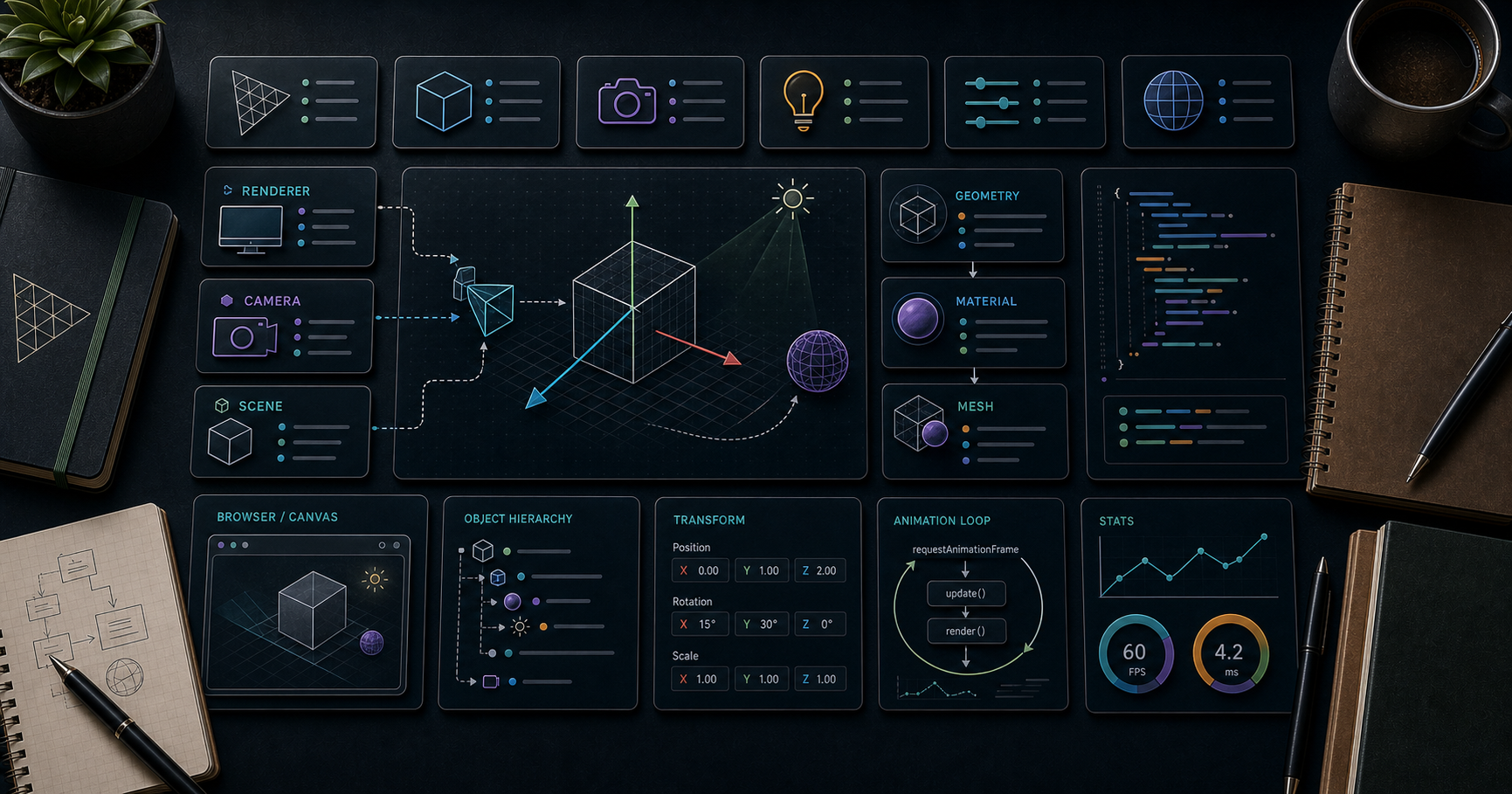
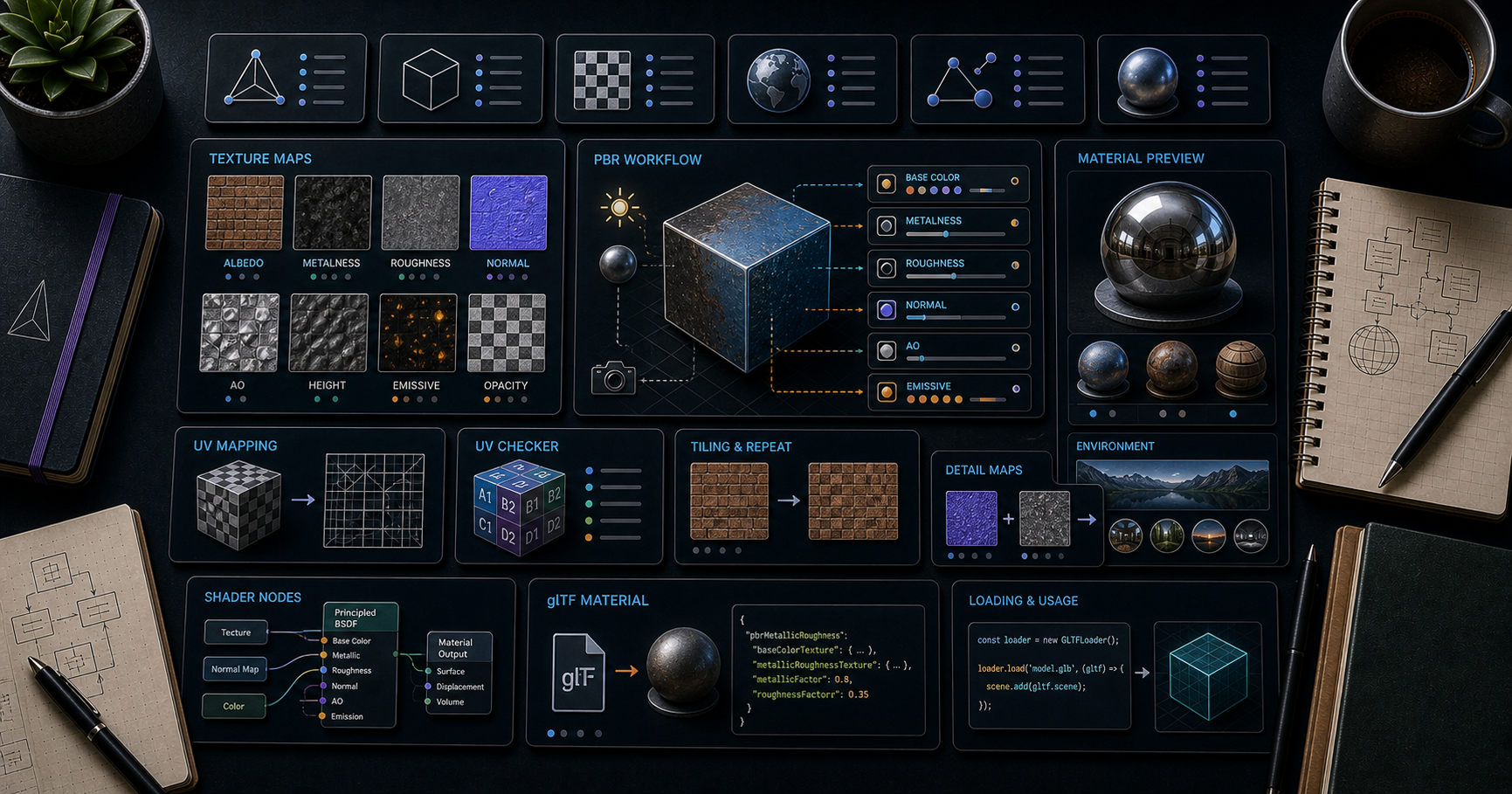
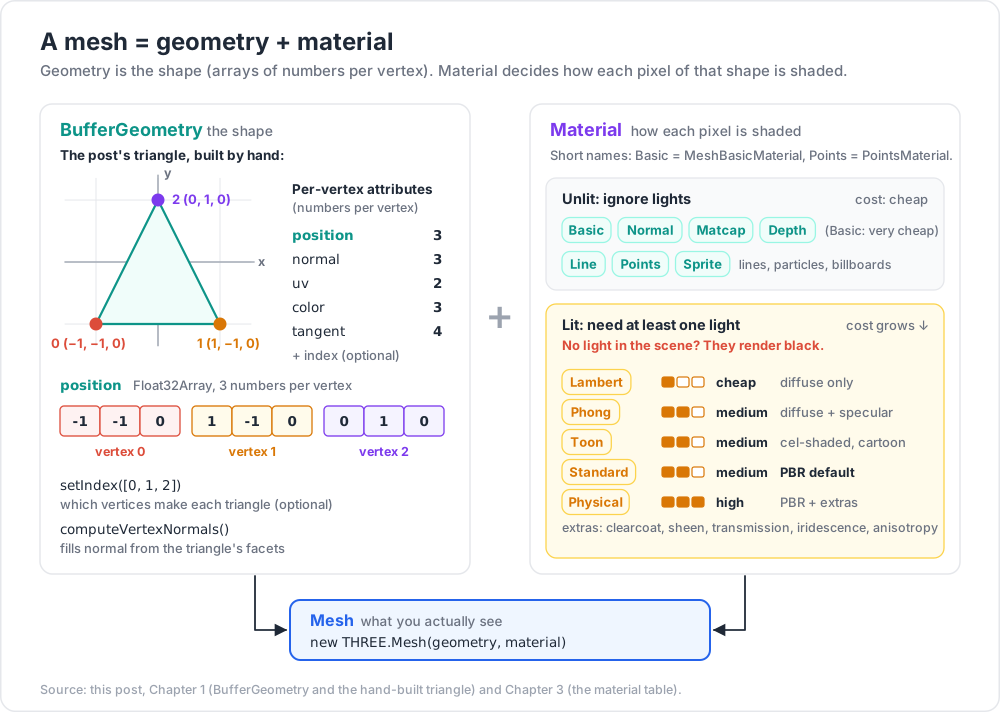
A mesh in Three.js is geometry + material. Geometry defines the shape — a list of vertex positions, normals, UVs, and how they form triangles. Material defines how each pixel of the shape is shaded — colour, roughness, light response, transparency. This post covers BufferGeometry, the built-in geometries, and the full material family from MeshBasicMaterial (no lighting at all) up to MeshPhysicalMaterial (full PBR with clearcoat, sheen, transmission, iridescence).
Series map: 00 Foundations → 01 Geometry & Materials (this post) → 02 Cameras & Controls → 03 Lighting & Shadows → 04 Textures & PBR → 05 Asset Pipeline → 06 Animation → 07 Instancing & Batching → 08 Low-End Perf → 09 Shaders → 10 Post-Processing → 11 Physics → 12 R3F → 13 AI 3D.
Learning Outcome
- Build a
BufferGeometryfrom raw arrays of positions, normals, UVs, and indices. - Use the built-in geometries (Box, Sphere, Plane, Cylinder, Cone, Torus, TorusKnot, Tube, Lathe, Extrude, Text).
- Distinguish the material families: Basic, Lambert, Phong, Standard, Physical, Toon, MatCap, Depth, Normal, Line, Sprite.
- Understand which materials need lights and which don't.
- Use wireframe, flat shading, double-sided rendering, and transparency.
- Apply UV coordinates that make textures look right (Post 04 covers texture loading).
Chapter 1 — BufferGeometry: the low-level shape
Every geometry in Three.js is a BufferGeometry. It's a container for BufferAttribute arrays describing per-vertex data.
Attributes
| Attribute | Type | What |
|---|---|---|
position |
Float32, 3 components | x, y, z of each vertex |
normal |
Float32, 3 components | surface normal (for lighting) |
uv |
Float32, 2 components | texture coordinates (0-1) |
color |
Float32, 3 components | per-vertex tint (optional) |
tangent |
Float32, 4 components | required for normal maps |
index |
Uint16 / Uint32 | triangle vertex indices (optional) |
Build a triangle by hand
1
2
3
4
5
6
7
8
9
10
11
12
13
14
15
16
17
import * as THREE from 'three';
const geo = new THREE.BufferGeometry();
const positions = new Float32Array([
-1, -1, 0,
1, -1, 0,
0, 1, 0,
]);
geo.setAttribute('position', new THREE.BufferAttribute(positions, 3));
geo.computeVertexNormals(); // generates per-vertex normals from triangle facets
geo.setIndex([0, 1, 2]); // optional — explicit triangle vertices
const mesh = new THREE.Mesh(geo, new THREE.MeshStandardMaterial({ color: 0x88ddff }));
scene.add(mesh);
Direct array control is what you reach for when generating procedural geometry (terrain, ribbons, particles). For everyday primitives, use the built-ins.
Chapter 2 — Built-in geometries
| Class | Notes | Common args |
|---|---|---|
BoxGeometry |
6-face box | (w, h, d, wSeg=1, hSeg=1, dSeg=1) |
SphereGeometry |
UV sphere | (r, wSeg=32, hSeg=16) |
PlaneGeometry |
flat quad | (w, h, wSeg=1, hSeg=1) |
CircleGeometry |
flat disc | (r, segments=32) |
CylinderGeometry |
cylinder | (rTop, rBottom, h, segs) |
ConeGeometry |
cylinder w/ top = 0 | (r, h, segs) |
TorusGeometry |
donut | (r, tube, radSeg, tubSeg) |
TorusKnotGeometry |
mathematical knot | (r, tube, tubSeg, radSeg, p, q) |
IcosahedronGeometry, OctahedronGeometry, TetrahedronGeometry, DodecahedronGeometry |
platonic solids | (r, detail=0) |
TubeGeometry |
sweep along a curve | (path, tubSeg, r, radSeg) |
LatheGeometry |
revolution of a 2D profile | (points, segments) |
ExtrudeGeometry |
extrude a 2D shape into 3D | (shape, options) |
TextGeometry |
3D text from a Font | (text, options) — needs FontLoader |
Subdivision matters
A SphereGeometry(1, 8, 6) is faceted; SphereGeometry(1, 64, 32) is smooth. Higher segments cost more vertices, more shading work, more memory. Profile in renderer.info.triangles.
Trick: when modelling stylised / low-poly art, low segment counts plus
flatShading: trueon the material gives the faceted look on purpose.
Chapter 3 — Material family
A material decides how each fragment (pixel) is shaded. The list, from cheapest to most expensive:
| Material | Lights needed? | Cost | When |
|---|---|---|---|
MeshBasicMaterial |
no | very cheap | UI, sprites, "unlit" look |
MeshDepthMaterial |
n/a | cheap | shadows, depth visualisation |
MeshNormalMaterial |
no (encodes normals as RGB) | cheap | debugging, stylised |
MeshMatcapMaterial |
no (uses a "material capture" image) | cheap | stylised — looks lit but isn't |
MeshLambertMaterial |
yes (diffuse only) | cheap | matte non-shiny surfaces |
MeshPhongMaterial |
yes (diffuse + specular) | medium | shiny non-PBR |
MeshToonMaterial |
yes | medium | cel-shaded / cartoon |
MeshStandardMaterial |
yes | medium | PBR default — covered fully in Post 04 |
MeshPhysicalMaterial |
yes | high | PBR + clearcoat, sheen, transmission, iridescence, anisotropy |
LineBasicMaterial, LineDashedMaterial |
n/a | cheap | lines |
PointsMaterial |
n/a | cheap | particles |
SpriteMaterial |
n/a | cheap | 2D billboards always facing camera |
ShaderMaterial / RawShaderMaterial / NodeMaterial (TSL) |
depends | depends | custom (Post 09) |
When each lights up
- Unlit family (
Basic,Normal,Matcap,Depth,Line,Points,Sprite) ignore lights entirely — they render the same regardless of scene lighting. - Lit family (
Lambert,Phong,Toon,Standard,Physical) need at least one light in the scene; otherwise they appear black.
Trick: a beginner's "it's just black" problem is almost always: lit material + no lights. Either add a
HemisphereLight/AmbientLight, or switch the material toMeshBasicMaterialwhile debugging.
Chapter 4 — MeshStandardMaterial (the modern default)
Physically-based rendering means: photons behave physically; a few intuitive parameters (metalness, roughness) replace dozens of arbitrary knobs.
1
2
3
4
5
6
7
8
9
10
11
12
13
14
15
16
17
18
const mat = new THREE.MeshStandardMaterial({
color: 0xcccccc,
metalness: 0.0, // 0 = dielectric (plastic, wood, skin); 1 = metal
roughness: 0.5, // 0 = mirror; 1 = perfectly diffuse
emissive: 0x000000,
emissiveIntensity: 1.0,
map: null, // base colour texture
normalMap: null, // surface detail
roughnessMap: null,
metalnessMap: null,
aoMap: null, // ambient occlusion
envMapIntensity: 1.0,
side: THREE.FrontSide, // or BackSide / DoubleSide
transparent: false,
opacity: 1.0,
alphaTest: 0, // discard fragments with alpha below this
});
Post 04 covers the textures themselves.
Physical extensions
MeshPhysicalMaterial extends Standard with:
| Property | What |
|---|---|
clearcoat, clearcoatRoughness |
car paint, varnished wood |
sheen, sheenColor, sheenRoughness |
velvet, fabric softness |
transmission, thickness, ior |
glass-like refraction |
iridescence, iridescenceIOR |
thin-film effect (soap bubble, oil slick) |
anisotropy |
brushed metal directional highlight |
attenuationColor, attenuationDistance |
tinted glass |
1
2
3
4
5
6
7
8
9
10
const glass = new THREE.MeshPhysicalMaterial({
color: 0xffffff,
metalness: 0,
roughness: 0,
transmission: 1.0,
thickness: 0.5,
ior: 1.5,
envMapIntensity: 1.0,
});
Chapter 5 — Common material flags
1
2
3
4
5
6
7
8
9
material.wireframe = true; // render edges only
material.flatShading = true; // per-face normals — faceted look
material.side = THREE.DoubleSide; // render both sides
material.transparent = true;
material.opacity = 0.5;
material.depthWrite = false; // for transparent objects often needed
material.alphaTest = 0.5; // cut-out shapes — use for leaves/hair cards
material.vertexColors = true; // use the geometry's `color` attribute
DoubleSide cost
DoubleSide doubles the fragment shader work for that mesh — every triangle is rasterised twice (once per facing). Use only when needed (paper-thin objects, particle quads). For closed shapes, FrontSide (default) is correct and faster.
Transparency caveats
Transparent objects must be sorted back-to-front for correct blending. Three.js does this per-mesh automatically (renderer.sortObjects = true by default). It cannot sort within a single mesh — long beard hair, foliage cards, particle clouds will exhibit artefacts. Workarounds:
alphaTestinstead ofopacityfor binary cut-outs (no sorting needed).- Separate meshes per leaf cluster (slow).
- Order-independent transparency (OIT) via custom shader (advanced).
Chapter 6 — Wireframe + flat shading recipes
Quick stylised looks without writing a shader:
1
2
3
4
5
6
7
8
9
10
11
12
// low-poly facet style
new THREE.IcosahedronGeometry(1, 1); // detail=1 → 80 tris
new THREE.MeshStandardMaterial({ color: 0x66ccff, flatShading: true });
// wireframe outline
const wf = new THREE.WireframeGeometry(geo); // distinct from material.wireframe
scene.add(new THREE.LineSegments(wf, new THREE.LineBasicMaterial({ color: 0xffffff })));
// edges only (cleaner than wireframe)
const edges = new THREE.EdgesGeometry(geo, 30); // 30° angle threshold
scene.add(new THREE.LineSegments(edges, new THREE.LineBasicMaterial({ color: 0xffffff })));
EdgesGeometry is the right tool for "outline the silhouette of this object" without dotting every triangle.
Chapter 7 — Disposing geometry + materials
Three.js does not garbage-collect GPU resources automatically. When removing meshes:
1
2
3
4
5
6
scene.remove(mesh);
mesh.geometry.dispose();
mesh.material.dispose();
// also dispose any textures the material referenced
mesh.material.map?.dispose();
Forgetting this in a long-running app causes GPU memory to climb until the tab crashes. Especially important when loading and unloading scenes / models.
A helper:
1
2
3
4
5
6
7
8
9
10
11
12
13
function disposeObject(obj) {
obj.traverse((c) => {
if (c.geometry) c.geometry.dispose();
if (c.material) {
const mats = Array.isArray(c.material) ? c.material : [c.material];
for (const m of mats) {
for (const k in m) if (m[k]?.isTexture) m[k].dispose();
m.dispose();
}
}
});
}
Practice Exercises
Exercise 1 — Built-in zoo
Render 6 objects in a row: Box, Sphere, Torus, TorusKnot, Cone, Icosahedron. Each with a different MeshStandardMaterial colour. Add ambient + directional light.
Exercise 2 — Compare materials
Same sphere, 5 copies side by side, each with a different material: Basic, Lambert, Phong, Standard, Physical (with transmission: 1). Observe the difference.
Exercise 3 — Wireframe + flatShading combo
A low-poly icosahedron (detail=0) with flatShading: true. Overlay an EdgesGeometry outline. Should look like a polygonal gemstone.
Exercise 4 — Procedural geometry
Build a BufferGeometry of 100 random points (Points material). Animate each point's position by a sine wave per frame. (Foreshadows particle systems and shaders.)
Exercise 5 — Disposal drill
In a loop, every 2 seconds: remove the current mesh from the scene and add a new sphere with random colour. Log renderer.info.memory.geometries to confirm it stays low when you dispose properly.
Cheat-sheet
| What | How |
|---|---|
| Buffer geometry | new THREE.BufferGeometry() + setAttribute('position', ...) |
| Index | geometry.setIndex([...]) |
| Recompute normals | geometry.computeVertexNormals() |
| Recompute tangents | geometry.computeTangents() (needs uv) |
| Box / Sphere / Plane / Torus | new THREE.BoxGeometry(...) etc. |
| Unlit | MeshBasicMaterial, MeshNormalMaterial, MeshMatcapMaterial |
| Lit PBR | MeshStandardMaterial (default for new work) |
| Glass / car paint | MeshPhysicalMaterial + clearcoat / transmission |
| Cel-shaded | MeshToonMaterial |
| Wireframe | material.wireframe = true (or use EdgesGeometry) |
| Flat shading | material.flatShading = true |
| Double-sided | material.side = THREE.DoubleSide |
| Cut-out alpha | material.alphaTest = 0.5 (no sorting needed) |
| Free GPU memory | geometry.dispose() + material.dispose() + texture.dispose() |
What's next
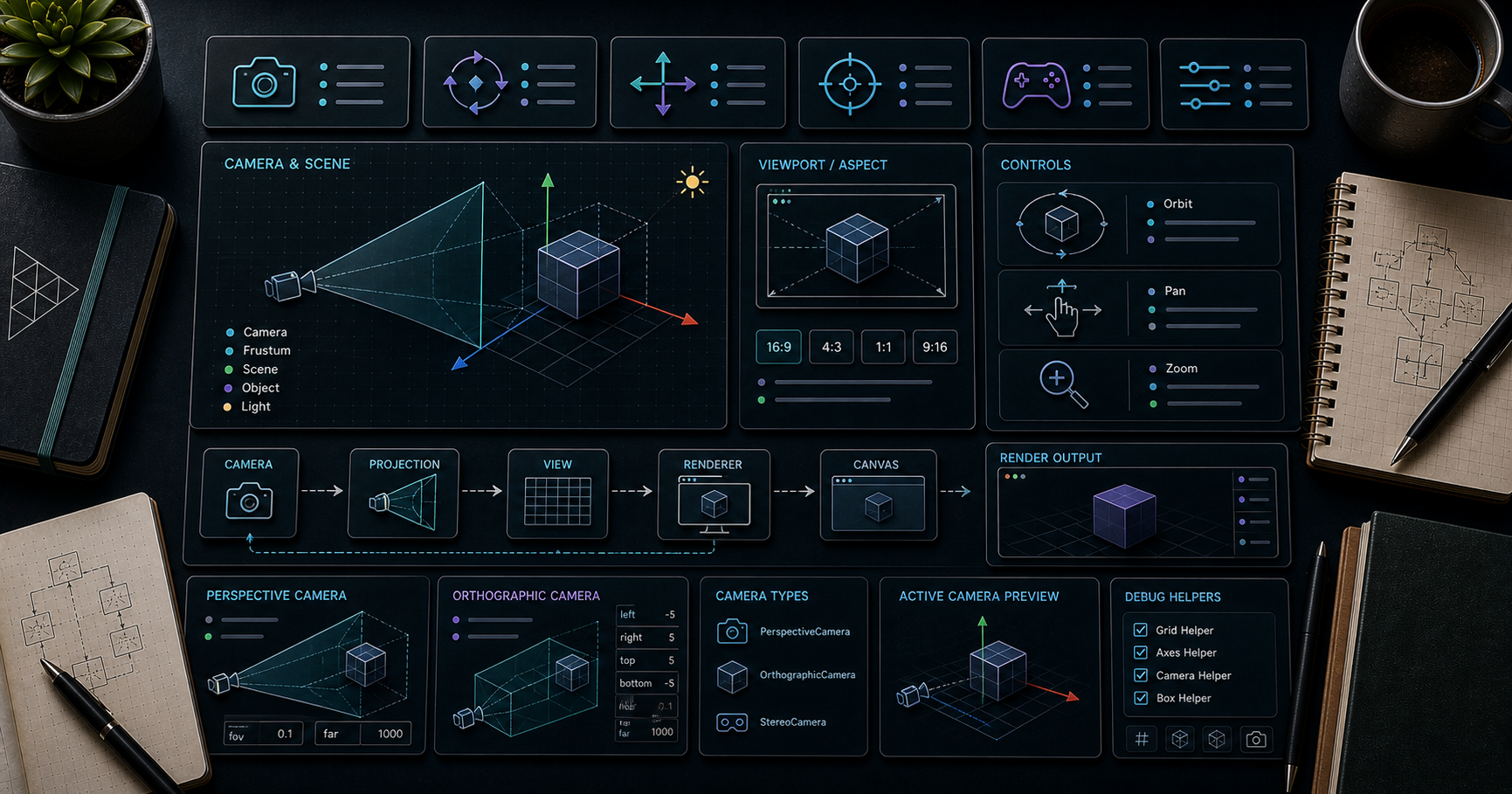
Post 02 covers cameras, controls, and the coordinate system — what perspective vs orthographic actually do, the four built-in controls (Orbit, Map, Pointer-Lock, Trackball), and the math of lookAt + world-vs-local space.
References
- Three.js docs — BufferGeometry
- Three.js docs — Materials
- Three.js manual — Primitives
- Three.js manual — Materials
- Disposing objects in Three.js (forum)
Note: this post is in progress. Planned additions: BufferGeometryUtils.mergeGeometries example; CSG (constructive solid geometry) via three-bvh-csg; signed-distance-field text intro.