3D Printing Course — 06 · CAD for Printing
Post 05 established that a printed part's dimensions differ from its nominal dimensions in ways you can measure and partly compensate. This post is about the tool where those decisions get encoded. Choosing a CAD paradigm, understanding what happens when a solid becomes a triangle mesh, picking an interchange format that carries units, and writing a model whose clearances are named parameters rather than typed numbers — these are the things that determine whether a design can be revised in five minutes or has to be rebuilt from scratch. The theme throughout: a model is a program that produces geometry, and it should be written with the same discipline as any other program.
Series map: 00 How 3D Printing Works → 01 First Print and Calibration → 02 Slicing in Depth → 03 Orientation, Supports and Design for Printing → 04 Materials → 05 Dimensional Accuracy and Tolerances → 06 CAD for Printing (this post) → 07 Strength, Failure Modes and Functional Parts.
Learning Outcome
- Choose between parametric history-based, direct, code-CAD and mesh/sculpting paradigms based on what the part is for.
- Explain the difference between a BREP solid and a triangle mesh, and state exactly what is lost when one becomes the other.
- Build a fully-constrained parametric part driven by a parameter table, so a single value change propagates correctly.
- Pick a file format deliberately: STEP for interchange, 3MF for printing, STL only when nothing else is accepted, and know why STL causes 25.4× scaling errors.
- Set mesh export tolerances so faceting does not become the chord error of Post 05.
- Diagnose and repair non-manifold edges, flipped normals and self-intersections.
- Encode Post 05's measured clearances as named variables, and apply printing-aware modelling rules for chamfers and wall thickness.
- Select correctly between printed threads, heat-set inserts, captive nuts and tapping.
- Version-control CAD work, and know why code-CAD is structurally better at it.
Chapter 1 — The paradigms, and what each is for
Terminology
- Parametric, history-based modelling — the model is a recorded sequence of operations (a feature tree) driven by named dimensions. Editing a dimension replays the tree. Fusion 360, Onshape, SolidWorks, FreeCAD, Solid Edge.
- Direct (explicit) modelling — you push and pull faces of the geometry directly; there is no history to replay. Fast for edits to imported geometry that has no tree. Plasticity, SpaceClaim, Fusion's direct-edit mode, most of FreeCAD's Part workbench.
- Code-CAD (script-CAD) — the model is source code that evaluates to geometry. OpenSCAD, CadQuery, build123d, JSCAD, ImplicitCAD, Zoo/KittyCAD's KCL.
- Mesh / sculpting — you manipulate a triangle mesh directly, or a voxel/dynamic-topology proxy of one. Blender, ZBrush, Nomad Sculpt, Meshmixer.
- Design intent — the reasons behind the geometry, encoded so that later edits respect them. "This hole is centred on that boss" is design intent; "this hole is at X = 17.5" is a coincidence that happens to be true today.
- Feature tree — the ordered list of operations that builds a parametric model.
- Constraint — a geometric or dimensional relationship in a sketch (coincident, tangent, horizontal, equal, or a driving dimension) that removes a degree of freedom.
Comparison
| Paradigm | Strength | Weakness | Right for |
|---|---|---|---|
| Parametric history-based | design intent survives editing; dimensions are first-class; assemblies and drawings | tree can break on edit ("topological naming"); GUI-heavy; files are opaque binaries | functional mechanical parts — the default for this course |
| Direct | fast, no tree to break, excellent on imported dumb solids | edits are not repeatable or parameterised; no design intent recorded | modifying a downloaded STEP; quick one-off geometry |
| Code-CAD | exact parameterisation, diffable text, real version control, loops and libraries, scriptable batch generation | no interactive dragging; steeper entry; fillets on complex geometry can be awkward | parts with families of sizes; anything you will regenerate; anything you want in git |
| Mesh / sculpting | organic, artistic, unlimited form | no dimensions, no constraints, no solid guarantee, hard to make anything fit | figurines, characters, artistic objects, decorative surfaces |
Why mesh tools are the wrong default for functional parts
Blender is superb software and the wrong tool for a bracket. The reasons are structural, not stylistic:
- No dimensions. A mesh stores vertex coordinates. It does not store "this face is 20 mm from that face because a bearing is 20 mm wide". Change one thing and you re-derive everything by hand.
- No constraints. Nothing enforces that two faces stay parallel or that a hole stays centred. Move a vertex and the design intent is silently gone.
- No solid guarantee. A mesh can be non-manifold, self-intersecting or open, and Blender will happily let you build and export one. A BREP kernel refuses to produce an invalid solid.
- Curves are already discretised. A "cylinder" in Blender is already a fixed polygon count. In BREP it is an exact analytic surface until you export it, which is precisely the distinction that controls hole accuracy (Chapter 4).
- Fillets and chamfers are approximations. Blender's bevel modifier is a mesh operation; a CAD fillet is an exact tangent surface.
Where mesh tools are right: sculpting an organic shape, retopologising a scan, or artistic detailing. And there is a legitimate hybrid — sculpt the organic form, export it, and use it as a body inside a parametric model that handles the functional interfaces.
Browser-based CAD
Onshape runs entirely in the browser with a genuine cloud-native document model and built-in versioning and branching; its free tier makes documents public, which is fine for hobby work and disqualifying for anything confidential. Fusion 360 has a browser client with a reduced feature set. TinkerCAD is excellent for teaching and simple assemblies, but is constructive-solid-geometry-on-a-mesh underneath and does not scale to functional design work.
Chapter 2 — BREP solids and triangle meshes
This is the single most important technical idea in the post, because every accuracy problem in Post 05's Chapter 4 traces back to it.
Two ways to describe a shape
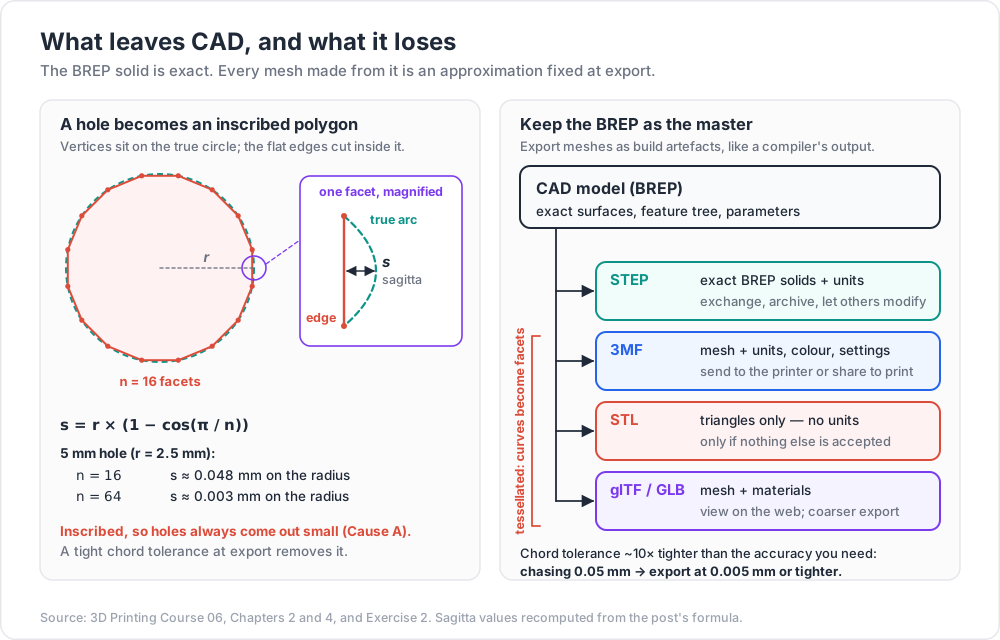
BREP (boundary representation) describes a solid by its boundary, as a topological structure of faces, edges and vertices, where each face carries an exact analytic surface — a plane, a cylinder, a cone, a sphere, a torus, or a NURBS patch — and each edge an exact curve. A cylindrical hole is stored as "cylindrical surface, axis here, radius 3.0". That radius is exact at every scale. Zoom in a million times and it is still a perfect circle.
Triangle mesh describes a surface as a list of vertices and a list of triangles. There are no analytic surfaces. A cylindrical hole is stored as some number of flat facets approximating a circle. The approximation is fixed at the moment of export.
| BREP | Mesh | |
|---|---|---|
| Curved surfaces | exact analytic / NURBS | flat facets approximating the surface |
| Precision | resolution-independent | fixed at export |
| Topology | faces, edges, vertices with adjacency | triangles that may or may not connect properly |
| Validity | kernel enforces a watertight solid | nothing enforces anything |
| Booleans | exact | approximate, fragile, and can fail |
| Fillet a 3 mm edge | one operation, exact | rebuild the surrounding topology by hand |
| File size for a smooth shape | small | large — smoothness costs triangles |
| Units | carried in the format (STEP) | not carried by STL at all |
| What the slicer wants | not this | this |
The conversion, and what it destroys
The slicer needs a mesh. It slices by intersecting planes with triangles, which is a fast, robust, well-understood operation. So somewhere between CAD and printer, tessellation happens: the BREP's analytic surfaces are approximated by triangles.
What is lost:
- Exactness on curves. A cylinder becomes a prism. This is the polygonal chord error of Post 05: because tessellation places vertices on the true surface, an internal cylinder becomes an inscribed polygon and prints undersize, while an external cylinder becomes inscribed too and prints undersize on its outer dimension. The error is controllable but never zero.
- Feature identity. "This is a hole for an M3 screw" becomes anonymous triangles. Nothing downstream knows it was a hole.
- The feature tree. All design intent, all parameters, all constraints. Gone.
- Editability. You can push a mesh around; you cannot change the diameter of a hole that no longer exists as a concept.
- Exact adjacency, if the tessellator is sloppy — producing the mesh-integrity problems of Chapter 4.
The practical rule that follows: keep the BREP as the master. Export a mesh as a build artefact, the way a compiler emits a binary. Never edit the mesh and treat it as the source. If you find yourself repairing an STL, the real fix is upstream.
Watch out: this is why "I downloaded an STL and want to change the hole size" is a hard problem and "I downloaded a STEP and want to change the hole size" is a two-minute job. When choosing what to publish or archive, publish both — the STEP so people can modify it, the mesh so people can print it immediately.
Chapter 3 — A parametric workflow that survives editing
Sketch discipline
A sketch is the 2D profile that features are built from, and it is where most parametric models go wrong.
- Fully constrain every sketch. A fully-constrained sketch has zero degrees of freedom; every entity is locked by constraints and dimensions. Most CAD packages colour it differently when it is. An under-constrained sketch will silently change shape when you edit something else — the single largest source of "my model exploded when I changed one number".
- Prefer geometric constraints over dimensions. Coincident, collinear, tangent, symmetric, equal. These express intent; a dimension expresses a value. A hole constrained symmetric about the origin stays centred when the part gets wider. A hole dimensioned at 17.5 mm from the left edge does not.
- Sketch on planes and on datums, not on model faces, where you can. Sketching on a face creates a dependency on that face's identity; if a later edit removes or splits the face, the sketch loses its reference. This is topological naming, and it is why parametric trees break.
- Keep sketches small. One sketch per feature is easier to debug than one heroic sketch containing everything.
- Sketch the design intent, not the picture. If two features must always be the same size, constrain them equal rather than dimensioning both to the same number.
The feature vocabulary
| Feature | What it does | Printing note |
|---|---|---|
| Extrude | sweeps a profile along a straight path | the workhorse |
| Revolve | sweeps a profile around an axis | good for anything round; watch orientation (Post 03) |
| Sweep / Loft | profile along a path / blend between profiles | powerful and easy to make unprintable overhangs with |
| Fillet | rounds an edge with a tangent radius | on vertical and top edges: excellent. On bottom edges: a 45°-and-worse overhang that prints badly |
| Chamfer | cuts an edge at an angle | on bottom edges: the correct choice — a 45° chamfer is self-supporting and also cures elephant foot (Post 05) |
| Shell | hollows a solid to a wall thickness | set the thickness to a multiple of extrusion width (Chapter 5) |
| Pattern (linear / circular / mirror) | repeats a feature | drive the count from a parameter |
| Draft | tapers a face | a moulding concept; occasionally useful to make a face self-supporting |
| Hole (as a dedicated feature) | parameterised hole with a standard | records intent — "M3 clearance" — rather than a number |
Design intent, stated as a rule
Before adding any dimension, ask: what is this number a consequence of?
- A hole diameter is a consequence of the fastener plus your measured clearance. It is not "3.4".
- A wall thickness is a consequence of the extrusion width times an integer. It is not "1.2".
- A pocket depth is a consequence of the component that goes in it plus a clearance. It is not "6".
- A part length is a consequence of the things it must span. It is not "80".
Every number that is a consequence should be an expression referencing a parameter, not a literal. That is the whole discipline.
A parameter table driving a real part
Most parametric CAD packages have a parameters/variables dialogue where you define named user parameters and then use them in dimension fields. Here is the same idea expressed three ways.
In a parameters table (Fusion 360 / Onshape / FreeCAD spreadsheet style):
| Name | Expression | Value | Comment |
|---|---|---|---|
nozzle |
0.4 mm |
0.4 | extrusion width basis |
wall |
nozzle * 6 |
2.4 | 6 perimeters — never a fraction of a width |
layer |
0.2 mm |
0.2 | Z dimensions should be multiples of this |
shaft_d |
8.0 mm |
8.0 | measured diameter of the actual shaft |
clear_slide |
0.20 mm |
0.20 | from your Post 05 fit gauge |
bore_d |
shaft_d + clear_slide |
8.20 | consequence, not a literal |
screw_d |
3.0 mm |
3.0 | M3 |
clear_screw |
0.40 mm |
0.40 | from the fit gauge |
hole_d |
screw_d + clear_screw |
3.40 | |
insert_d |
4.0 mm |
4.0 | heat-set insert nominal — from its datasheet |
insert_h |
layer * 30 |
6.0 | multiple of layer height |
plate_t |
layer * 30 |
6.0 | |
base_chamfer |
0.5 mm |
0.5 | elephant-foot cure (Post 05) |
fillet_r |
wall |
2.4 | stress-concentration relief (Post 07) |
Change clear_slide after re-running the fit gauge and every bore in the model updates. That is the entire point.
In OpenSCAD:
1
2
3
4
5
6
7
8
9
10
11
12
13
14
15
16
17
18
19
20
21
22
23
24
25
26
27
28
29
30
31
32
33
34
35
36
37
38
39
40
41
42
43
44
45
46
47
48
49
50
51
52
53
// bracket.scad — every number is either a measurement or a consequence.
/* [Process] */
nozzle = 0.4;
layer = 0.2;
walls = 6;
/* [Measured fits — from the Post 05 fit gauge] */
clear_slide = 0.20; // sliding fit
clear_screw = 0.40; // free clearance for a fastener
clear_press = 0.00; // press fit (yours may be negative)
/* [Hardware — from datasheets or measured] */
shaft_d = 8.0;
screw_d = 3.0;
insert_d = 4.0;
insert_h = 6.0;
/* [Geometry] */
plate_l = 60;
plate_w = 30;
// --- consequences: never edit these by hand ---
wall = nozzle * walls; // 2.4
plate_t = round(6 / layer) * layer;
bore_d = shaft_d + clear_slide;
hole_d = screw_d + clear_screw;
base_chamfer = 0.5;
fillet_r = wall;
$fs = 0.15; // minimum facet SIZE -> controls chord error on small holes
$fa = 2; // minimum facet ANGLE -> controls facets on large curves
// (leave $fn unset so $fs/$fa adapt per-feature; see Chapter 4)
module bracket() {
difference() {
// base plate, bottom edge chamfered via a hull of two footprints
hull() {
translate([base_chamfer, base_chamfer, 0])
cube([plate_l - 2*base_chamfer, plate_w - 2*base_chamfer, 0.01]);
translate([0, 0, base_chamfer])
cube([plate_l, plate_w, plate_t - base_chamfer]);
}
translate([plate_l/2, plate_w/2, -1]) // main bore
cylinder(h = plate_t + 2, d = bore_d);
for (x = [10, plate_l - 10]) // fastener holes
translate([x, plate_w/2, -1])
cylinder(h = plate_t + 2, d = hole_d);
}
}
bracket();
In CadQuery (Python, BREP kernel — so exports STEP as well as mesh):
1
2
3
4
5
6
7
8
9
10
11
12
13
14
15
16
17
18
19
20
21
22
23
24
25
26
27
28
29
30
31
32
33
34
35
36
37
38
39
40
41
42
# bracket.py — CadQuery 2.x. Same parameters, real BREP output.
import cadquery as cq
NOZZLE = 0.4
LAYER = 0.2
WALLS = 6
CLEAR_SLIDE = 0.20 # measured, Post 05 fit gauge
CLEAR_SCREW = 0.40
SHAFT_D = 8.0
SCREW_D = 3.0
WALL = NOZZLE * WALLS # 2.4
PLATE_T = round(6 / LAYER) * LAYER
PLATE_L, PLATE_W = 60.0, 30.0
BORE_D = SHAFT_D + CLEAR_SLIDE
HOLE_D = SCREW_D + CLEAR_SCREW
CHAMFER = 0.5
bracket = (
cq.Workplane("XY")
.box(PLATE_L, PLATE_W, PLATE_T, centered=(True, True, False))
.edges("|Z").fillet(WALL) # vertical edges: fillet is fine
.faces(">Z").workplane()
.hole(BORE_D) # main bore
.faces(">Z").workplane()
.pushPoints([(-PLATE_L/2 + 10, 0), (PLATE_L/2 - 10, 0)])
.hole(HOLE_D) # fastener holes
.faces("<Z").chamfer(CHAMFER) # bottom edge: chamfer, not fillet
)
# STEP keeps the exact BREP and its units — the interchange master.
cq.exporters.export(bracket, "bracket.step")
# Mesh is a BUILD ARTEFACT. Tolerances set the chord error (Chapter 4).
cq.exporters.export(
bracket, "bracket.stl",
tolerance=0.005, # max linear deviation from the true surface (mm)
angularTolerance=0.1, # max angular deviation (rad)
)
Trick: put a
# CHANGE THESEblock at the top of every code-CAD file and nothing else editable below it. Six months later, that comment is the difference between a two-minute revision and re-reading your own model.
Chapter 4 — Formats, export settings, and mesh integrity
The formats
| Format | Carries | Units | Use it for |
|---|---|---|---|
| STEP (ISO 10303, AP242) | exact BREP solids, assemblies, colours, and PMI in AP242 | yes | interchange between CAD packages; archival master; anything you want someone else to be able to modify |
| 3MF | triangle mesh plus units, colour, materials, transforms, build items, metadata, and slicer settings via extensions | yes | sending a model to the printer; sharing something ready to print; the modern replacement for STL |
| STL | triangles. That is the entire format | no | only when the recipient accepts nothing else |
| OBJ | triangles plus UVs, materials via .mtl, vertex colours by convention |
not reliably | mesh interchange with graphics and texturing tools |
| glTF / GLB | mesh + PBR materials, optimised for real-time delivery | yes (metres) | viewing a model on the web — not for printing |
Why STL causes 25.4× scaling errors
The STL format is a list of triangles with floating-point coordinates and per-facet normals. It has no header field for units, no metadata section, no colour, no scale. A vertex at (20.0, 0, 0) means twenty somethings. If the author worked in inches and the recipient's slicer assumes millimetres, the part arrives 1/25.4 of its intended size — or 25.4× too large in the other direction. This is not a bug in any particular tool; it is a consequence of information the format simply does not carry.
The fix is not to be careful. The fix is to use a format that carries units:
- Export 3MF for printing. Its
<model unit="millimeter">attribute makes the question unanswerable-by-guessing. - Export STEP for interchange. Units are part of the file.
- Reach for STL only under duress, and when you do, put the unit in the filename:
bracket_v3_mm.stl.
3MF additionally solves the problem that an STL cannot represent multi-part plates, per-object print settings, modifier meshes, or colour. Most modern slicers use 3MF as their own project format for exactly this reason — a saved project is a 3MF containing the geometry and the settings that produced a known-good print. That is a far better thing to share than a naked STL.
Common pitfall: publishing only an STL for a functional part. The recipient cannot change a clearance, cannot adapt it to their printer's measured offsets, and cannot even be sure of the units. Publish STEP and 3MF; add the source (
.f3d,.scad,.py) if you can.
Mesh export settings — where Post 05's chord error is decided
Every tessellator is controlled by two tolerances, whatever the UI calls them:
- Chord / linear / deviation tolerance — the maximum distance between the flat facet and the true surface. Smaller ⇒ more triangles ⇒ closer to the real shape. This is the setting that controls hole undersizing.
- Angular tolerance — the maximum angle between adjacent facet normals. Controls how many facets a curve gets regardless of its size, which matters on large-radius surfaces where the chord tolerance alone would produce visible flats.
Naming across tools:
| Tool | Chord tolerance | Angular tolerance |
|---|---|---|
| Fusion 360 (Refinement: custom) | Surface Deviation | Normal Deviation |
| SolidWorks | Deviation | Angle |
| Onshape | Chordal tolerance | Angular tolerance |
| FreeCAD (mesh export) | Surface deviation | Angular deviation |
CadQuery exporters.export |
tolerance |
angularTolerance |
| OpenSCAD | $fs (minimum fragment size) |
$fa (minimum fragment angle); $fn overrides both |
The geometry of the error. For a circle of radius r approximated by an inscribed regular polygon of n sides, the maximum deviation (sagitta) is r · (1 − cos(π/n)). Two consequences follow immediately:
- The error grows as n falls — obvious, and the reason the default facet count is usually too low.
- For a fixed facet count, the error scales with r — so a coarse
$fnhurts big circles more in absolute terms, while a fixed chord tolerance produces the same absolute error at every size.
Because the polygon is inscribed, an internal cylinder — a hole — is always printed smaller than nominal. That is Cause A from Post 05, and it is entirely eliminated by exporting at a tight chord tolerance. Cause B (the extrusion overlap on concave paths) is not — but there is no reason to add a self-inflicted error on top of an unavoidable one.
Practical guidance:
- Set chord tolerance to roughly an order of magnitude below the accuracy you care about. If you are chasing 0.05 mm, export at 0.005 mm or tighter. Triangle count is cheap; slicers handle multi-megabyte meshes without difficulty.
- Do not use OpenSCAD's
$fnglobally. A fixed$fn = 100gives a 3 mm hole a wastefully high facet count and a 100 mm cylinder a visibly faceted one. Set$fsand$fainstead and let the facet count adapt per feature. Use$fnonly as a local override on a specific object. - Preview the result. Import the exported mesh back and look at a hole edge-on. If you can see flats, the tolerance was too loose.
Trick: the fastest way to see whether the chord tolerance is right is to slice the exported mesh and look at the toolpath around a small hole in the slicer's preview. If the path is visibly a polygon rather than a circle, re-export.
Mesh integrity
A valid mesh for printing is manifold (watertight, "2-manifold"): every edge is shared by exactly two triangles, no more and no less; the surface is closed, with a well-defined inside and outside; and all normals point outward consistently.
| Defect | What it means | Symptom |
|---|---|---|
| Non-manifold edge | an edge shared by 1, 3 or more faces | slicer cannot decide what is inside; missing or spurious walls |
| Hole / open boundary | a gap in the surface | the "solid" is not closed; slicer either repairs it or produces nonsense |
| Flipped normals | a face pointing inward | inverted regions; the slicer may print the negative of what you wanted |
| Self-intersection | the surface passes through itself | ambiguous interior; strange internal walls |
| Duplicate / coincident faces | two triangles in the same place | zero-thickness regions; unpredictable slicing |
| Zero-area / degenerate triangles | three collinear vertices | numerical failures in slicing |
| Disjoint shells | multiple separate closed volumes in one file | legitimate sometimes, a bug other times — decide deliberately |
Repair tooling, roughly in order of how much you should want to need it:
- Fix it upstream. A BREP kernel cannot produce a non-manifold solid. If your mesh is broken, either the source model was a mesh, or the tessellator failed, or a boolean produced a degenerate result. Fixing the source is the real fix.
- The slicer's own repair. PrusaSlicer, Cura, OrcaSlicer and Bambu Studio all detect and auto-repair simple errors, and report what they found. Read the report rather than dismissing it.
- Blender — the 3D Print Toolbox add-on checks manifoldness, thin faces, sharp edges, overhangs and intersections, and offers targeted fixes. Free and effective.
- Meshmixer (legacy but still widely used), Netfabb, MeshLab — dedicated inspection and repair.
admesh— command-line, scriptable, good for CI checks on a repository of models.
1
2
3
4
5
# Command-line sanity check before publishing or printing a mesh.
admesh --normal-directions --fill-holes --write-binary-stl=fixed.stl input.stl
# Reads out: degenerate facets, edges fixed, facets removed/added, backwards facets,
# and the volume. A volume of 0 or a negative volume means the normals are inverted.
Watch out: a slicer's "auto-repair succeeded" is not the same as "the model is correct". Repair heuristics guess at what you meant. If the model has a genuine 0.02 mm gap where two bodies were supposed to join, the repair will close it silently and you will never learn that your boolean failed.
Chapter 5 — Modelling for what Post 05 measured
The measurements from Post 05 are only useful if they are encoded somewhere durable. Three rules do most of the work.
Rule 1 — Clearances are named variables, never literals
Never type 3.4 into a hole diameter for an M3 screw. Type screw_d + clear_screw, where both are parameters. The reasons compound:
- Re-run the fit gauge after a nozzle change and update one number.
- Print the same part in PETG instead of PLA and update one number.
- Someone else on a different printer changes one number and it works for them.
- Six months later you can see why the hole is 3.4, which is information the literal destroys.
Keep a shared parameter block — a spreadsheet in the CAD document, an included .scad file, or a Python module — that holds your machine's measured constants. Every model imports it.
1
2
3
4
5
6
7
8
9
// fits.scad — one file, imported by every model. Update after re-running the gauge.
// Measured on: <printer> / <material> / <profile> / <date>
CLEAR_PRESS = 0.00; // requires force; retains position
CLEAR_TIGHT = 0.10; // locating fit; hand assembly with resistance
CLEAR_SLIDE = 0.20; // slides freely, minimal play
CLEAR_FREE = 0.40; // fastener clearance holes; generous
NOZZLE = 0.40;
LAYER = 0.20;
1
2
3
4
// any_model.scad
include <fits.scad>
bore = shaft_d + CLEAR_SLIDE;
Rule 2 — Chamfer bottom edges, fillet everything else
| Edge | Feature | Why |
|---|---|---|
| Bottom perimeter (touching the plate) | chamfer, 0.4–0.6 mm at 45° | self-supporting; cures elephant foot (Post 05); no support needed |
| Vertical edges | fillet, freely | prints perfectly; reduces stress concentration (Post 07) |
| Top edges | fillet or chamfer | both print acceptably; a fillet on a top edge is a shallow dome and is fine |
| Internal corners under load | fillet, generously | the cheapest strength upgrade available (Post 07) |
| Bottom edge as a fillet | avoid | the tangent point approaches vertical then goes past 45° — it droops and needs support |
Rule 3 — Wall thickness is a multiple of extrusion width
A wall the slicer cannot fill with an integer number of perimeters is a wall with a gap or a wall the slicer silently thickens. Both are bad, and both are avoidable.
| Target | Expression | With a 0.4 mm nozzle |
|---|---|---|
| Thin cosmetic wall | nozzle * 2 |
0.8 mm |
| Standard wall | nozzle * 3 |
1.2 mm |
| Structural wall | nozzle * 4 to nozzle * 6 |
1.6–2.4 mm |
| Solid-through boss or rib | nozzle * 6+ |
2.4 mm+ |
The same logic applies in Z: make Z dimensions multiples of layer height. A 6.05 mm boss at 0.2 mm layers becomes 6.0 or 6.2, whichever way the slicer rounds. A 6.0 mm boss is exactly 30 layers, every time.
Additional printing-aware modelling habits worth building in:
- Design overhangs to 45° or shallower where you can (Post 03), so support becomes optional rather than mandatory.
- Model the fastener hole for the orientation you will print it in. A vertical-axis hole and a horizontal-axis hole are different features with different errors (Post 05).
- Add a relief at the bottom of a blind pocket — a small chamfer or a slightly deeper pocket — so elephant foot and stray first-layer material do not prevent seating.
- Never model a zero-clearance mating pair and hope. If two parts must touch exactly, one of them needs a clearance and the other needs a stop.
Chapter 6 — Threads, fasteners, assemblies
Five ways to get a thread, and when each is right
| Method | Strength | Reusability | Cost | Use when |
|---|---|---|---|---|
| Printed thread | low — the thread crest is layer-bonded plastic and strips easily | poor; a few assembly cycles | free | large coarse threads (lids, caps, adjusters), light load, no repeated assembly |
| Heat-set insert | high — brass threads in a melted-in pocket | excellent | inserts + a soldering iron with the right tip | the default for a functional part with a machine screw; anything assembled and disassembled |
| Captive nut (hex pocket or slot) | high — a real steel nut carries the load | excellent | a nut, and a pocket in the model | when you can design a pocket, especially in a wall printed vertically |
| Tapping into printed plastic | moderate — real thread form cut into a solid boss | fair; better than a printed thread, worse than an insert | a tap | a boss thick enough to take it, no insert on hand |
| Self-tapping / thread-forming screw | moderate — screw cuts its own thread in a pilot hole | poor; degrades each cycle | a screw | quick assembly, one-time |
Design notes for each:
- Printed threads. Use a proper thread library rather than modelling a helix by hand — OpenSCAD's BOSL2 (
threaded_rod,threaded_nut), Fusion's built-in Thread feature with Modeled checked. Add clearance: the nominal thread pair will not assemble. Print with the axis vertical so the thread flanks are not overhangs. Prefer coarse pitches; anything finer than about M8 coarse is unlikely to be worth printing. - Heat-set inserts. Model the pocket per the insert manufacturer's datasheet — the required hole diameter and depth are specified, and guessing produces either a loose insert or a bulged boss. Give the boss enough surrounding wall (a wall thickness of at least the insert's radius is a reasonable rule) and add a small lead-in chamfer at the top so the insert self-centres. Install with a temperature-controlled iron and a proper insert tip, pressing slowly and straight — the plastic must melt and flow around the knurling, not be pushed aside. Check squareness before the plastic freezes.
- Captive nuts. Model the hexagonal pocket with your
CLEAR_SLIDEor slightly more. If the pocket opens upward, the print will bridge over it — which works, but leaves a rough ceiling; if it opens sideways, the nut slides in cleanly. A tiny retaining bump or a slight interference on one flat stops the nut falling out during assembly.
Trick: design the heat-set-insert boss and the captive-nut pocket as reusable modules or components in your library, parameterised by screw size, so you build them once and never re-derive the dimensions.
Assemblies, mating features and alignment
For a printed assembly, alignment features are far more effective than tight tolerances.
- Pin-and-socket. A pin on one part, a socket on the other, with your measured
CLEAR_TIGHT. Three pins overconstrain; two pins and one slot is the correct kinematic answer — one pin locates, the slot allows for the pitch error between them. - Tongue-and-groove / lip-and-recess. Aligns two shells, adds stiffness, and hides the parting line.
- Dovetails and keyed profiles. Prevent assembly in the wrong orientation. Asymmetry is a feature: if a part can be assembled backwards, someone will.
- Counterbores and countersinks. Model them explicitly; do not expect a screw head to sit flush against a printed surface.
- Boss-and-recess with generous lead-ins. Every mating feature should have a chamfer at its entry so it self-centres rather than jamming on the first layer's elephant foot.
- One adjustable dimension per chain. Post 05's stack-up rule, expressed in geometry: a slot instead of a hole somewhere in every chain of mating parts.
Model the assembly in CAD before printing it. Parametric packages give you real joints and interference detection; even in code-CAD you can render both parts in place and inspect the interface visually. A five-minute check catches errors that cost a six-hour print.
Scan-to-CAD and reverse engineering
Reverse engineering an existing object — to make a bracket that fits a specific part, or to replace something discontinued — has two routes.
Measure and remodel. Calipers, a straight edge, a radius gauge, a printed profile gauge, and a fresh parametric model. Slow, and it produces a clean, editable, parameterised solid. This is usually the right answer for anything mechanical.
3D scan. Photogrammetry, structured light, or laser. Produces a mesh, which you then use as a reference body to model against — not as the part itself. The mesh is noisy, and it has no flat planes, no true cylinders and no design intent.
Watch out: treat scanner accuracy claims sceptically, and apply Post 05's vocabulary. A scanner advertising "0.05 mm accuracy" is usually quoting a point accuracy under ideal conditions on an ideal target — often a single-shot figure that says nothing about the accumulated error across a full multi-scan alignment of a real object. Volumetric accuracy over a whole part is the number that matters and is rarely the number advertised. Dark, shiny, transparent and thin features scan badly or not at all. If a scan must produce a dimension you will rely on, verify that dimension with calipers.
The workflow that works: scan for form, measure for dimensions. Use the scan to capture the organic shape you cannot measure, and override the critical dimensions with values you took by hand.
Chapter 7 — Version control, and viewing on the web
Why CAD version control is hard, and where code-CAD wins
Git is built for text. It stores line-based diffs, merges independent changes, and lets you see exactly what changed between two revisions.
Binary CAD (.f3d, .sldprt, .step) |
Code-CAD (.scad, .py) |
|
|---|---|---|
git diff |
useless — "binary files differ" | shows exactly which parameter changed |
| Merge two people's edits | impossible; one must win | ordinary text merge |
| Repository size | grows fast; every save is a full new blob | tiny |
| Code review | screenshots and description | read the diff |
| Blame ("why is this 3.4?") | nothing | git blame names the commit and its message |
| Automated builds | difficult | trivial — regenerate meshes in CI |
| Interactive modelling | excellent | not the point |
Practical approaches, in ascending order of rigour:
- Binary CAD with dated files.
bracket_v3_final_FINAL.f3d. Everyone starts here; nobody should stay. - Binary CAD in git, with git-lfs for the large files, and disciplined commit messages carrying the information the diff cannot. Works; the history is a list of opaque snapshots.
- The CAD tool's own versioning. Onshape has genuine branching, merging and version history built into its document model, and it is the strongest answer available inside a GUI tool. Fusion 360 keeps a linear cloud version history.
- Code-CAD in git. The model is source, the mesh is a build artefact. Put
*.stl,*.3mfandbuild/in.gitignore, and regenerate on demand:
1
2
3
4
5
6
7
8
9
10
# build.sh — the model is source; meshes are artefacts.
set -euo pipefail
mkdir -p build
for f in src/*.scad; do
name=$(basename "$f" .scad)
openscad -o "build/${name}.stl" \
-D '$fs=0.15' -D '$fa=2' \
"$f"
done
Run that in CI and every commit produces a fresh, correctly-tessellated mesh. A pull request against a mechanical design that shows -CLEAR_SLIDE = 0.20 / +CLEAR_SLIDE = 0.25 in the diff is a genuinely reviewable engineering change, which no binary CAD workflow can offer.
A pragmatic hybrid many people land on: interactive parametric CAD for the shape, with all driving dimensions in an exported parameter spreadsheet that is committed as CSV alongside the binary. The diff then shows what changed even though the geometry file does not.
Viewing models on the web
If you want to show a model in a browser — documentation, a project page, a shop listing — the format is glTF/GLB, not STL. glTF carries materials, is compact, streams well, and every web 3D stack loads it natively.
The path from CAD to web:
- Export a mesh from CAD at a coarser tolerance than you would for printing. Visual smoothness needs far fewer triangles than dimensional accuracy does.
- Convert to glTF (Blender imports STL/STEP-via-mesh and exports glTF;
assimpand various CLI converters do it headlessly). - Compress and optimise — Draco or Meshopt for geometry, KTX2 for textures.
- Render it with
<model-viewer>for a drop-in embed, or with Three.js for full control.
This blog's Three.js course covers exactly that pipeline. Post 05 of that series, Asset Pipeline — glTF, Draco, KTX2, Meshopt, is the direct continuation: it walks through GLTFLoader, the three compression layers, and the gltf-transform CLI that automates the whole optimisation pass. If you want your printed designs viewable and rotatable on a web page, start there.
Common pitfall: uploading a print-quality mesh to a web page. A model exported at 0.005 mm chord tolerance can be tens of megabytes of triangles that render identically to a 200 KB version. Export twice, for two different purposes — which is exactly the "mesh is a build artefact" principle applied a second time.
Practice Exercises
Exercise 1 — Break a model on purpose
Build a simple parametric part (a plate with two holes) with a deliberately under-constrained sketch. Change the plate width. Observe what happens to the holes. Then fully constrain the sketch — holes symmetric about the origin, equal diameters — and repeat. Write one sentence on what "design intent" bought you.
Exercise 2 — Watch the chord error appear
Export the same model with a cylindrical 5 mm hole three times: at a very coarse chord tolerance, a moderate one, and a very fine one. For each: record the file size, count the visible facets on the hole, and measure the hole diameter in a mesh viewer. Then slice all three and compare the toolpath around the hole.
Solution
1
2
3
4
5
6
7
8
9
10
11
12
13
14
15
16
17
What you should observe:
- Coarse export: the hole is visibly polygonal. The inscribed polygon's
measured across-flats distance is smaller than 5 mm. The slicer preview
shows a polygon toolpath.
- Fine export: far more triangles, much larger file, hole measures
essentially 5 mm, toolpath looks circular.
The sagitta relation: error = r * (1 - cos(pi/n))
r = 2.5 mm, n = 16 -> ~0.048 mm (per side, on the RADIUS)
r = 2.5 mm, n = 64 -> ~0.003 mm
Key conclusion: a coarse export can contribute an error comparable to the
printer's own systematic error. It costs nothing but file size to remove,
so remove it. What REMAINS after a fine export is the printer's error
(Post 05, Cause B) — and only then are you measuring the machine.
Exercise 3 — Prove the STL units problem
Model a 20 mm cube. Export it as STL and as 3MF. Open both in a text editor (3MF is a ZIP — extract it first and read 3D/3dmodel.model). Find the unit declaration in the 3MF. Find it in the STL. Then set your CAD document to inches, re-export both, and load both into your slicer.
Solution
1
2
3
4
5
6
7
8
9
10
11
12
13
14
15
16
17
18
19
20
21
22
23
24
3MF (3D/3dmodel.model), near the top:
<model unit="millimeter" xml:lang="en-US" ...>
STL: no such thing exists. ASCII STL is:
solid name
facet normal nx ny nz
outer loop
vertex x y z
...
There is nowhere for a unit to go. Binary STL is an 80-byte free-text
header, a facet count, and packed float triples. The 80-byte header is
where some tools scrawl a note — but nothing standard, and no slicer
reads a unit from it.
Result after switching the document to inches:
- The 3MF still arrives at the correct physical size.
- The STL arrives 25.4x too large (or small, depending on direction).
This is the entire mechanism behind every "why is my model tiny/huge"
support thread. It is a missing field, not a mistake.
Exercise 4 — Build a parameter library and use it
Create your fits.scad (or a Python module, or a CAD parameter spreadsheet) holding the four clearances you measured in Post 05, plus nozzle and layer height. Build a part that uses all of them. Then change one clearance and confirm every dependent dimension updates without you editing anything else.
Exercise 5 — Repair a broken mesh, then fix it upstream
Take a model, deliberately break it in a mesh editor (delete a face, flip a normal). Run admesh and Blender's 3D Print Toolbox on it and record what each reports. Repair it. Then rebuild the same shape in a BREP modeller and confirm the defect cannot be created there.
Solution
1
2
3
4
5
6
7
8
9
10
11
12
13
14
15
16
17
18
19
20
21
admesh reports, in order:
Number of parts, degenerate facets, edges fixed, facets removed,
facets added, facets reversed, backwards edges, normals fixed,
and the computed VOLUME.
- A deleted face shows as "edges fixed" / "facets added" after --fill-holes,
and as an open boundary before repair.
- A flipped normal shows as "facets reversed" / "backwards edges", and a
NEGATIVE or wrong volume before repair.
Blender's 3D Print Toolbox reports the same defects by category:
Non-manifold Edge, Bad Contiguous Edges, Intersect Face, Zero Faces,
Zero Edges, Non-Flat Faces, Thin Faces, Sharp Edges, Overhang Face.
The upstream point: in a BREP modeller you cannot create the defect at all.
The kernel refuses to produce a solid whose boundary is not closed and
consistently oriented. The mesh defect is an artefact of representation —
which is exactly why the BREP should be the master and the mesh a build
artefact.
Exercise 6 — Three ways to a thread
Design the same M3 mounting boss three ways: as a printed thread, as a heat-set insert pocket sized per an insert datasheet, and as a captive hex-nut pocket. Print all three on one plate. Assemble and disassemble each ten times. Record which still holds.
Exercise 7 — Put a model under version control
Put a code-CAD model in a git repository. Commit. Change one clearance parameter. Commit again with a message that explains why. Run git diff HEAD~1 and git blame on the parameter. Then add a build.sh that regenerates the mesh, and .gitignore the outputs. Write one sentence on what this workflow gives you that a folder of _final_v2 files does not.
Cheat-sheet
| What | How |
|---|---|
| Functional parts | parametric history-based CAD, or code-CAD |
| Organic / artistic shapes | mesh sculpting — then bring it into CAD for the interfaces |
| Family of sizes, or anything in git | code-CAD (OpenSCAD, CadQuery, build123d) |
| BREP | exact analytic surfaces, valid solid guaranteed, editable |
| Mesh | triangles, fixed approximation, no design intent |
| Master file | the BREP — the mesh is a build artefact |
| Interchange format | STEP (ISO 10303 AP242) — exact solids, units included |
| Print/share format | 3MF — mesh plus units, colour, settings, metadata |
| STL | triangles only, no units — source of 25.4× scaling errors |
| Sketch rule | fully constrain everything; geometric constraints over dimensions |
| Design intent | every dimension is an expression referencing a parameter, never a literal |
| Bottom edges | chamfer 0.4–0.6 mm — self-supporting, cures elephant foot |
| Internal loaded corners | fillet generously (Post 07) |
| Wall thickness | an integer multiple of extrusion width |
| Z dimensions | multiples of layer height |
| Chord tolerance | ~10× tighter than the accuracy you care about; 0.005 mm is cheap |
| Circle facet error | r · (1 − cos(π/n)) — inscribed, so holes come out small |
| Valid mesh | manifold, closed, outward-consistent normals |
| Mesh checking | slicer report · Blender 3D Print Toolbox · admesh in CI |
| Default thread method | heat-set insert, pocket sized per the insert datasheet |
| Printed threads | coarse pitches only, axis vertical, add clearance |
| Alignment | two pins and one slot — not three pins |
| Scanner accuracy claims | point accuracy under ideal conditions — verify critical dimensions by hand |
| Version control | code-CAD in git; binary CAD needs git-lfs or the tool's own versioning |
What's next
Post 07 closes the base course: Strength, Failure Modes and Functional Parts. It covers the mechanics you need to reason about a printed part — stress and strain, stiffness versus strength versus toughness, fatigue and the creep that quietly destroys loaded PLA parts — the anisotropy that makes orientation the highest-leverage decision in the whole workflow, a failure-mode catalogue mapping symptom to cause to fix, and an honest section on when not to 3D print at all. The fillets and wall-thickness rules from this post are where that mechanics shows up in CAD.
References
- ISO 10303-242 (STEP AP242) — managed model based 3D engineering — the interchange standard.
- 3MF Consortium — specification and open source — the format's core spec, including the
unitattribute and the production, slice and materials extensions. - ISO/ASTM 52900:2021 — Additive manufacturing: fundamentals and vocabulary
- OpenSCAD user manual — including
$fa,$fsand$fnsemantics. - CadQuery documentation and build123d documentation — the two Python BREP toolkits; CadQuery's
exporters.exportcarries the tolerance parameters used above. - Autodesk Fusion help and Onshape help — mesh export refinement settings, and Onshape's version-control model.
- BOSL2 library for OpenSCAD — threading, attachments, rounding and screw standards.
- Blender manual — 3D Print Toolbox add-on
admeshon GitHub — command-line STL inspection and repair.- This blog's Three.js course, Post 05 — Asset Pipeline (glTF, Draco, KTX2, Meshopt) — the continuation for putting models on the web.
Note: this post is in progress. Planned additions: a full worked CadQuery part with an assembly and interference check, a comparison of code-CAD kernels (CGAL vs Manifold vs OCCT) and what each means for boolean reliability, a heat-set-insert boss library with tested pocket dimensions, and a CI pipeline that regenerates and validates meshes on every commit.