3D Printing Course — 02 · Slicing in Depth
The slicer is where almost all of your decisions actually live. The printer executes; the slicer decides. Yet most people use it as a box with a "quality" dropdown, which means the interesting settings — the ones that decide whether a part is strong, accurate, fast or pretty — are being chosen by a vendor who has never seen your part. This post opens the box: what the slicer computes, what the G-code it emits actually says, and what each of the two hundred settings is really controlling. The organising principle throughout is that a slicer setting is only worth changing if you can state the physical mechanism it acts through.
Series map: 00 How 3D Printing Works → 01 First Print and Calibration → 02 Slicing in Depth (this post) → 03 Orientation, Supports and Design for Printing → 04 Materials → 05 Dimensional Accuracy and Tolerances → 06 CAD for Printing → 07 Strength, Failure Modes and Functional Parts.
Learning Outcome
- Describe the slicer's computation from mesh to G-code, stage by stage, and say which stage a given artefact comes from.
- Read G-code fluently enough to find a layer change, a retraction, a temperature command and an extrusion, and to compute how much filament a move deposits.
- Choose layer height with reference to nozzle diameter, and state precisely what layer height does and does not control.
- Explain why extrusion width is decoupled from nozzle diameter, and use that decoupling deliberately.
- Set perimeter count, perimeter order and seam placement from the mechanism rather than from habit.
- Specify solid skins by thickness rather than by layer count.
- Compare infill patterns honestly, separating what is measurable at hobby level from what is not.
- Reason about speed and acceleration well enough to know when a speed setting is not being reached at all.
- Use modifiers, per-region settings and the quality features (ironing, adaptive layers, fuzzy skin, Arachne) for the cases each was built for.
- Maintain a profile discipline that makes a good print reproducible six months later.
Chapter 1 — What a slicer actually computes
Terminology
- Mesh — the triangle soup the slicer receives. Must be manifold (watertight, every edge shared by exactly two faces, consistent normals) for slicing to be well defined.
- Layer polygon — the set of closed 2D contours produced by intersecting the mesh with a horizontal plane at one Z. Outer contours are the part; inner contours are holes.
- Offset (inset) — shrinking a polygon inward by a fixed distance. Perimeter generation is repeated offsetting.
- Perimeter / wall — a closed extrusion loop following the layer's contour.
- Skin / solid layer — fully dense region on a top or bottom surface.
- Sparse infill — the low-density interior lattice.
- Toolpath — an ordered sequence of moves with extrusion amounts attached.
- Seam — the point where a closed perimeter loop starts and ends.
- Extrusion width — the intended width of one deposited road. A slicer parameter, not a nozzle property.
The pipeline
1
2
3
4
5
6
7
8
9
10
11
12
13
14
1 Load mesh triangles in; validate and repair
(non-manifold edges, flipped normals, self-intersections)
2 Transform orientation, scale, placement on the bed
3 Slice intersect with a plane at each Z → closed 2D polygons per layer
4 Perimeters offset each contour inward by ½ width, then by 1 width, ...
5 Region split remaining interior → sparse infill region
minus everything within N layers of a top/bottom face → solid skin
6 Skin detection boolean of this layer's region against the layers above and below
7 Supports overhang detection → support volume → support toolpaths + interface
8 Ordering which island first, which loop first, where the seam goes,
travel routing, retraction decisions
9 Extrusion amounts for each path: length × cross-section ÷ filament cross-section
10 Emit G-code with per-feature speeds, accelerations, fan and temperature
Two things are worth noticing about this list.
Step 3 is why mesh quality matters. A plane–mesh intersection only yields closed loops if the mesh is closed. A hole in the mesh gives an open polyline, which the slicer must guess how to close — and its guess is where the weird stray extrusion in the middle of your part comes from. Fix the model, not the slicer settings.
Step 5 is why "top layers" behaves unintuitively. Solid skin is not a property of the top face; it is a boolean result computed per layer. A shallow dome has a top surface at nearly every layer, so it gets skin over a large part of its height, and that is why gently sloped surfaces are slow and material-hungry.
The extrusion amount
For each extrusion path, the slicer computes how many millimetres of filament to feed:
1
2
3
4
E = (path_length × road_cross_section × flow) / filament_cross_section
filament_cross_section = π × (filament_diameter / 2)²
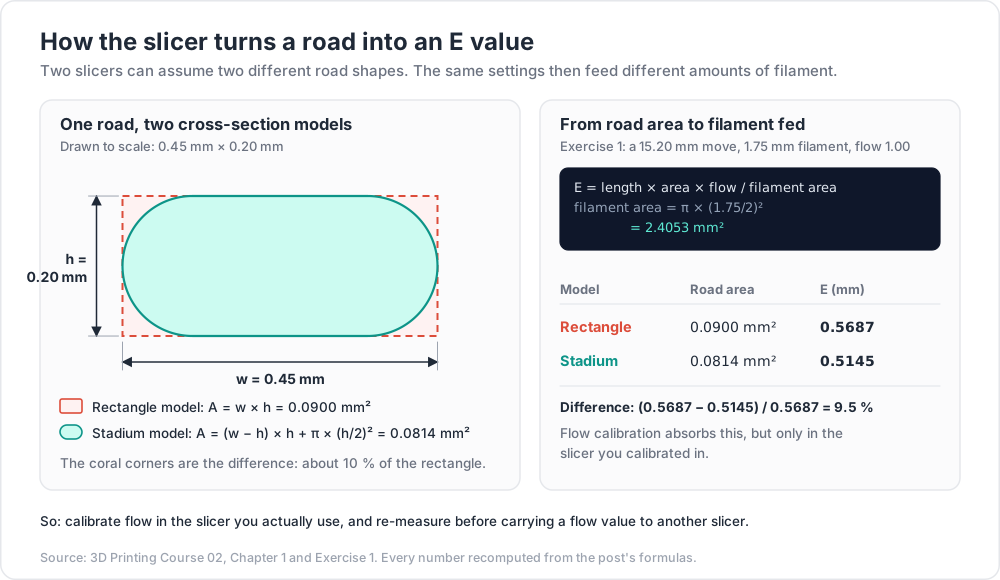
The road cross-section is where slicers differ slightly. A naive model treats it as a rectangle, width × height. A better one treats it as a rectangle with semicircular ends — the shape a squashed extrudate actually takes:
1
2
3
rectangle model: A = w × h
stadium model: A = (w − h) × h + π × (h/2)²
For a 0.45 mm wide, 0.20 mm tall road these differ by around 10 %. That difference is real, it is one reason two slicers produce visibly different results from the same settings, and it is exactly the kind of systematic error your flow calibration from post 01 absorbs — which is why flow is calibrated in the slicer you actually use.
Chapter 2 — Reading the G-code
G-code is a flat list of commands. There is no loop, no variable, no geometry — every move is spelled out. A 40 MB file is 40 MB of G1 lines.
The commands that matter
| Command | Meaning |
|---|---|
G0 / G1 |
linear move. G0 nominally means "rapid, no extrusion"; most printer firmwares treat the two identically, and many slicers emit G1 for everything |
X Y Z |
target coordinates in mm |
E |
the extruder axis, in mm of filament — not mm of travel |
F |
feedrate in mm per minute. Divide by 60 to get the mm/s in your slicer UI |
M82 / M83 |
absolute / relative extrusion mode. Relative (M83) is now the common choice |
G92 E0 |
reset the extruder position counter (used by absolute-mode slicers to avoid huge E values) |
M104 S<t> |
set nozzle temperature and continue |
M109 S<t> |
set nozzle temperature and wait until reached |
M140 / M190 |
same pair for the bed |
M106 S<0-255> |
part cooling fan speed |
M107 |
fan off |
G28 |
home axes |
M204 |
set acceleration |
M900 K<v> |
linear advance (Marlin) |
A layer change, annotated
1
2
3
4
5
6
7
8
9
10
11
12
13
;LAYER_CHANGE
;Z:0.60
;HEIGHT:0.2
G1 E-0.80 F2100 ; retract 0.8 mm of filament at 35 mm/s
G1 Z0.80 F9000 ; Z-hop: lift clear of the part
G1 X92.412 Y94.107 F9000 ; travel — no E word, so nothing is extruded
G1 Z0.60 F9000 ; drop to the new layer height
G1 E0.80 F2100 ; unretract
;TYPE:External perimeter
G1 F1800 ; 1800 mm/min = 30 mm/s
G1 X107.588 Y94.107 E0.5063
G1 X107.588 Y105.893 E0.3931
Reading it back:
- The
;LAYER_CHANGEand;TYPE:lines are comments. The printer ignores them; the slicer's preview, and any post-processing script, rely on them entirely. Cura uses;LAYER:ninstead — different dialect, same idea. - The layer change is a Z move surrounded by a retract/unretract pair. That pair is where seam blobs are born.
- The travel move has no
Eword, so the extruder does not turn. E0.5063on a 15.176 mm move means 0.5063 mm of 1.75 mm filament was fed over that distance. Working backwards gives the road cross-section, which is how you audit what your slicer is really doing.
Trick: when a slicer setting does not appear to be doing what you expect, slice a 20 mm cube, open the G-code in a text editor and search for the feature. Five minutes of reading beats an hour of speculation, and G-code cannot lie about what it is going to do.
Chapter 3 — Layer height and extrusion width
Layer height versus nozzle diameter
The widely used rule of thumb is a practical ceiling of roughly 75–80 % of nozzle diameter — about 0.30–0.32 mm on a 0.4 mm nozzle. It is a rule of thumb, not a physical constant, and it exists for a mechanical reason worth understanding.
The flat annular face around the nozzle orifice acts as a shoe. It rides above the previous layer at the layer height and irons the emerging extrudate down into it, which is what creates the wide contact patch and the pressure that drives interdiffusion (post 00). As layer height approaches nozzle diameter, the shoe stops touching the extrudate at all: material simply falls out of the orifice as a round noodle, keys poorly to the layer below, and stacks unstably.
Caveats in both directions:
- High-flow hotends and internally-restructured nozzles change the melting side of the problem but not the shoe geometry. Some users run higher ratios successfully; verify on your own machine before designing around it.
- Going very thin has its own floor. Below roughly a quarter of nozzle diameter, small Z errors and bed-mesh residuals become a large fraction of the layer, and print time grows without a proportional gain in quality.
The first-layer exception
The first layer routinely ignores the rule and runs thicker — commonly 0.2–0.3 mm even in fine profiles — for two reasons: a thicker layer swallows small bed irregularities and mesh residuals, and it produces a larger contact patch for adhesion. It is also frequently printed wider than other layers for the same reason.
What layer height does and does not control
| Layer height controls | Layer height does not control |
|---|---|
| Visible stepping on sloped and curved surfaces | detail in the XY plane — that is nozzle diameter and extrusion width |
| The Z resolution of features (a 0.15 mm step cannot exist in a 0.2 mm layer) | hole roundness or XY dimensional accuracy |
| Print time — roughly inversely, but not exactly | wall thickness |
| The number of layer interfaces per millimetre of height | whether a part is strong (interface count and interface quality pull in opposite directions; see below) |
| Overhang behaviour, indirectly (each layer's unsupported step scales with height) | support requirement |
On strength, resist the confident claim in either direction. Thinner layers give more interfaces but each one is smaller, cools differently and reheats more often. The published results are material- and geometry-dependent, and the effect is generally much smaller than the effect of orientation (post 03) or of wall count. Spend your attention there instead.
Extrusion width is not nozzle diameter
This surprises people, and it is the single most useful conceptual unlock in the slicer.
The width of a deposited road is set by how much material you push per unit of travel and how high the nozzle is, not by the orifice diameter. Push more, and the extrudate spreads sideways under the shoe until it is wider. Push less, and it is narrower. The orifice only limits how fast you can push it.
Usable range is roughly 100–200 % of nozzle diameter. Below about 100 %, the road becomes unreliable and the nozzle drags. Above about 200 %, the extrudate escapes past the shoe's control and the surface becomes lumpy.
How to use the decoupling deliberately:
| Setting | Typical choice | Why |
|---|---|---|
| First layer | wider than default | more contact patch, better adhesion, more tolerance of bed variation |
| External perimeter | at or slightly below nozzle diameter | narrower roads follow corners more tightly and give better dimensional control on the visible surface |
| Internal perimeters | above nozzle diameter (often ~110–120 %) | fewer, fatter roads for the same wall thickness — faster and fewer internal interfaces |
| Solid infill | above nozzle diameter | fewer passes to fill an area |
| Sparse infill | wider still | infill is invisible; width buys speed directly |
| Support interface | narrower | finer surface where the part rests on it |
Common pitfall: setting an extrusion width and forgetting that flow calibration (post 01) targets a specific width. Change your external perimeter width and your measured wall thickness changes, which looks like a flow error and is not.
Chapter 4 — Walls: count, order, seams, gap fill
Perimeter count
Wall thickness ≈ perimeter count × extrusion width. Two perimeters at 0.45 mm gives a 0.9 mm wall; four gives 1.8 mm.
Perimeter count is usually a better investment than infill density for stiffness and strength, and the reason is elementary beam mechanics: in bending, material's contribution to stiffness scales with the square of its distance from the neutral axis. The walls are the material furthest from the neutral axis. Infill in the middle of the section contributes comparatively little. Going from two walls to four on a bracket typically does more than doubling infill, and costs less time and material.
Typical practice: 2 walls for decorative parts, 3–4 for general functional parts, 5+ for parts under real load or that need to be watertight or tapped.
Perimeter order
Two orders, both defensible:
Inner first, external last (the usual default). The external perimeter is laid against already-solid inner walls, so it has something to lean on, and nothing is printed afterwards to disturb it. Generally better surface quality and better behaviour on overhanging walls.
External first. The outer wall is laid before any inner wall can push it outward, which can improve dimensional accuracy on some machines. Costs surface quality and overhang reliability.
Slicers in the PrusaSlicer lineage expose this as an "external perimeters first" toggle, and some offer a hybrid ordering. The honest guidance is that the effect size is machine-dependent: print a test part both ways, measure it with calipers and look at it, and decide for your machine. Post 05 returns to the accuracy side of this.
Seams
Every closed loop must start and stop somewhere. At that point the extruder transitions from zero pressure to steady pressure and back, and the result is a small defect — a blob, a notch, or both — stacked on every layer.
Seam placement strategies:
| Strategy | Result |
|---|---|
| Nearest | seam goes wherever travel is shortest; fastest, scattered, unpredictable |
| Aligned | seams stack into a single vertical line; ugly but predictable, and you can rotate it to the back |
| Rear | forced to the back of the plate |
| Random | scattered; hides the line at the cost of scattering small defects across the whole surface |
| Painted | you choose, per region, in the slicer — put it inside a corner where geometry hides it |
Mechanically, a stack of aligned seams is a line of small stress concentrations and reduced wall continuity, so on a pressure-bearing or load-bearing part, do not let the seam line up with the region of highest stress.
Reducing the seam artefact itself: tune pressure advance (post 01), and use the slicer's wipe and coasting options, which stop extruding slightly before the end of the loop and move the nozzle to smear the remainder. Some slicers additionally offer a scarf or ramped seam that spreads the transition over a Z ramp instead of a single point; where available, it is the most effective option for a visible cylindrical surface.
Gap fill
When a region is too narrow for another whole perimeter but too wide to ignore, classic perimeter generation leaves a gap and fills it with a short, thin extrusion. Gap fill is a common source of noise, vibration, blobs and stuttering motion, because it is many tiny moves with rapid flow changes.
The modern answer is variable-width extrusion (Chapter 6), which mostly eliminates the problem by widening the perimeters themselves to close the gap.
Chapter 5 — Skins and infill
The thickness-not-count rule
Solid layers are specified in most slicers as a count, which is a trap. What matters physically is total thickness of solid material.
1
2
3
5 top layers × 0.20 mm = 1.00 mm ← fine
5 top layers × 0.12 mm = 0.60 mm ← the same profile, now too thin
Halving your layer height silently halves your top skin. The result is pillowing: the top surface sags into the infill voids and shows holes and bumps.
The rule: specify a thickness, then derive the count. Around 0.8–1.2 mm of top solid is a sensible general target; more if infill density is low, because thin skin has to bridge longer unsupported spans. Modern slicers have a "minimum shell thickness" setting that enforces this automatically — turn it on. Bottom skins can be thinner, because the build plate supports them.
Monotonic ordering for the top solid layer is worth enabling where available: it forces solid infill lines to be laid in a consistent direction so each new road overlaps the previous one the same way, producing a visually uniform surface instead of a patchwork.
Infill patterns, honestly
First, what is reliably measurable at hobby level and what is not.
Measurable, repeatable, and worth optimising: estimated and actual print time, material mass (weigh the part), whether the pattern self-intersects within a layer (which makes the nozzle run over its own deposits, adding noise and artefacts), and whether the pattern is 2D (identical every layer) or 3D (varies with Z, giving out-of-plane structure).
Not reliably measurable without a test rig, standardised coupons and repeated samples: the small percentage strength differences between patterns that appear in blog comparisons. These figures are usually a single specimen, in a single load direction, on a single machine, and they do not generalise. Treat them as anecdote.
| Pattern | Structure | Print speed | Material at equal density | Honest strength note |
|---|---|---|---|---|
| Rectilinear / lines | 2D, alternating direction per layer | fastest | lowest | no intersections within a layer; layers only touch at crossings, so poor out-of-plane contribution |
| Grid | 2D, both directions in the same layer | fast | low | nozzle crosses its own deposits at every intersection — can cause knocking and artefacts at high density |
| Triangles | 2D, three directions | moderate | moderate | good in-plane isotropy; more material at nodes |
| Honeycomb | 2D hexagonal | slow — many direction changes | moderate | high in-plane stiffness for its mass, paid for in time |
| Cubic / adaptive cubic | 3D, stacked cubes on a corner | moderate | moderate; adaptive saves a lot | contributes in all three axes; adaptive subdivides only near surfaces |
| Gyroid | 3D, smooth continuous non-intersecting surface | moderate | moderate | near-isotropic by construction; smooth continuous motion; the common default for functional parts, and good for flexibles because it compresses evenly |
| Lightning | tree-like, grows only where a top surface needs support | very fast | very low | contributes essentially nothing structurally — that is the point. For decorative parts and hollow bodies |
| Concentric | follows the contour | moderate | moderate | used for flexible parts, where following the wall keeps the part uniformly compliant |
Density
Strength does not scale linearly with infill density; the returns diminish, and the time cost does not. The efficient move is almost always: add walls before you add infill, for the second-moment-of-area reason in Chapter 4. Typical practice:
- Decorative: 5–15 %, or lightning.
- General functional: 15–25 % with 3–4 walls.
- Loaded parts: 30–50 % with 5+ walls — and read post 07 before assuming that is enough.
- 100 %: rarely correct. Over-packing solid infill causes over-extrusion, dimensional growth and worse surfaces. If you need a solid part, increase walls until they meet in the middle.
Chapter 6 — Motion, and the quality features
Per-feature speeds
Slicers set a different speed for external perimeters, internal perimeters, solid infill, sparse infill, top solid, bridges, gap fill and travel. The important asymmetry:
Outer-wall speed dominates surface quality, and costs very little total time. The external perimeter is the only extrusion anyone sees; it is where ringing lands, where pressure-advance error is visible, and where corner rounding shows. It is also a small fraction of total extruded volume on most parts. Halving outer-wall speed typically adds a few percent to print time and produces a visibly better part. This is the best quality-per-minute trade in the whole slicer.
Conversely, sparse infill speed is nearly free to raise — until it hits the volumetric flow ceiling you measured in post 01.
Acceleration is the real print-time variable
On small parts the toolhead rarely reaches its commanded speed at all. The distance needed to accelerate from rest to speed v at acceleration a is:
1
2
3
4
d = v² / (2a)
a = 4000 mm/s², v = 250 mm/s → d = 62500 / 8000 = 7.81 mm
Accelerating and decelerating therefore needs about 15.6 mm of travel. A 10 mm wall segment never sees 250 mm/s. It accelerates over half its length and decelerates over the other half, so its peak speed is √(2a × L/2) = √(a × L) = √(4000 × 10) = 200 mm/s, and its average is lower still.
Consequences:
- Raising the speed setting on a part made of short segments changes nothing. Raising acceleration does.
- Raising acceleration excites resonance, which is what input shaping (post 01) exists to manage. The two settings are coupled.
- Jerk (Marlin's classic model), junction deviation and Klipper's square corner velocity all describe the same thing: how much speed is retained through a direction change. Raising it speeds up detailed parts and adds ringing.
- Minimum layer time / "slow down for short layers" forces small cross-sections to take long enough to solidify. It is a cooling setting wearing a speed setting's clothes.
Cooling
Set from material, as measured in post 01. Briefly: PLA wants a lot, PETG a moderate amount, ABS/ASA very little in an enclosure, nylon and PC little. Cooling buys overhang and detail quality and pays in layer adhesion; that trade never goes away.
The quality features
Ironing. After the top solid layer is complete, the nozzle sweeps the surface again at very low flow, remelting and smoothing it. Produces a genuinely flat, near-glossy top face. Costs time proportional to top-surface area, and can push a bead of material to the edges if flow is too high. Only applies to flat, horizontal top surfaces.
Adaptive layer height. Layer height varies with local surface slope — thin layers where the surface is shallow (where stepping is visible), thick where it is vertical (where stepping is invisible). Excellent on organic and curved shapes, useless on prisms, and it complicates any setting that is expressed per layer. Some slicers additionally let you paint a height range by hand.
Fuzzy skin. The outer wall is deliberately jittered in XY by a small random amount, giving a matte, textured surface. It hides layer lines, hides seams, and improves grip on handles. Costs a little time and a little dimensional precision on the fuzzed surface — never fuzz a mating face. Better slicers let you paint it onto selected surfaces only.
Variable-width extrusion (Arachne). The perimeter generator that, instead of laying fixed-width loops and dumping the remainder into gap fill, varies each loop's width to fill the available space exactly. Thin walls, tapering ribs, embossed text and small features all improve substantially. It originated in the Cura engine and became the default perimeter generator in PrusaSlicer from version 2.5; OrcaSlicer and Bambu Studio, both of PrusaSlicer lineage, carry it too. The classic fixed-width generator remains selectable and is occasionally preferred when you want perfectly uniform road width for its own sake.
Modifiers and per-region settings
The most under-used capability in every modern slicer. You are not limited to one setting per part.
- Per-object settings — different infill, walls or supports for each object on the plate.
- Height ranges — different settings for a Z band, e.g. more solid layers around a threaded region.
- Modifier meshes — drop a box or cylinder into the scene and any setting inside its volume is overridden. The canonical use is 100 % infill only inside a screw boss, or extra walls only around a bearing seat.
- Negative volumes — subtract geometry at slice time without touching the CAD model. Useful for a quick clearance test.
- Support blockers and enforcers — force supports on or off in a region rather than fighting the global threshold.
- Painted seams and painted supports — direct manual control on the model surface.
Trick: a modifier mesh is the correct answer almost every time you are tempted to raise a global setting for the sake of one feature. Raising global infill from 20 % to 60 % because one boss needs to be solid costs you the whole part's print time; a modifier box costs you the boss.
Brims, rafts and skirts
| Feature | What it is | Use when |
|---|---|---|
| Skirt | one or more loops around the part, not touching it | always — it purges the nozzle and gives you a free look at the first layer before the part starts |
| Brim | a flat collar attached to the part's first layer | small footprints, tall thin parts, warp-prone materials, sharp corners that lift. Costs cleanup and can mar the bottom edge |
| Raft | a full printed platform under the part | a genuinely bad bed surface, materials that will not adhere directly, or parts whose footprint is nearly nothing. Costs material, time and the bottom-face finish |
"Mouse ear" brims — small discs added only at the corners that lift — give most of the benefit of a full brim with a fraction of the cleanup, and are available as a brim type or can be added as small modifier objects.
Chapter 7 — Profiles, slicers, and estimates
Profile discipline
The rule: start from the vendor profile, change one variable, keep notes.
- Begin from the printer manufacturer's profile for your machine and a material profile for your filament. These encode machine limits you may not know about.
- Change one thing. Print the test that isolates it. Record the result.
- Save as a new named profile whose name says what changed —
PETG 0.2 walls4 outer25beatsPETG final v3 REAL final. - Export the project as a 3MF with settings embedded for anything you might reprint. A bare STL plus a memory of what you did is not reproducible; a project file is.
- Keep the same notebook you started in post 01. Slicer changes and machine changes belong in the same log because they interact.
The slicer landscape, by capability
All four of the mainstream desktop slicers below share substantial code lineage, so most setting names transfer between them.
| Slicer | Lineage | Notable capabilities |
|---|---|---|
| PrusaSlicer | descends from Slic3r; open source | strong documentation; Arachne default from 2.5; organic supports from 2.6; modifier meshes, height ranges, negative volumes; wide community printer profiles |
| OrcaSlicer | fork in the PrusaSlicer/Bambu Studio lineage; open source | built-in guided calibration suite (flow, pressure advance, temperature, maximum volumetric speed, retraction); broad printer support; fast adoption of new features |
| Cura | Ultimaker; open source | very large printer profile library; plugin marketplace; the engine where tree supports, lightning infill and the Arachne generator originated |
| Bambu Studio | PrusaSlicer lineage | tight integration with its own hardware, multi-material and multi-plate workflow |
Choose on the capability you need — the calibration suite, the profile library, the plugin, the hardware integration — rather than on identity. Being able to read a setting in one and find it in another is a more valuable skill than loyalty to any of them.
Print time and material cost estimates
Print time. The slicer estimates by simulating its own motion model: every move, with acceleration and jerk applied. It is a good model, and the error comes from the places where the printer does not behave like the model — firmware acceleration limits that clamp the slicer's requests, input shaping smoothing that changes effective acceleration, per-move minimum times, and heating and homing at the start.
The right response is calibration rather than complaint:
1
2
3
4
5
correction_factor = actual_print_time / estimated_print_time
Time three real prints of different sizes, compute the ratio, and apply it
mentally from then on. It is usually stable for a given printer + profile.
If the ratio is wildly different for small versus large parts, the discrepancy is in acceleration handling, not in the estimator.
Material. The slicer reports extruded filament length and usually a mass. Mass comes from volume × density, and the density value lives in the filament profile. For unfilled PLA and PETG the default is usually close; for carbon- or glass-filled, metal-filled, wood-filled or foaming materials it can be significantly off. Verify once per material by weighing a printed part on a kitchen scale and comparing.
Cost. The naive figure is mass(g) / 1000 × spool_price. The realistic figure adds electricity, amortised machine and consumable cost (nozzles, plates, belts), and — the term everyone omits — a failure allowance. If one print in eight fails at 70 % completion, your effective material cost is meaningfully higher than the slicer's number, and your effective time cost is much higher.
Practice Exercises
Exercise 1 — Compute an extrusion
A move is 15.20 mm long, extrusion width 0.45 mm, layer height 0.20 mm, filament 1.75 mm, flow 1.00. Compute the E value under both the rectangle and stadium cross-section models, and state the percentage difference.
Solution
1
2
3
4
5
6
7
8
9
10
11
12
13
14
15
16
17
18
filament cross-section = π × (1.75/2)² = π × 0.765625 = 2.4053 mm²
Rectangle model:
A = 0.45 × 0.20 = 0.0900 mm²
V = 0.0900 × 15.20 = 1.3680 mm³
E = 1.3680 / 2.4053 = 0.5687 mm
Stadium model:
A = (0.45 − 0.20) × 0.20 + π(0.10)²
= 0.0500 + 0.031416 = 0.0814 mm²
V = 0.0814 × 15.20 = 1.2375 mm³
E = 1.2375 / 2.4053 = 0.5145 mm
Difference: (0.5687 − 0.5145) / 0.5687 = 9.5 %
This is why a flow multiplier calibrated in one slicer should not be carried
into another without re-measuring.
Exercise 2 — Does the move reach its speed?
Your profile requests 200 mm/s for internal perimeters, and your printer's acceleration is set to 3000 mm/s². Compute the distance needed to accelerate to 200 mm/s, and the peak speed actually reached on a 12 mm straight segment.
Solution
1
2
3
4
5
6
7
8
9
10
11
Accel distance to 200 mm/s:
d = v² / (2a) = 200² / (2 × 3000) = 40000 / 6000 = 6.67 mm
accelerate + decelerate = 13.3 mm → a 12 mm segment never reaches 200 mm/s.
Peak on a 12 mm segment (accelerate for half, decelerate for half):
v_peak = √(2a × L/2) = √(a × L) = √(3000 × 12) = √36000 ≈ 190 mm/s
So the commanded 200 mm/s is fiction for this feature. Raising the speed
setting will do nothing; raising acceleration (and then re-checking ringing
and input shaping) is the lever that works.
Exercise 3 — Fix a silently broken profile
You take a working 0.20 mm profile with 5 top layers and 5 bottom layers, and switch to a 0.12 mm layer height for a finer finish. The top surfaces now show holes and dimpling. Diagnose it and give the corrected values.
Solution
1
2
3
4
5
6
7
8
9
10
11
12
13
14
15
16
Diagnosis: pillowing. Top solid THICKNESS collapsed when layer height
changed, because the profile specifies a COUNT.
before: 5 × 0.20 = 1.00 mm of solid top
after: 5 × 0.12 = 0.60 mm of solid top
0.60 mm of skin cannot reliably bridge the sparse infill voids beneath it,
so it sags into them.
Fix: restore the thickness.
required count = 1.00 / 0.12 = 8.33 → 9 top layers (1.08 mm)
Better fix: enable the slicer's minimum shell thickness setting (set to
1.0 mm top / 0.6 mm bottom) so the count is derived automatically and this
class of bug cannot recur when layer height changes again.
Exercise 4 — Walls versus infill
Slice the same bracket twice: (a) 2 walls with 40 % gyroid infill, (b) 4 walls with 15 % gyroid infill. Record estimated print time and estimated mass for each. Then state which you would choose for a load-bearing application and justify it in terms of where the material sits relative to the neutral axis.
Exercise 5 — Audit your own G-code
Slice a 20 mm cube. In the G-code, find: the first M109, the first layer change, one retraction, one external-perimeter extrusion, and the fan command. For the external-perimeter move you found, compute the road cross-section from the move length and E value, and compare it to your configured extrusion width and layer height.
Exercise 6 — Modifier mesh
Take any part with a screw boss or a bearing seat. Instead of raising global infill, add a modifier box around that feature only, set to 100 % infill and extra walls. Compare estimated print time to the global-setting version. Record the difference.
Exercise 7 — Calibrate your time estimate
Time three real prints of clearly different sizes with a stopwatch or the printer's own log. Compute actual / estimated for each. Report whether the ratio is consistent, and if it is not, state which direction the discrepancy runs with part size and what that implies about acceleration handling.
Cheat-sheet
| What | How |
|---|---|
| Slicer pipeline | mesh → layer polygons → perimeters → skin/infill split → supports → toolpath ordering → G-code |
| Extrusion amount | E = length × road_area × flow / (π × (d/2)²) |
F in G-code |
mm per minute — divide by 60 for the slicer's mm/s |
| Layer-height ceiling | rule of thumb, roughly 75–80 % of nozzle diameter |
| Extrusion width range | roughly 100–200 % of nozzle diameter; it is a slicer choice, not a nozzle property |
| Stiffness per gram | add walls before adding infill (distance from the neutral axis, squared) |
| Perimeter order | inner-first for surface and overhangs; outer-first can help accuracy — test on your machine |
| Seam control | aligned + rotate to the back, or paint it into a corner; tune pressure advance and enable wipe |
| Solid skin | specify thickness (~0.8–1.2 mm top), derive the count; enable minimum shell thickness |
| Pillowing | too little top skin thickness over sparse infill |
| Infill default for functional parts | gyroid, 15–25 %, with 3–4 walls |
| Infill for decorative parts | lightning |
| 100 % infill | almost never the right answer — add walls instead |
| Best quality-per-minute setting | slow the external perimeter |
| Print time on small parts | governed by acceleration, not by the speed setting |
| Accel distance | d = v² / (2a); peak on a short move of length L is √(a × L) |
| Feature for one region only | modifier mesh, not a global setting change |
| Always enable | a skirt — a free preview of the first layer |
| Reproducibility | export the project as 3MF with settings embedded |
| Estimate trust | calibrate actual / estimated on three prints and apply the ratio |
What's next
Post 03 covers the highest-leverage decision in the whole process: orientation. One choice simultaneously sets the strength axis, the surface quality, the support volume, the print time and the dimensional accuracy — and those objectives conflict, so the post works a single real part through the trade-off explicitly. It then covers overhangs and the 45-degree guideline stated properly, bridging, vertical versus horizontal holes, support types and the Z-gap that decides whether supports snap off or fuse on, and design techniques that avoid supports altogether.
References
- PrusaSlicer knowledge base — including the Arachne perimeter generator and Organic supports articles.
- OrcaSlicer wiki — setting-by-setting documentation and the calibration suite.
- Ultimaker Cura documentation — settings reference for the Cura engine.
- RepRap wiki — G-code — the cross-firmware command reference.
- Marlin firmware documentation — authoritative behaviour for
M104,M109,M106,M204,M900and the rest. - Klipper documentation — kinematics, acceleration, square corner velocity and pressure advance.
- Ellis' Print Tuning Guide — practical, well-reasoned coverage of extrusion width, flow and speed interactions.
Note: this post is in progress. Planned additions: annotated slicer preview screenshots for each infill pattern; a side-by-side seam comparison across placement strategies; a worked modifier-mesh example with before/after time and mass figures.