Three.js Course — 08 · Performance on Low-End & Mobile Devices
A scene that hits 144 fps on a gaming laptop can collapse to 8 fps on a three-year-old Android. The gap isn't usually about raw GPU speed — it's pixel-fill rate, memory bandwidth, shader complexity, and CPU draw-call overhead. This post is the practical checklist for shipping Three.js to phones, low-end laptops, and integrated GPUs: pixel-ratio capping, budgets for triangles + textures + draw calls, on-demand rendering, shader cost awareness, and the diagnostic flow for any "why is this so slow on my phone" investigation.
Series map: 00 Foundations → 01 Geometry & Materials → 02 Cameras & Controls → 03 Lighting & Shadows → 04 Textures & PBR → 05 Asset Pipeline → 06 Animation → 07 Instancing & Batching → 08 Low-End Performance (this post) → 09 Shaders → 10 Post-Processing → 11 Physics → 12 R3F → 13 AI 3D.
Learning Outcome
- Cap
devicePixelRatiocorrectly (this alone often doubles framerate). - Apply triangle / texture / draw-call budgets for mobile.
- Use on-demand rendering when the scene isn't always animating.
- Pick cheaper material families and shadow settings on low-end devices.
- Diagnose CPU vs GPU bottlenecks systematically.
- Detect device capability and adapt at runtime.
Chapter 1 — Pixel ratio (the biggest free win)
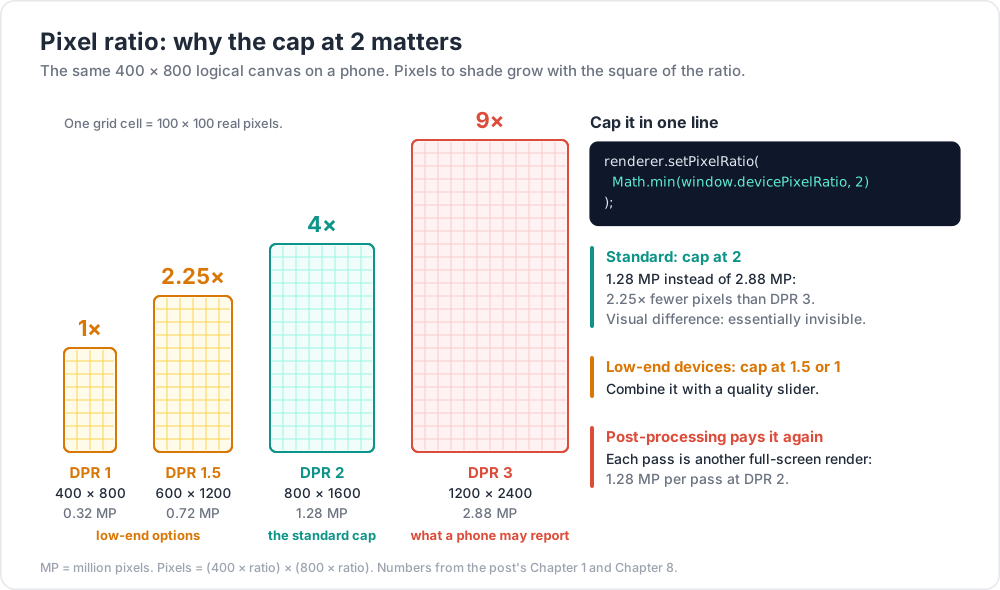
A modern phone may report window.devicePixelRatio = 3 — meaning a 400×800 logical viewport renders at 1200×2400 actual pixels. That's 9× the pixels of a desktop running the same canvas at DPR=1.
1
2
renderer.setPixelRatio(Math.min(window.devicePixelRatio, 2));
Capping at 2 is the standard. The visual difference between DPR=2 and DPR=3 is essentially invisible; the performance difference is dramatic.
For aggressive optimisation, cap at 1.5 or 1 on detected low-end devices. Combine with a quality slider in your UI.
Chapter 2 — Budgets
Rough budgets for 60 fps on a mid-2020s phone (Snapdragon 7-gen, A15):
| Resource | Mobile budget | Desktop budget |
|---|---|---|
| Draw calls per frame | ≤ 100-200 | ≤ 1,000 |
| Triangles per frame | ≤ 250-500 k | ≤ 5 M |
| Active textures | ≤ 30 | ≤ 100+ |
| Texture VRAM total | ≤ 100 MB | ≤ 500 MB |
| Shader programs | keep under 30 | keep under 200 |
| Shadow maps active | 1 × 1024 | 1-3 × 2048 |
| Postprocess passes | 1-2 (bloom only) | many |
Low-end / older mobile is 2-4× tighter. Higher-end mobile (latest iPhone Pro) approaches desktop. Always test on the lowest device you intend to support, not your dev machine.
Measuring
1
2
3
4
console.log(renderer.info.render); // calls, triangles, points, lines
console.log(renderer.info.memory); // geometries, textures
console.log(renderer.info.programs); // shader programs
In R3F (Post 12), r3f-perf gives the same overlayed in the canvas.
Chapter 3 — On-demand rendering
If the scene doesn't change every frame (static showroom, paused state), don't render every frame.
1
2
3
4
5
6
7
8
9
10
let needsRender = true;
controls.addEventListener('change', () => { needsRender = true; });
renderer.setAnimationLoop(() => {
if (needsRender) {
renderer.render(scene, camera);
needsRender = false;
}
});
In R3F: <Canvas frameloop="demand" />. The renderer goes idle when nothing's happening, dropping power consumption to near zero — invaluable on mobile (battery, thermal throttling).
For mixed scenes (some always-animating elements, some not), trigger render on relevant property changes only.
Chapter 4 — Material cost ranking
Cheaper materials → less per-pixel shader work → less heat → more battery.
| Material | Relative GPU cost | When OK to downgrade |
|---|---|---|
MeshBasicMaterial |
1× | UI, hero text, sprites |
MeshLambertMaterial |
1.5× | matte non-shiny |
MeshPhongMaterial |
2× | shiny but non-PBR |
MeshStandardMaterial |
4-6× | default for hero objects |
MeshPhysicalMaterial |
6-10× | only hero objects (glass, clearcoat) |
For low-end builds, swap Standard → Lambert for background props. The difference at small sizes / dim lighting is rarely noticeable.
1
2
3
4
5
6
// quality-based material selection
const HIGH_QUALITY = !isMobile && !isLowEnd;
const propMaterial = HIGH_QUALITY
? new THREE.MeshStandardMaterial({ color: 0xaaaaaa, roughness: 0.6 })
: new THREE.MeshLambertMaterial({ color: 0xaaaaaa });
Chapter 5 — Shadow settings for mobile
From Post 03, shadows are often the most expensive piece. For mobile:
1
2
3
4
5
renderer.shadowMap.enabled = true;
renderer.shadowMap.type = THREE.PCFShadowMap; // not PCFSoft on mobile
sun.shadow.mapSize.set(1024, 1024); // not 2048
sun.shadow.camera.far = 30; // tighter frustum
Or skip real-time shadows entirely and bake:
- Static scenery → bake AO + lightmap into textures (Post 03/04). Zero per-frame shadow cost.
- One key character → real-time shadow only for it.
- Use Drei's
<AccumulativeShadows>or aShadowMaterialplane for cheap "contact shadows".
Chapter 6 — Texture budget
GPU memory is precious on mobile. Each 1024² uncompressed texture = 4 MB. 30 textures = 120 MB — half the VRAM on many phones.
Discipline:
- Resize source textures to power-of-two and to the actual on-screen size needed (1024² for hero, 512² for medium, 256² for background props).
- Use KTX2 / Basis Universal (Post 04) — ~10× GPU memory savings.
- Pack channels (ORM in one RGB image — Post 04).
- Avoid
wrapS/T = ClampToEdgeif you can tile — repeating textures need lower resolution. - For decorative repeated detail, use a trim sheet (small atlas tiled across many shapes).
Detecting mobile / low-end
1
2
3
const isMobile = /Mobi|Android/i.test(navigator.userAgent);
const lowEnd = navigator.hardwareConcurrency < 4 || (navigator.deviceMemory ?? 4) < 4;
Not perfect (web hides specs by design); good enough to make a tier decision at startup.
Chapter 7 — Geometry budget
Triangle count is rarely the bottleneck for modern GPUs; fill rate (pixels × shader cost) is. Still, mobile rasterisers slow on huge meshes:
- High-detail hero models: ~10-30k triangles.
- Background props: ≤ 1k each.
- Total scene triangles: ≤ 500k on mid-mobile, ≤ 100k on low.
Reduce via:
gltf-transform simplify(CLI).- LOD swaps (Post 07).
- Decimate / retopo in Blender.
Trick: check if your model is over-tessellated for its on-screen size. A 50k-tri tree displayed at 30 pixels tall is wasted work; a 500-tri impostor billboard would look identical.
Chapter 8 — Postprocess discipline on mobile
Each postprocess pass is a full-screen render at the canvas resolution. On a 1200×2400 phone display (DPR=3 capped to 2 → 800×1600), every pass is 1.28 MP of fragment work. Three passes triple that.
Mobile rules:
- 0-1 postprocess passes maximum.
- Run post passes at half resolution where possible (
composer.setSize(w/2, h/2)). - Skip bloom + SSAO + DOF together — pick one if any.
- Tonemapping in the main render pass is free (
renderer.toneMapping = THREE.ACESFilmicToneMapping) — keep that.
Post 10 covers postprocess in detail.
Chapter 9 — Render targets + memory
Each render target (custom framebuffer used for post passes, reflections, planar mirrors, refraction) = a full-resolution colour + depth texture. On mobile, two render targets at full resolution might already eat 30 MB.
Tips:
- Half-resolution where the artifact won't be noticed.
- Reuse the same render target across passes (ping-pong) instead of allocating new each frame.
- Free render targets you no longer use:
rt.dispose().
Chapter 10 — CPU vs GPU bottleneck — diagnosis
Three classes of bottleneck. Different fixes for each.
| Bottleneck | Symptom | Fix |
|---|---|---|
| CPU (JS + draw calls) | high JS time in Performance panel; renderer.info.calls high |
reduce draw calls (Post 07); move per-frame work out of JS; throttle updates |
| GPU fragment (pixel shader / fill rate) | lowering pixel ratio drastically improves; high GPU ms | cheaper materials; smaller postprocess; smaller canvas |
| GPU vertex (geometry) | many high-tri meshes; OK on small canvas, slow on big | LOD; geometry simplification; instancing |
Quick test: halve the canvas size (renderer.setSize(w/2, h/2)). If FPS doubles or more, you're GPU-bound. If little change, you're CPU-bound.
Quick test 2: disable shadows + post. If FPS doubles, those were the cost. Tune them.
Use stats-gl (Post 00) — separate CPU ms and GPU ms readouts make this diagnosis straightforward.
Chapter 11 — Adaptive quality (the production pattern)
Detect FPS over a window; downgrade quality automatically when it drops.
1
2
3
4
5
6
7
8
9
10
11
12
13
14
15
16
17
18
19
let avgFps = 60;
let quality = 1.0; // 0..1 multiplier
renderer.setAnimationLoop(() => {
const dt = clock.getDelta();
avgFps = avgFps * 0.95 + (1 / dt) * 0.05;
if (avgFps < 40 && quality > 0.5) {
quality -= 0.05;
renderer.setPixelRatio(window.devicePixelRatio * quality);
composer.setSize(innerWidth * quality, innerHeight * quality);
} else if (avgFps > 55 && quality < 1.0) {
quality += 0.02;
renderer.setPixelRatio(window.devicePixelRatio * quality);
}
renderer.render(scene, camera);
});
Same pattern works for: disabling shadows below threshold, swapping to simpler materials, dropping postprocess.
Trick: Three.js has built-in helpers for adaptive scaling — see
examples/jsm/utils/AdaptiveDpr.js. Saves you writing the loop.
Chapter 12 — Bundle size + load time
Slow first paint kills mobile users on cellular. Reduce JS bundle:
- Tree-shake — Vite + ESM does this automatically; avoid importing
threenamespaces from anything butthree/addons/*. - Lazy-load decoders (Post 05) — DRACOLoader + KTX2Loader pulled only when needed.
- Lazy-load Three.js itself — dynamic
import('three')inside the first interaction handler if 3D isn't the main page content. - Show a loading indicator during decode (10-100 MB models can take seconds even after download).
1
2
3
4
5
6
7
8
import { LoadingManager } from 'three';
const manager = new THREE.LoadingManager();
manager.onProgress = (url, loaded, total) => {
progressBar.value = (loaded / total) * 100;
};
const loader = new GLTFLoader(manager);
Chapter 13 — The mobile audit checklist
Before shipping any Three.js page to mobile:
- [ ]
renderer.setPixelRatio(Math.min(devicePixelRatio, 2)). - [ ] Draw calls measured + ≤ 100-200.
- [ ] Triangles ≤ 500k.
- [ ] Textures KTX2-compressed; total ≤ 100 MB GPU.
- [ ] Shadows: 1 × 1024 PCF (or baked AO only).
- [ ] Postprocess: 0-1 passes max.
- [ ] On-demand rendering if scene isn't always animating.
- [ ] Tested on the lowest-end target device, not just dev machine.
- [ ] Loading indicator + progress.
- [ ] Lazy-loaded decoders, lazy-loaded Three.js if 3D is secondary.
- [ ] Adaptive quality loop in place.
- [ ] Battery + thermal tested for sessions > 1 minute.
Practice Exercises
Exercise 1 — Pixel ratio swap
Build a scene with 1000 cubes. Render with DPR uncapped vs DPR=2 vs DPR=1. Measure FPS on a phone.
Exercise 2 — Audit a real model
Load any free Sketchfab model. Print renderer.info.render + renderer.info.memory. Note draw calls, textures, triangles. Decide what to optimise.
Exercise 3 — On-demand rendering
Convert your default render loop to on-demand. Trigger render on OrbitControls change. Watch CPU usage drop to 0 in idle state.
Exercise 4 — Quality tiers
Build a quality selector (Low / Medium / High) that switches: pixel ratio, shadow map size, shadow type, material families. Switch live without re-loading.
Exercise 5 — Adaptive loop
Implement Chapter 11's adaptive quality loop. Simulate slow GPU with for (let i = 0; i < 1e6; i++) {} inside the render loop. Observe quality scaling down.
Exercise 6 — Bottleneck diagnosis
A scene seemingly lagging on mobile. Halve canvas size — measure. Disable shadows — measure. Disable post — measure. Identify the dominant cost.
Cheat-sheet
| What | How |
|---|---|
| Pixel ratio cap | renderer.setPixelRatio(Math.min(devicePixelRatio, 2)) |
| Mobile draw-call budget | < 100-200 |
| Mobile triangle budget | < 500k |
| Mobile texture VRAM | < 100 MB |
| On-demand render | only render when needsRender flag set |
| Cheap material | Lambert > Phong > Standard for background props |
| Shadow on mobile | 1024 PCF (not 2048 PCFSoft) |
| Postprocess on mobile | 0-1 passes |
| Diagnose CPU vs GPU | halve canvas; if FPS doubles → GPU-bound |
| Disable shadows test | confirms shadow cost |
| Adaptive quality | downgrade pixel ratio + shadow size on low FPS |
| Mobile detection | `/Mobi |
| Capability detect | navigator.hardwareConcurrency, navigator.deviceMemory |
| Loading manager | progress for users; lazy-load decoders |
| Free render target | rt.dispose() when unused |
What's next
Post 09 dives into shaders — both classical GLSL ShaderMaterial and the new TSL (Three.js Shading Language) NodeMaterial that compiles to both WebGL2 and WebGPU. Custom shaders unlock effects the built-in materials can't do.
References
- 100 Three.js Tips That Actually Improve Performance (2026)
- Optimising Three.js for Mobile Devices (Coders Stop)
- Performance tips — Three.js Journey
- Three.js examples —
webgl_*perf demos - Boosting R3F Mobile Performance 2026 (Krapton)
Note: this post is in progress. Planned additions: thermal-throttling benchmarks; WebGL vs WebGPU mobile comparison; first-paint optimisation per Lighthouse.