Dev Essentials — 05 · Command Line Daily Kit — Pipes, grep, find, sed, jq and ssh in Bash and PowerShell
A developer who is fast on the command line can answer "which IP hit us most?", "which files changed today?" or "is the server up?" in one line, without writing a script. This post is a daily kit for two shells side by side: Bash (Git Bash on Windows, or any Linux/macOS terminal) and Windows PowerShell 5.1 (the one built into Windows 11). For every topic you get the Bash way, the PowerShell way, and the traps between them.
Series map: 01 Text Encoding → … → 04 Line Endings → 05 Command Line (this post) → 06 Regex → … → 24 Desk Health. Part B · Everyday skills.
Learning Outcome
- Explain the core difference: Bash pipes text, PowerShell pipes objects.
- Redirect stdout and stderr correctly, and avoid PowerShell 5.1's encoding traps.
- Search text (
grep/Select-String/rg), find files (find/Get-ChildItem/fd), and edit in place (sed/-replace). - Count and rank with
sort | uniq -c | sort -rnandGroup-Object. Query JSON withjqorConvertFrom-Json, and call HTTP APIs withcurl/Invoke-RestMethod. - Use environment variables, exit codes, chaining and quoting correctly in both shells.
- Search history, set up aliases and profiles, and use SSH keys,
~/.ssh/config,scpandrsync.
Chapter 1 — Two shells, two ideas
Bash passes plain text between programs. Every tool reads lines and writes lines, and you cut columns out of text with awk, cut or sed. PowerShell passes .NET objects. Get-ChildItem sends file objects with properties like Name, Length and LastWriteTime, so you filter by property, not by column position. "Files over 1 MB" in each shell:
| Bash — parse column 5 of text | PowerShell — filter a property |
|---|---|
ls -l | awk '$5 > 1000000 {print $9}' |
Get-ChildItem | Where-Object Length -gt 1MB | Select-Object Name |
On Windows, Git Bash comes with Git for Windows: real Bash plus GNU tools (grep, sed, awk, find, ssh…). It shows drives as /c/Users/...; cygpath -w /c/Users converts a path to Windows form. Windows PowerShell 5.1 is built into Windows. The newer PowerShell 7 (pwsh) is a separate install and fixes several traps shown below; this post targets 5.1 because it is always there.
Watch out: in Windows PowerShell 5.1,
ls,cat,sortandcurlare aliases for cmdlets (Get-ChildItem,Get-Content,Sort-Object,Invoke-WebRequest). They look like the Unix tools but take different options.Get-Alias curlshows what a name really runs.
Terminology
| Term | Meaning |
|---|---|
| Shell / terminal | The program that reads your commands (Bash, PowerShell) / the window that hosts it |
| stdin / stdout / stderr | Standard input, normal output, error output (streams 0, 1, 2) |
Pipe | |
Sends one command's output into the next command's input |
| Exit code | Number a program returns: 0 = success, anything else = failure |
| Cmdlet | A PowerShell command named Verb-Noun, e.g. Get-Content |
| Environment variable | A named value every child process inherits, e.g. PATH |
Chapter 2 — Moving around, and a sample file
| Task | Bash | PowerShell 5.1 |
|---|---|---|
| Where am I | pwd |
Get-Location (pwd) |
| List, including hidden | ls -la |
Get-ChildItem -Force |
| Enter, then come back | pushd dir … popd |
Push-Location dir … Pop-Location |
| Make nested folders | mkdir -p a/b/c |
New-Item -ItemType Directory -Force a\b\c |
| Copy a folder / move | cp -r src dst / mv a b |
Copy-Item -Recurse src dst / Move-Item a b |
| Delete a folder | rm -rf dir |
Remove-Item -Recurse -Force dir |
| Which program runs? | command -v python |
Get-Command python or where.exe python (plain where is Where-Object) |
Most examples below use this small web-server log (fields: time, client IP, method, path, status, bytes; the IPs are from ranges reserved for documentation). Create it once:
1
2
3
4
5
6
7
8
9
10
11
cat > access.log <<'EOF'
2026-09-20T10:15:02Z 203.0.113.7 GET /index.html 200 512
2026-09-20T10:15:04Z 198.51.100.23 GET /about.html 200 734
2026-09-20T10:15:09Z 203.0.113.7 POST /login 401 64
2026-09-20T10:16:11Z 192.0.2.44 GET /index.html 200 512
2026-09-20T10:16:15Z 203.0.113.7 POST /login 200 128
2026-09-20T10:17:20Z 198.51.100.23 GET /missing 404 0
2026-09-20T10:18:02Z 192.0.2.44 GET /index.html 304 0
2026-09-20T10:18:30Z 203.0.113.7 GET /admin 403 0
EOF
1
2
3
4
5
6
7
8
9
10
11
@'
2026-09-20T10:15:02Z 203.0.113.7 GET /index.html 200 512
2026-09-20T10:15:04Z 198.51.100.23 GET /about.html 200 734
2026-09-20T10:15:09Z 203.0.113.7 POST /login 401 64
2026-09-20T10:16:11Z 192.0.2.44 GET /index.html 200 512
2026-09-20T10:16:15Z 203.0.113.7 POST /login 200 128
2026-09-20T10:17:20Z 198.51.100.23 GET /missing 404 0
2026-09-20T10:18:02Z 192.0.2.44 GET /index.html 304 0
2026-09-20T10:18:30Z 203.0.113.7 GET /admin 403 0
'@ | Set-Content -Path access.log -Encoding Ascii
Chapter 3 — Pipes and redirection
| Goal | Bash | PowerShell 5.1 |
|---|---|---|
| stdout to file (overwrite / append) | cmd > out.txt / >> |
cmd > out.txt / >> |
| stderr to file | cmd 2> err.txt |
cmd 2> err.txt |
| Both into one file | cmd > all.txt 2>&1 |
cmd *> all.txt |
| Throw errors away | cmd 2>/dev/null |
cmd 2>$null |
| Throw everything away | cmd > /dev/null 2>&1 |
cmd *> $null or cmd | Out-Null |
| Show and save | cmd | tee out.txt |
cmd | Tee-Object -FilePath out.txt |
PowerShell has six redirectable streams (1 success, 2 error, 3 warning, 4 verbose, 5 debug, 6 information); *> redirects all of them.
Common pitfall: order matters in Bash.
cmd > all.txt 2>&1sends both streams to the file.cmd 2>&1 > all.txtsends stderr to the terminal, because2>&1copies where stdout pointed at that moment.
Watch out: Windows PowerShell 5.1 does not write UTF-8 by default.
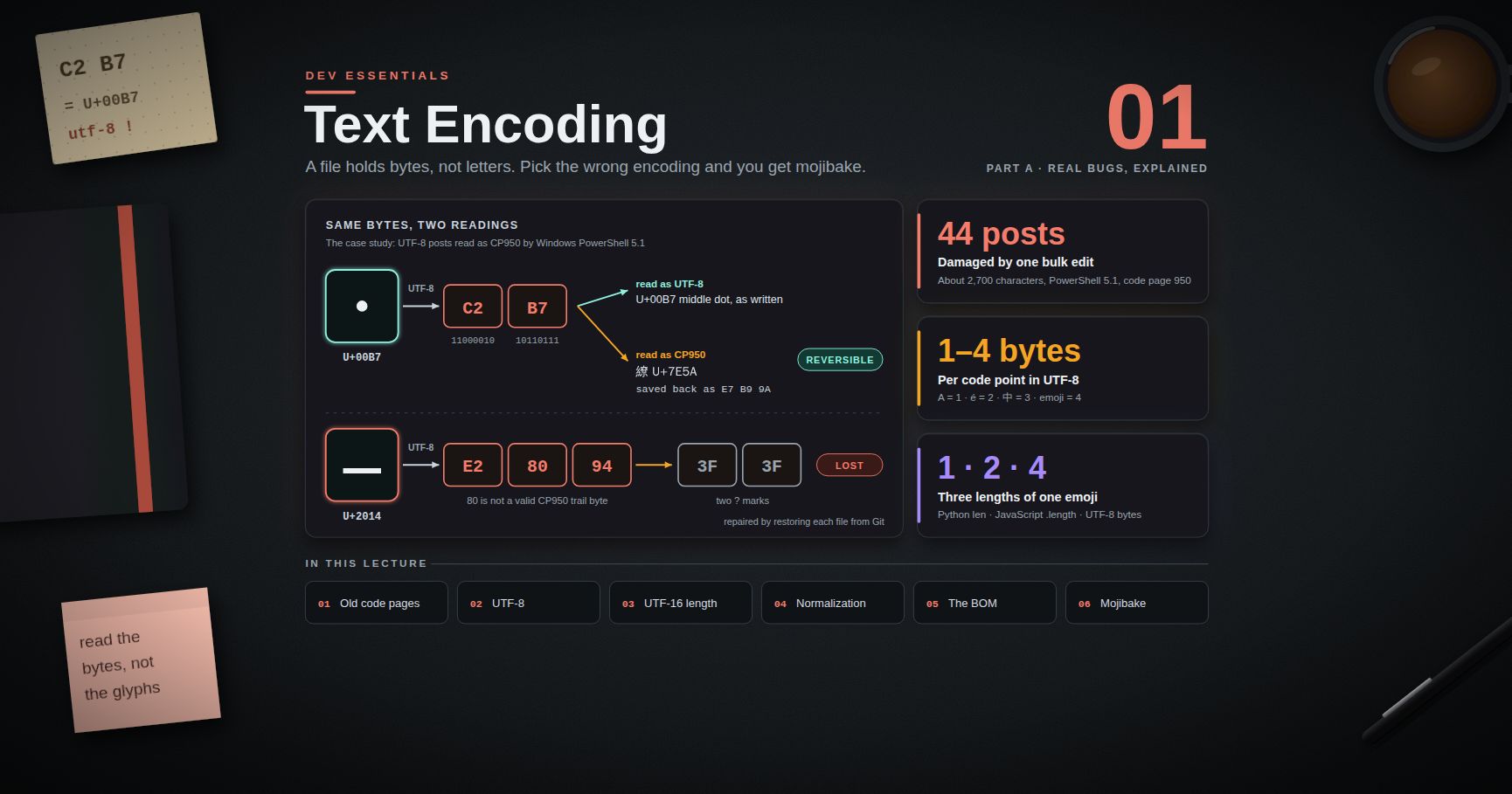
>andOut-Filewrite UTF-16LE;Set-ContentandAdd-Contentwrite the ANSI code page;-Encoding utf8adds a BOM. See Dev Essentials 01 · Text Encoding for safe patterns.
Watch out: in 5.1, redirecting a native program's stderr (
git fetch 2>&1) wraps each stderr line in anErrorRecord. It prints like an error, and$?becomesFalse, even when the program succeeded (checked on 5.1.26100). Judge native programs by$LASTEXITCODE(Chapter 9).
Chapter 4 — Searching text: grep, Select-String, rg
| Goal | Bash (grep) |
PowerShell (Select-String) |
|---|---|---|
| Matching lines, numbered | grep -n 'POST' access.log |
Select-String -Path access.log -Pattern 'POST' |
| Ignore case | grep -i 'post' access.log |
the default (-CaseSensitive turns it off) |
| Lines without a match | grep -v '200' access.log |
... -NotMatch |
| Count matching lines | grep -c ' 404 ' access.log |
(Select-String ...).Count |
| Fixed text, not a regex | grep -F 'a.b[1]' f |
... -SimpleMatch |
| Only the matched part | grep -oE '[0-9]{3} [0-9]+$' access.log |
... -AllMatches | ForEach-Object { $_.Matches.Value } |
| Context lines | grep -B1 -A2 'Traceback' app.log |
... -Context 1,2 |
| Search a tree | grep -rn --include='*.py' 'TODO' . |
Get-ChildItem -Recurse -Filter *.py | Select-String 'TODO' |
| File names only | grep -rl 'TODO' . |
... | Select-String 'TODO' -List | Select-Object -ExpandProperty Path |
| Error lines (4xx/5xx) | grep -E ' [45][0-9]{2} ' access.log |
Select-String -Path access.log -Pattern ' [45]\d{2} ' | ForEach-Object Line |
The last row prints the 401, 404 and 403 lines in both shells. Two differences bite often. Case: grep is case-sensitive by default; Select-String is not. Regex flavor: Select-String uses .NET regex, so \d works. grep and grep -E use POSIX regex, where \d is not a digit — write [0-9], or use grep -P for Perl-style patterns. Dev Essentials 06 · Regex covers the flavors.
Trick: if
grep -Pin Git Bash says-P supports only unibyte and UTF-8 locales, set a UTF-8 locale for that one command:LC_ALL=en_US.UTF-8 grep -P '\d+' file.
ripgrep (rg) is a fast, modern grep -r. By default it respects .gitignore and skips hidden and binary files — usually what you want in a code base: rg TODO, rg -i timeout -t py, rg -l password. Install on Windows with winget install BurntSushi.ripgrep.MSVC.
Chapter 5 — Finding files: find, Get-ChildItem, fd, xargs
1
2
3
4
find . -name '*.md' # by name — quote the pattern!
find . -type f -name '*.log' -size +10M # big log files
find . -type f -mtime -1 # changed in the last 24 hours
1
2
3
4
5
Get-ChildItem -Recurse -Filter *.md
Get-ChildItem -Recurse -File -Filter *.log | Where-Object Length -gt 10MB
Get-ChildItem -Recurse -File | Where-Object LastWriteTime -gt (Get-Date).AddDays(-1)
Get-ChildItem -Recurse -Filter *.tmp | Remove-Item -WhatIf # preview; drop -WhatIf to delete
Watch out: Windows has its own
find.exe, a text-search tool from the DOS era. In Git Bash,/usr/bin/findwins. In PowerShell and cmd,findmeansC:\Windows\system32\find.exe, which does something completely different.
fd is a friendlier find: regex patterns, smart case, and it skips hidden files and .gitignore matches by default. fd -e md lists Markdown files; fd -H config includes hidden ones. Install with winget install sharkdp.fd.
xargs turns input lines into arguments, for tools that do not read file names from stdin:
1
2
3
find . -name '*.log' -print0 | xargs -0 grep -l 'ERROR' # -print0/-0: safe with spaces
find . -name '*.txt' -print0 | xargs -0 -n 1 -P 4 gzip -k # one file per call, 4 in parallel
PowerShell does not need xargs: objects flow into the next cmdlet, and names with spaces never split. Example: Get-ChildItem -Recurse -Filter *.log | Select-String 'ERROR' -List | Select-Object -ExpandProperty Path.
Chapter 6 — Editing text in place: sed and -replace
1
2
3
4
5
6
sed 's/GET/FETCH/' access.log # first match on each line; prints the result
sed 's/GET/FETCH/g' access.log # every match
sed -n '2,4p' access.log # print only lines 2-4
sed '/ 200 /d' access.log # delete lines containing " 200 "
sed -E 's/^([0-9-]+)T([0-9:]+)Z/\1 \2 UTC/' access.log # ERE + capture groups
In-place editing is where GNU and BSD sed differ:
| Command | GNU sed (Linux, Git Bash) | BSD sed (FreeBSD, macOS) |
|---|---|---|
sed -i 's/a/b/' f |
edits in place, no backup | takes s/a/b/ as the backup extension — fails |
sed -i '' 's/a/b/' f |
takes '' as the script — can't read s/a/b/ |
edits in place, no backup |
sed -i.bak 's/a/b/' f |
in place, backup f.bak |
in place, backup f.bak |
So the portable form is sed -i.bak '...' file && rm file.bak. -E (extended regex) works on both and is now part of POSIX too.
PowerShell reads, replaces and writes:
1
2
(Get-Content notes.txt) -replace 'colour', 'color' | Set-Content notes.txt -Encoding utf8
The parentheses read the whole file before Set-Content opens it for writing. -replace takes a regex and is case-insensitive (-creplace is case-sensitive). Keep the replacement in single quotes so $1 reaches the regex engine: '2026-09-24' -replace '(\d{4})-(\d{2})-(\d{2})', '$3/$2/$1' gives 24/09/2026. With double quotes, PowerShell expands $3 to nothing first.
In 5.1, -Encoding utf8 writes a BOM. To write UTF-8 without a BOM, go through .NET:
1
2
3
4
$path = Join-Path $PWD 'notes.txt' # .NET needs a full path
$text = [IO.File]::ReadAllText($path) -replace 'colour', 'color'
[IO.File]::WriteAllText($path, $text, [Text.UTF8Encoding]::new($false))
Common pitfall: bulk edits on Windows can also flip line endings. Check
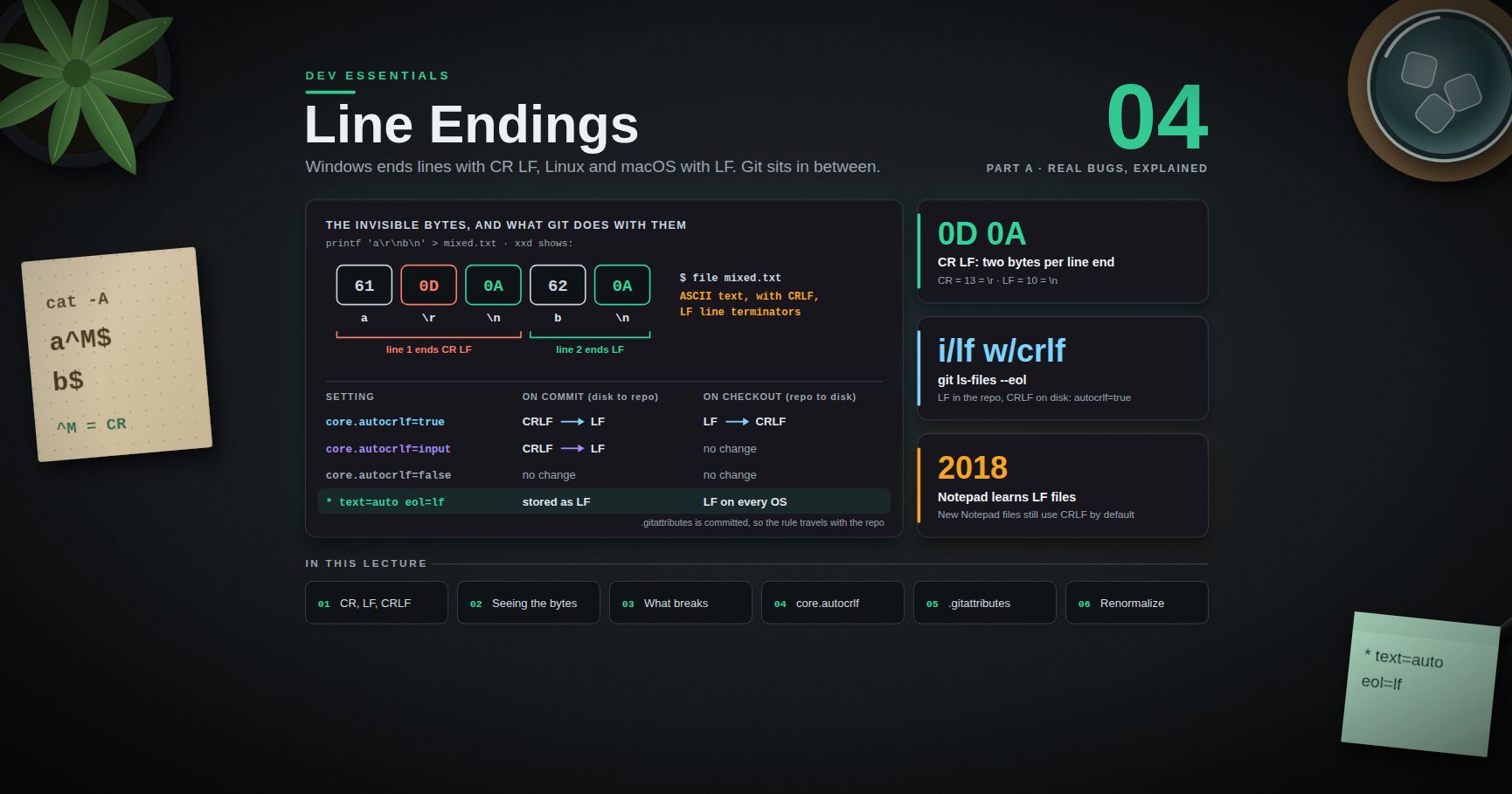
git diff --statafter a mass replace; Dev Essentials 04 · Line Endings explains why a file can show "every line changed".
Chapter 7 — Counting, sorting and watching
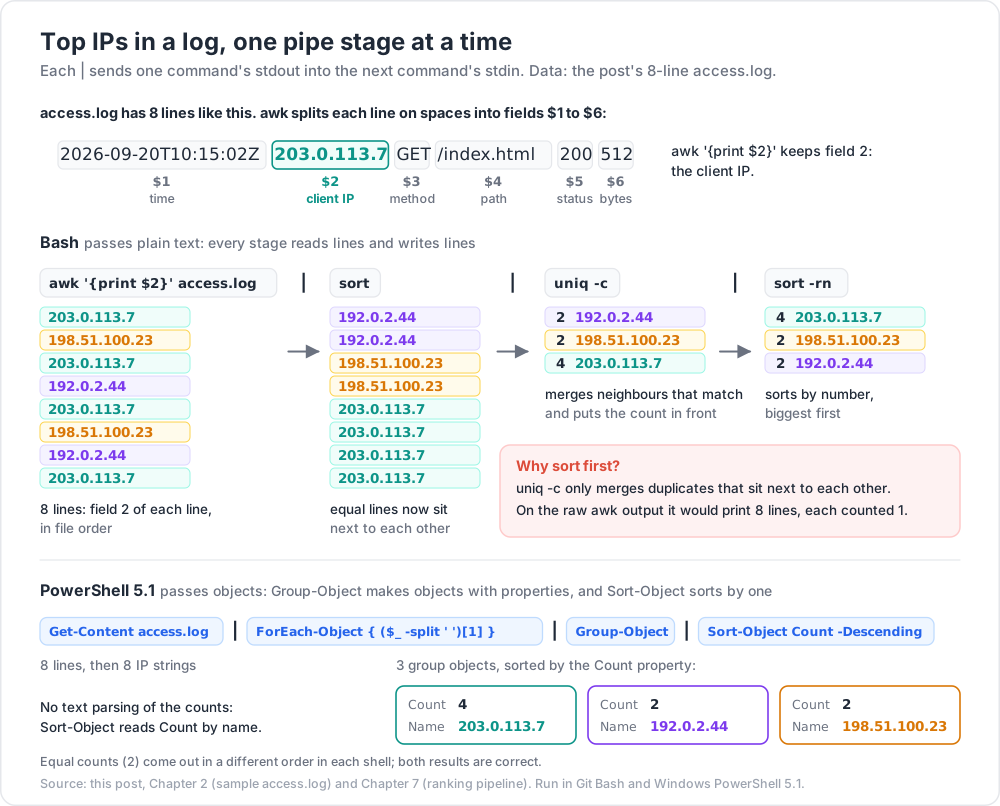
The classic ranking pipeline: pull out a field, sort, count duplicates, sort by count.
1
2
3
4
5
awk '{print $2}' access.log | sort | uniq -c | sort -rn
# 4 203.0.113.7
# 2 198.51.100.23
# 2 192.0.2.44
uniq -c only merges duplicates that sit next to each other, so the first sort is required. sort -rn then sorts by number, biggest first. PowerShell groups objects instead (first table row).
| Goal | Bash | PowerShell 5.1 |
|---|---|---|
| Rank a column | see above | Get-Content access.log | ForEach-Object { ($_ -split ' ')[1] } | Group-Object | Sort-Object Count -Descending |
| Count lines | wc -l access.log |
(Get-Content access.log | Measure-Object -Line).Lines |
| First / last 5 lines | head -n 5 f / tail -n 5 f |
Get-Content f -TotalCount 5 / Get-Content f -Tail 5 |
| Follow a growing log | tail -f app.log |
Get-Content app.log -Tail 10 -Wait |
| Follow, errors only | tail -f app.log | grep --line-buffered ERROR |
Get-Content app.log -Tail 10 -Wait | Select-String ERROR |
| Unique sorted lines | sort -u f |
Get-Content f | Sort-Object -Unique |
| Sum a column | awk '{s+=$6} END {print s}' access.log |
(Get-Content access.log | ForEach-Object { [int]($_ -split ' ')[5] } | Measure-Object -Sum).Sum |
Get-Content -Wait checks the file once per second until you press Ctrl+C. The byte sum for the sample log is 1950 in both shells.
Chapter 8 — JSON and HTTP
Sample people.json:
1
2
3
4
5
6
[
{"name": "Ada", "age": 36, "langs": ["python", "c"]},
{"name": "Linus", "age": 28, "langs": ["c"]},
{"name": "Grace", "age": 45, "langs": ["cobol", "python"]}
]
jq (Windows: winget install jqlang.jq) is a small language for JSON:
1
2
3
4
jq -r '.[].name' people.json # Ada, Linus, Grace (raw text, no quotes)
jq -r '.[] | select(.age > 30) | .name' people.json # Ada, Grace
jq '[.[] | select(any(.langs[]; . == "python"))] | length' people.json # 2
PowerShell turns JSON into objects, then you use the normal object commands:
1
2
3
4
5
$people = Get-Content people.json -Raw | ConvertFrom-Json
$people | ForEach-Object name # Ada, Linus, Grace
$people | Where-Object age -gt 30 | ForEach-Object name # Ada, Grace
@($people | Where-Object { $_.langs -contains 'python' }).Count # 2
Watch out: in PowerShell 5.1,
ConvertFrom-Jsonsends a JSON array down the pipe as one object, so$json | ConvertFrom-Json | Where-Object age -gt 30returns nothing (checked on 5.1). Assign to a variable first, as above, or wrap it in parentheses. Going the other way,ConvertTo-Jsonstops at depth 2 by default and prints deeper levels as type names likeSystem.Collections.Hashtable— pass-Depth 10.
HTTP. In Bash, curl is the standard tool:
1
2
3
4
curl -sS https://api.github.com/repos/python/cpython | jq '.stargazers_count'
curl -sS -o /dev/null -w '%{http_code}\n' https://example.com # just the status code
curl -sS -X POST -H 'Content-Type: application/json' -d '{"name":"Ada"}' https://httpbin.org/post
In Windows PowerShell 5.1, curl is an alias for Invoke-WebRequest, so Unix curl options fail. Windows 10 and 11 ship the real curl as curl.exe — type the .exe. Or use the native cmdlets:
1
2
3
4
5
curl.exe -sS -o NUL -w '%{http_code}\n' https://example.com
(Invoke-RestMethod https://api.github.com/repos/python/cpython).stargazers_count
Invoke-RestMethod -Method Post -Uri https://httpbin.org/post -ContentType 'application/json' -Body '{"name":"Ada"}'
Invoke-WebRequest https://example.com -UseBasicParsing | Select-Object StatusCode
Invoke-RestMethod parses a JSON reply into objects for you. Since the Windows updates of 9 December 2025, Invoke-WebRequest in 5.1 shows a security prompt when it would parse a page with the old Internet Explorer engine. Microsoft's advice is to add -UseBasicParsing, which also keeps scripts non-interactive.
Common pitfall: PowerShell 5.1 strips inner double quotes when it passes arguments to native programs.
curl.exe -d '{"name":"Ada"}'sends{name:Ada}(checked on 5.1). UseInvoke-RestMethod -Body, escape the quotes ('{\"name\":\"Ada\"}'), or send a file with-d '@body.json'. PowerShell 7.3 changed this behavior.
Chapter 9 — Variables, exit codes and chaining
| Goal | Bash | PowerShell 5.1 |
|---|---|---|
| Read a variable | echo "$HOME" |
$env:USERPROFILE (always the $env: prefix) |
| Set for this session | export API_URL=http://localhost:8000 |
$env:API_URL = 'http://localhost:8000' |
| Set for one command only | API_URL=http://staging python app.py |
set it, run, then Remove-Item Env:API_URL |
| Remove / list all | unset API_URL / printenv |
Remove-Item Env:API_URL / Get-ChildItem Env: |
| Set permanently | add the export line to ~/.bashrc |
[Environment]::SetEnvironmentVariable('API_URL', 'http://localhost:8000', 'User') |
Exit codes. 0 means success; anything else means failure.
1
2
3
4
5
python -c "import sys; sys.exit(3)"
echo $? # 3
npm run build && npm test # test only if the build succeeded
set -euo pipefail # top of scripts: stop on errors, unset variables, failed pipes
1
2
3
4
5
python -c "import sys; sys.exit(3)"
$LASTEXITCODE # 3 — exit code of the last native program
$? # False — did the last command succeed?
npm run build; if ($LASTEXITCODE -eq 0) { npm test }
&& and || do not exist in Windows PowerShell 5.1. Typing them gives the parser error The token '&&' is not a valid statement separator in this version. They arrived in PowerShell 7 as pipeline chain operators. In 5.1, use ; plus an if on $? or $LASTEXITCODE. Also, $ErrorActionPreference = 'Stop' stops on cmdlet errors, but a native program's non-zero exit code still needs an explicit $LASTEXITCODE check.
Chapter 10 — Quoting rules
1
2
3
4
5
6
7
name="Ada"
echo 'Hello $name' # Hello $name — single quotes: nothing expands
echo "Hello $name" # Hello Ada — double quotes: $var and $(cmd) expand
echo "Cost: \$5" # backslash escapes inside double quotes
echo 'It'\''s' # a single quote inside single quotes: close, \', reopen
find . -name '*.md' # quote globs you pass on, or Bash expands them first
1
2
3
4
5
6
7
$name = 'Ada'
'Hello $name' # Hello $name — single quotes: literal
"Hello $name" # Hello Ada — double quotes: expand
"Cost: `$5" # the backtick is PowerShell's escape character
'It''s' # double the quote inside single quotes
"Files: $((Get-ChildItem).Count)" # expressions need $( )
Rules that save hours:
- Prefer single quotes for regexes, JSON and anything with
$in it — in both shells. - Braces are special in PowerShell.
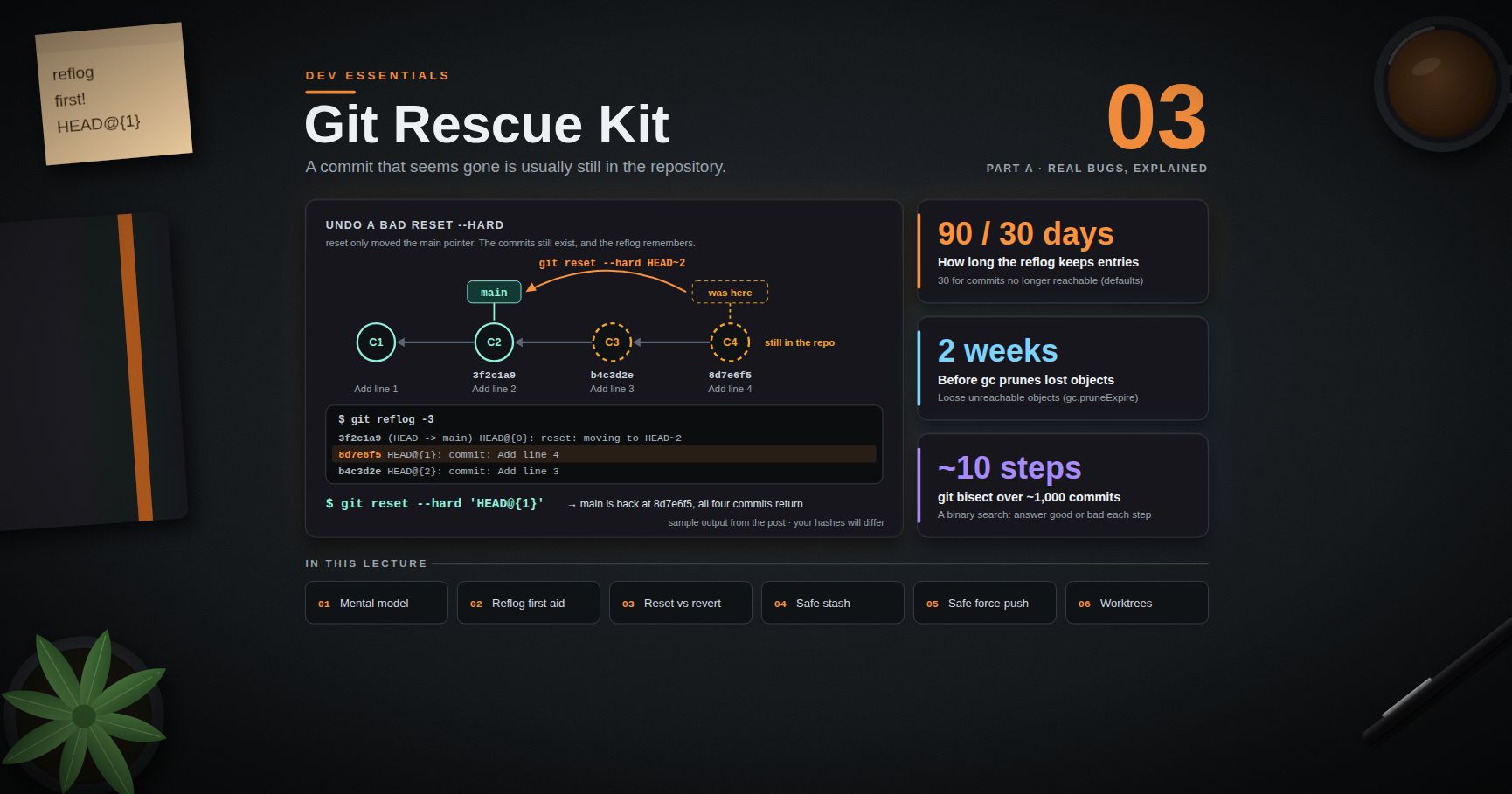
git reset --hard HEAD@{1}breaks in 5.1; write'HEAD@{1}'(see Dev Essentials 03 · Git Rescue Kit). - The stop-parsing token
--%passes the rest of the line to a native program almost as-is:icacls X:\VMS --% /grant Dom\HVAdmin:(CI)(OI)F. (Backslash is not an escape in PowerShell, so"C:\new"is just a path.)
Chapter 11 — History, aliases and profiles
History search. In Bash, press Ctrl+R and type part of an old command; press Ctrl+R again for older matches. PowerShell's PSReadLine module (bundled with 5.1) uses the same Ctrl+R, and F8 finds history entries that start with what you already typed. To grep old commands: history | grep ssh in Bash. In PowerShell, Get-History only shows the current session; the full saved history lives in %APPDATA%\Microsoft\Windows\PowerShell\PSReadLine\ConsoleHost_history.txt, so search it with Select-String -Path (Get-PSReadLineOption).HistorySavePath -Pattern 'ssh'.
Aliases and functions.
1
2
3
4
# ~/.bashrc
alias ll='ls -la'
mkcd() { mkdir -p "$1" && cd "$1"; } # functions take arguments: $1, $2, ...
1
2
3
4
# $PROFILE
Set-Alias -Name ll -Value Get-ChildItem # an alias maps a name to ONE command, no arguments
function mkcd($dir) { New-Item -ItemType Directory -Force $dir | Out-Null; Set-Location $dir } # need arguments? write a function
Profiles. Git Bash starts as a login shell, so it reads ~/.bash_profile. If you only have ~/.bashrc, Git for Windows prints a warning and creates a ~/.bash_profile that loads it. Reload after edits with source ~/.bashrc. PowerShell's profile path is in $PROFILE (for 5.1: Documents\WindowsPowerShell\Microsoft.PowerShell_profile.ps1):
1
2
3
4
if (-not (Test-Path $PROFILE)) { New-Item -ItemType File -Path $PROFILE -Force | Out-Null }
notepad $PROFILE
. $PROFILE # reload after editing
Watch out: the default execution policy on Windows client editions is
Restricted, which blocks all scripts — profiles included.Set-ExecutionPolicy -Scope CurrentUser RemoteSignedallows your own local scripts while still requiring signatures on downloaded ones. Microsoft notes that the policy is a safety net, not a security boundary.
Chapter 12 — SSH: keys, config, copying files
Make a key. Ed25519 is the type GitHub's docs recommend; they keep RSA 4096 only for old systems that lack Ed25519.
1
2
ssh-keygen -t ed25519 -C "laptop-2026"
Accept the default path and set a passphrase. Two files appear: ~/.ssh/id_ed25519 (private — never share it) and id_ed25519.pub (public — paste it into GitHub or a server's ~/.ssh/authorized_keys). The -C comment is only a label.
Load it into an agent so you type the passphrase once:
1
2
3
eval "$(ssh-agent -s)" # Git Bash
ssh-add ~/.ssh/id_ed25519
1
2
3
4
5
# Windows OpenSSH agent — one-time setup, in PowerShell run as administrator
Get-Service -Name ssh-agent | Set-Service -StartupType Manual
Start-Service ssh-agent
ssh-add $env:USERPROFILE\.ssh\id_ed25519
On Windows there are two ssh programs: Git Bash runs its own /usr/bin/ssh, and PowerShell runs C:\Windows\System32\OpenSSH\ssh.exe. Both read the same ~/.ssh folder, but each has its own agent.
Name your servers in ~/.ssh/config:
1
2
3
4
5
6
7
Host lab
HostName 203.0.113.10
User deploy
Port 2222
IdentityFile ~/.ssh/id_ed25519
IdentitiesOnly yes
SSH uses the first value it finds for each setting, so put specific hosts at the top and any Host * defaults at the bottom. Now ssh lab replaces ssh -p 2222 -i ~/.ssh/id_ed25519 deploy@203.0.113.10.
1
2
3
4
5
ssh lab 'df -h' # run one command and return
scp report.pdf lab:/tmp/ ; scp lab:/var/log/app.log . # copy up; copy down
scp -r site lab:/var/www/ # copy a folder
rsync -avz --dry-run --delete site/ lab:/var/www/site/ # preview a sync, then drop --dry-run
rsync copies only what changed. The trailing slash matters: site/ means "the contents of site", site means "the folder itself". --delete removes files on the target that are gone from the source, so always preview first. Git Bash does not include rsync; use it from Linux, macOS or WSL, or fall back to scp. Test GitHub access with ssh -T git@github.com.
Chapter 13 — Ten one-liners worth memorizing
| # | Job | Bash | PowerShell 5.1 |
|---|---|---|---|
| 1 | Top IPs in a log | awk '{print $2}' access.log | sort | uniq -c | sort -rn | head |
Get-Content access.log | % { ($_ -split ' ')[1] } | Group-Object | Sort-Object Count -Desc |
| 2 | Find TODOs in code | rg TODO or grep -rn TODO --include='*.py' . |
Get-ChildItem -Recurse -Filter *.py | Select-String TODO |
| 3 | 10 biggest files | du -ah . | sort -rh | head -n 10 |
Get-ChildItem -Recurse -File | Sort-Object Length -Desc | Select-Object -First 10 FullName, Length |
| 4 | Changed in last 24 h | find . -type f -mtime -1 |
Get-ChildItem -Recurse -File | ? LastWriteTime -gt (Get-Date).AddDays(-1) |
| 5 | Follow a log for errors | tail -f app.log | grep --line-buffered ERROR |
Get-Content app.log -Tail 10 -Wait | Select-String ERROR |
| 6 | HTTP status of a URL | curl -sS -o /dev/null -w '%{http_code}\n' URL |
curl.exe -sS -o NUL -w '%{http_code}\n' URL |
| 7 | Pretty-print JSON | jq . data.json |
python -m json.tool data.json (works in both) |
| 8 | Serve this folder over HTTP | python -m http.server 8000 |
python -m http.server 8000 |
| 9 | Who uses port 8080? | Linux: ss -ltnp | grep :8080; Git Bash: netstat -ano | grep :8080 |
Get-NetTCPConnection -LocalPort 8080 | Select-Object OwningProcess |
| 10 | Find an old command | Ctrl+R | Ctrl+R (or F8 for prefix search) |
% and ? are built-in PowerShell aliases for ForEach-Object and Where-Object. They are fine at the prompt; write the full names in scripts.
Practice Exercises
Use the access.log from Chapter 2. Solve each one in both shells.
Exercise 1 — Requests per status code
Print how many requests each status code got, most common first.
Solution
1
2
awk '{print $5}' access.log | sort | uniq -c | sort -rn # 200 appears 4 times, the rest once
1
2
3
Get-Content access.log | ForEach-Object { ($_ -split ' ')[4] } |
Group-Object | Sort-Object Count -Descending | Select-Object Count, Name
Exercise 2 — Save the error lines as clean UTF-8
Write every 4xx/5xx line to errors.txt as plain UTF-8 without a BOM, so Linux tools read it cleanly.
Solution
1
2
grep -E ' [45][0-9]{2} ' access.log > errors.txt
1
2
3
$lines = Select-String -Path access.log -Pattern ' [45]\d{2} ' | ForEach-Object Line
[IO.File]::WriteAllLines((Join-Path $PWD 'errors.txt'), [string[]]$lines, [Text.UTF8Encoding]::new($false))
> errors.txt in PowerShell 5.1 would have written UTF-16LE.
Exercise 3 — Portable in-place replace
In a copy of the log, replace every GET with FETCH in place, with a sed command that works on both GNU and BSD. Then do it in PowerShell.
Solution
1
2
3
4
cp access.log copy.log
sed -i.bak 's/GET/FETCH/g' copy.log && rm copy.log.bak
grep -c FETCH copy.log # 6
1
2
3
Copy-Item access.log copy.log
(Get-Content copy.log) -creplace 'GET', 'FETCH' | Set-Content copy.log -Encoding Ascii
-creplace keeps the match case-sensitive, like sed.
Exercise 4 — JSON query
From people.json (Chapter 8), print the names of people who know Python, sorted A–Z.
Solution
1
2
jq -r '.[] | select(any(.langs[]; . == "python")) | .name' people.json | sort
1
2
3
$people = Get-Content people.json -Raw | ConvertFrom-Json
$people | Where-Object { $_.langs -contains 'python' } | ForEach-Object name | Sort-Object
Both print Ada and Grace.
Exercise 5 — An SSH host entry
Write a ~/.ssh/config entry named blog for host 198.51.100.50, user web, port 2200, key ~/.ssh/id_ed25519. Which command then copies dist/index.html to /srv/www/ on it?
Solution
1
2
3
4
5
6
7
Host blog
HostName 198.51.100.50
User web
Port 2200
IdentityFile ~/.ssh/id_ed25519
IdentitiesOnly yes
1
2
scp dist/index.html blog:/srv/www/
scp reads the same config, so the port, user and key come along automatically.
Cheat-sheet
| Task | Bash | PowerShell 5.1 |
|---|---|---|
| Search text | grep -rn 'x' . / rg x |
Get-ChildItem -Recurse | Select-String 'x' |
| Find files | find . -name '*.md' / fd -e md |
Get-ChildItem -Recurse -Filter *.md |
| Replace in file | sed -i.bak 's/a/b/g' f |
(Get-Content f) -replace 'a','b' | Set-Content f |
| Rank values | sort | uniq -c | sort -rn |
Group-Object | Sort-Object Count -Desc |
| Follow a log | tail -f f |
Get-Content f -Tail 10 -Wait |
| Discard output | > /dev/null 2>&1 |
*> $null |
| JSON | jq '.[].name' f.json |
(Get-Content f.json -Raw | ConvertFrom-Json).name |
| HTTP GET | curl -sS URL |
curl.exe -sS URL / Invoke-RestMethod URL |
| Env variable | export X=1 / $X |
$env:X = '1' / $env:X |
| Exit code / run B if A worked | $? / A && B |
$LASTEXITCODE / A; if ($LASTEXITCODE -eq 0) { B } |
| History / profile | Ctrl+R / ~/.bashrc (via ~/.bash_profile) |
Ctrl+R, F8 / $PROFILE |
| SSH key / copy | ssh-keygen -t ed25519 / scp, rsync -avz |
ssh-keygen -t ed25519 / scp |
What's next
Dev Essentials 06 · Regex goes deep on the patterns you have been passing to grep, sed, Select-String and -replace: character classes, groups, lookarounds, the differences between flavors, and how one bad pattern can freeze a server.
References
- GNU grep manual, GNU sed options, FreeBSD sed(1)
- PowerShell docs: about_Redirection (5.1), about_Character_Encoding (5.1), about_Pipeline_Chain_Operators, about_Parsing, about_Execution_Policies (5.1)
- PSReadLine key functions, Get-Content (5.1), ConvertTo-Json (5.1)
- Microsoft — PowerShell 5.1 Invoke-WebRequest security prompt and curl shipped by Microsoft
- jq manual, ripgrep, fd
- GitHub Docs — Generating a new SSH key, ssh_config(5), OpenSSH for Windows
Note: this post is in progress. Planned additions:
awkin more depth,tmuxand Windows Terminal panes, a PowerShell 7 differences table, andmake/justas task runners.