Dev Essentials — 03 · Git Rescue Kit — Reflog, Restore, Reset, Revert, Rebase and Worktrees
Most Git "disasters" are not disasters. A commit that seems gone is usually still inside the repository, and Git keeps a private log of every place a branch has pointed. This post gives you a small mental model first, then a kit of recipes, each written as symptom → command → why it works: undo a bad reset --hard, get a deleted branch back, stash without surprises, leave detached HEAD safely, force-push without wiping a teammate's work, and use worktrees without tripping over their sharp edges.
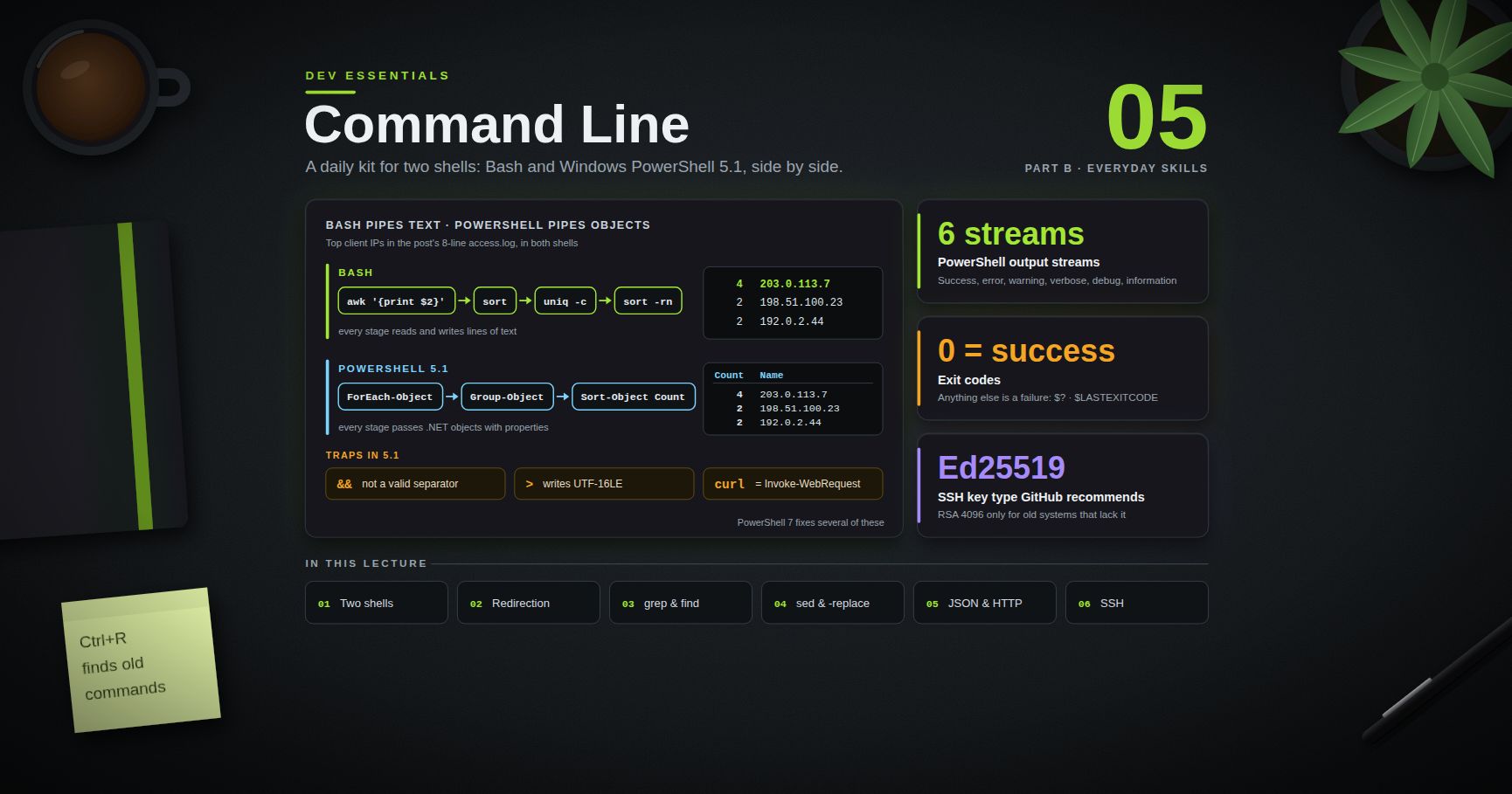
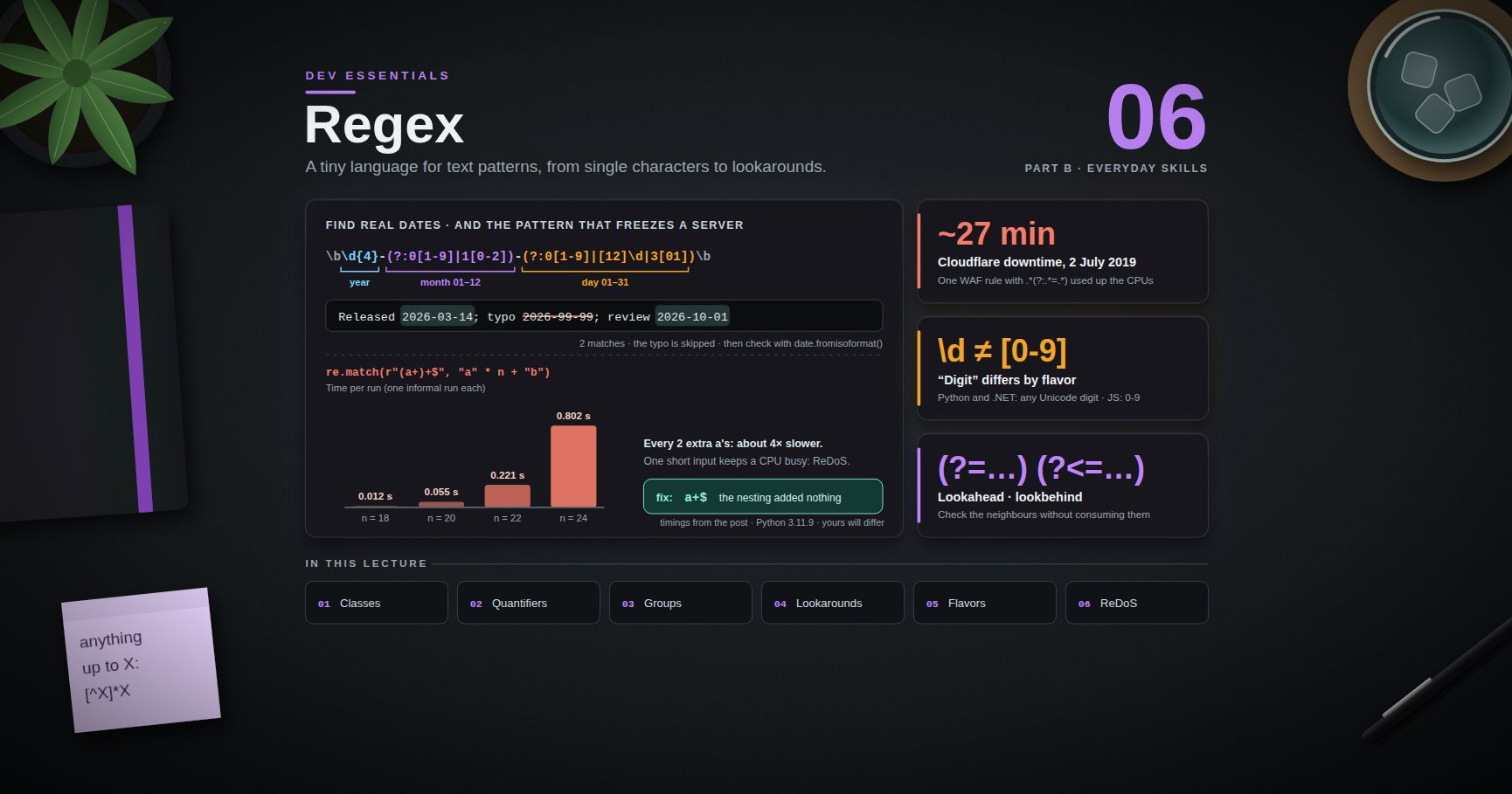
Series map: 01 Text Encoding → 02 Dates & Time Zones → 03 Git Rescue Kit (this post) → 04 Line Endings → … → 24 Desk Health. Part A · Real bugs, explained.
Learning Outcome
- Explain commits, branches,
HEADand the index well enough to predict what a command will do. - Use
git reflogto undo a badreset --hard, a bad rebase, or a deleted branch. - Choose correctly between
git restore,git reset --soft/--mixed/--hardandgit revert. - Stash with a tag, apply by SHA, and explain why bare
git stash popis risky in a shared repository. - Keep commits made in detached HEAD.
- Copy commits with
cherry-pickand tidy them with--fixup+--autosquash. - Force-push with
--force-with-lease(and--force-if-includes) instead of--force. - Find dangling commits with
git fsck, and usegit worktreewithout falling into its pitfalls.
Chapter 1 — The mental model
Four ideas explain almost every rescue.
- A commit is a snapshot. It stores the full state of the tracked files, a message, an author, and the ID of its parent commit(s). The ID is a hash of all of that, so a commit can never change. "Changing" a commit always means making a new one.
- A branch is a movable pointer.
mainis only a name that holds one commit ID. When you commit, Git moves that pointer forward. Deleting a branch deletes the name, not the commits. HEADmeans "where you are". NormallyHEADpoints to a branch, and the branch points to a commit. IfHEADpoints straight at a commit, you are in detached HEAD (Chapter 6).- The index is the next commit, in draft.
git addcopies a file version into the index (also called the staging area).git committurns the index into a snapshot.
1
2
3
4
C1 ◄── C2 ◄── C3 ◄── C4 ◄── main ◄── HEAD
▲
└──── C5 ◄── feature
Each commit points back to its parent, and each branch points at one commit. The key word is reachable. A commit is reachable if you can walk to it from a branch, a tag, or another ref. Git's garbage collector only deletes objects that are unreachable and old. The reflog (Chapter 3) keeps recently left commits reachable for weeks. That is why most mistakes can be undone.
Terminology
| Term | Meaning |
|---|---|
| Commit | Unchangeable snapshot of all tracked files, plus parent link(s) |
| Ref | A name that points to a commit: branch, tag, HEAD, ORIG_HEAD |
| Branch | A ref under refs/heads/ that moves forward when you commit |
HEAD |
"Current position"; usually points to a branch |
| Index / staging area | The draft of the next commit |
| Working tree | The files you edit on disk |
| Reflog | Local history of every value a ref had |
| Dangling commit | A commit that no ref points to; Git may delete it later |
| Worktree | An extra working folder attached to the same repository |
Trick:
git log --oneline --graph --all --decoratedraws the pointers. Run it before and after each rescue step, and you will see exactly which pointer moved.
Chapter 2 — A throwaway lab repository
Practice on a repository you do not care about. Git Bash:
1
2
3
4
5
6
7
8
9
10
11
mkdir rescue-lab && cd rescue-lab
git init -b main
git config user.name "Lab User"
git config user.email "lab@example.com"
for n in 1 2 3 4; do
echo "line $n" >> notes.txt
git add notes.txt
git commit -q -m "Add line $n"
done
git log --oneline
Windows PowerShell 5.1:
1
2
3
4
5
6
7
8
9
10
11
12
New-Item -ItemType Directory rescue-lab | Out-Null
Set-Location rescue-lab
git init -b main
git config user.name "Lab User"
git config user.email "lab@example.com"
foreach ($n in 1..4) {
Add-Content -Path notes.txt -Value "line $n" -Encoding Ascii
git add notes.txt
git commit -q -m "Add line $n"
}
git log --oneline
You now have four commits on main. Every exercise starts from this state; to reset the lab, delete the folder and run the script again.
Watch out: in PowerShell,
{}is special. UnquotedHEAD@{1}is turned into a script block, and Git receives garbage. Always quote refs with braces:'HEAD@{1}','stash@{0}'. All commands below use quotes, so they work in both shells.
Chapter 3 — First aid with git reflog
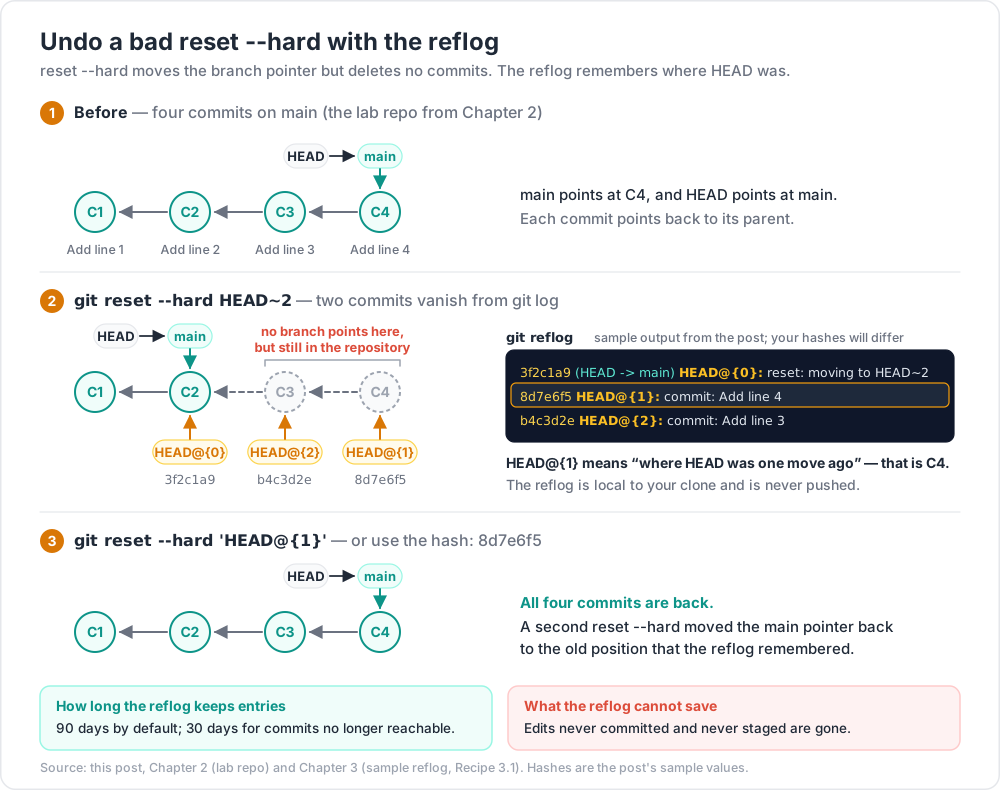
Every time HEAD or a branch moves — commit, reset, rebase, checkout, merge, pull — Git adds a line to that ref's reflog. The reflog is local to your clone and is never pushed. By default, entries are kept for 90 days, and entries for commits that are no longer reachable are kept for 30 days (gc.reflogExpire and gc.reflogExpireUnreachable).
1
2
3
git reflog # same as: git reflog show HEAD
git reflog show main # the reflog of one branch
Sample output (your hashes will differ):
1
2
3
4
3f2c1a9 (HEAD -> main) HEAD@{0}: reset: moving to HEAD~2
8d7e6f5 HEAD@{1}: commit: Add line 4
b4c3d2e HEAD@{2}: commit: Add line 3
HEAD@{1} means "where HEAD was one move ago". Other forms work too: main@{2.hours.ago}, and @{-1} for "the branch I was on before".
Recipe 3.1 — Undo a bad reset --hard
Symptom. You ran git reset --hard HEAD~2, and two commits disappeared from git log.
Command.
1
2
3
git reflog -5
git reset --hard 'HEAD@{1}' # or the hash from the reflog line you want
Why it works. reset only moved the main pointer. The two commits still exist. The reflog remembers the old position, and a second reset --hard moves the pointer back.
Watch out: the reflog stores commits, not loose edits. Changes that were never committed and never staged are gone after
reset --hard. If you had rungit addon them, their contents may still exist as dangling blobs — see Chapter 9.
Recipe 3.2 — Undo a rebase
Symptom. A rebase finished, but the result is wrong: lost changes or a bad conflict fix.
Command.
1
2
3
4
git reflog show feature # the branch's own reflog
git reset --hard 'feature@{1}' # the branch tip before the rebase
git reset --hard ORIG_HEAD # also works, but only directly after the rebase
Why it works. A rebase writes new commits, then moves the branch pointer once, at the end. The old commits are untouched, and the branch's previous reflog entry is the old tip — Git's rebase docs point to exactly this @{1} entry. ORIG_HEAD is set when the rebase starts, but commands such as reset overwrite it, so trust the reflog first. If the rebase is still running, simply stop it: git rebase --abort.
Recipe 3.3 — Get a deleted branch back
Symptom. You ran git branch -D feature, then realized it held unmerged work.
Command. Git printed the old tip when it deleted the branch — Deleted branch feature (was 5e6f7a8). — so:
1
2
git branch feature 5e6f7a8
If that line has scrolled away, search the HEAD reflog:
1
2
3
git reflog | grep "feature" # Git Bash
git reflog | Select-String "feature" # PowerShell
Look for a line like checkout: moving from feature to main. The entry just below it (one step older) is the last commit you had on feature. A commit message you remember works as a search term too.
Why it works. Deleting a branch also deletes that branch's own reflog. But the HEAD reflog still lists every commit you checked out or created.
Common pitfall:
git branch -d(lowercase) refuses to delete unmerged work witherror: the branch 'feature' is not fully merged. That error is a safety net. Use-Donly when you are sure.
Chapter 4 — restore vs reset vs revert
The three names sound alike but do different jobs. Git's own docs put it this way: revert makes a new commit that undoes older commits; restore restores files and does not move your branch; reset moves your branch tip and so changes history.
| You want to… | Command | Changes history? |
|---|---|---|
| Throw away edits in one file | git restore notes.txt |
No |
| Unstage a file but keep the edits | git restore --staged notes.txt |
No |
| Get a file as it was two commits ago | git restore --source=HEAD~2 notes.txt |
No |
| Undo the last commit, keep changes staged | git reset --soft HEAD~1 |
Yes (local) |
| Undo the last commit, keep changes unstaged | git reset HEAD~1 (--mixed is the default) |
Yes (local) |
| Undo the last commit and its changes | git reset --hard HEAD~1 |
Yes (local) |
| Undo a commit that is already pushed | git revert <sha> |
No — it adds a commit |
git restore and git switch were added in Git 2.23 to split up the many jobs of the old git checkout. checkout still works; the new names are simply clearer.
The three reset modes
reset always moves the current branch pointer. The mode decides what happens to the index and the working tree.
| Mode | Branch pointer | Index | Working tree |
|---|---|---|---|
--soft |
moves | unchanged | unchanged |
--mixed (default) |
moves | reset to match | unchanged |
--hard |
moves | reset to match | overwritten |
Trick:
git reset --soft HEAD~3followed bygit commitsquashes your last three local commits into one. (Windows PowerShell 5.1 has no&&, so run the two commands on separate lines.)
Revert for shared history
Symptom. A commit that is already on the shared main broke something. Command:
1
2
3
4
git revert --no-edit 8d7e6f5 # new commit that undoes 8d7e6f5, default message
git revert -m 1 <merge-sha> # revert a merge; keep parent 1's side
git push
Why it works. revert adds a new commit that applies the opposite change. History only grows, so nobody else has to repair their clone.
Common pitfall: running
reset --hardon a pushed branch and then force-pushing. Everyone who already pulled now holds commits that "no longer exist". Rewrite only what nobody else has.
Chapter 5 — Stash without surprises
git stash saves your uncommitted changes and cleans the working tree. Under the hood, each stash entry is a special commit. The newest one is refs/stash; older ones live in that ref's reflog as stash@{1}, stash@{2}, and so on.
The problem. There is one stash stack per repository. Git's worktree docs state that refs under refs/ are shared by all worktrees, and refs/stash is one of them. If two terminals, two tools, an editor extension and an AI agent all work in one repository, they all push to and pop from the same stack. stash@{0} means "whoever stashed last" — maybe not you. A bare git stash pop can apply someone else's changes and remove them from the list.
The safe pattern
1
2
3
4
5
6
7
8
9
10
11
12
# 1. Stash with a unique tag. -u also saves untracked files.
git stash push -u -m "wip-login-form-0925"
# 2. Capture the entry's full SHA right away.
git stash list --format='%H %gd %gs'
# 9c1e0b7... stash@{0} On main: wip-login-form-0925
# 3. Later: apply by SHA, not by position.
git stash apply 9c1e0b7
# 4. When your changes are safely back, find the entry again by tag, then drop it.
git stash list --format='%gd %gs' | grep "wip-login-form-0925" # Git Bash
git stash list --format='%gd %gs' | Select-String "wip-login-form-0925" # PowerShell
git stash drop 'stash@{2}' # the position the tag has *now*
Why each step matters:
-u(--include-untracked): without it, new files are not saved and stay in the working tree.-m: Git stores the message asOn <branch>: <message>, so you can find it later.apply <sha>:applyaccepts any stash-like commit, so a SHA always means your entry, even if others stashed on top.- Drop by position, found fresh:
dropdoes not accept a raw SHA ('<sha>' is not a stash reference). It needsstash@{n}, so look up the current position by tag just before you drop. (Dropped the wrong one? See Chapter 9.) apply, notpop:popremoves the entry as soon as it applies.applyleaves it until you have checked the result.
Watch out: if
poporapplyhits a conflict, the entry stays in the list. Fix the conflict, then drop the entry yourself.
Trick: for a short break, skip the stash. Make a work-in-progress commit (
git add -A, thengit commit -m "WIP") and later undo it withgit reset HEAD~1, which keeps the changes. A commit lives on your branch, so no other session can take it.
Chapter 6 — Detached HEAD
What it is. HEAD points straight at a commit instead of a branch. You get there with git checkout <sha>, git switch --detach <sha>, by checking out a tag, or during a rebase or bisect. Git tells you with the line You are in 'detached HEAD' state. and a hint to use git switch -c.
Looking around is harmless. Committing is allowed too — but no branch points to those new commits. When you switch away, they become unreachable, and garbage collection may delete them later.
Symptom. "I committed, switched branches, and my commit is gone." Git even warned you: Warning: you are leaving 1 commit behind, not connected to any of your branches, followed by a git branch <new-branch-name> <sha> hint.
Command.
1
2
3
4
git switch -c experiment # still detached: new branch here, HEAD attaches to it
git reflog -10 # already switched away: find the commit...
git branch experiment 7a8b9c0 # ...and give it a name
Why it works. A commit is safe as soon as a ref points to it. Creating a branch or a tag creates that ref. git switch - takes you back to the branch you were on before.
Chapter 7 — Moving and cleaning commits
Cherry-pick: copy one commit
Symptom. A fix landed on the wrong branch, or a release branch needs one fix from main.
Command.
1
2
3
4
5
git switch release-1.2
git cherry-pick -x 4d5e6f7 # -x adds "(cherry picked from commit ...)" to the message
# on conflict: fix the files, git add them, then
git cherry-pick --continue # or give up: git cherry-pick --abort
Why it works. Cherry-pick takes the change that a commit introduced and applies it as a new commit on the current branch, with a new SHA. To move a commit you made on the wrong branch (and never pushed), cherry-pick it onto the right branch, then run git reset --hard HEAD~1 on the wrong one.
Fixup commits + autosquash: tidy history before review
Symptom. Review found a typo in a commit three steps back. You want the fix inside that commit, not as "fix typo" on top.
Command.
1
2
3
4
git commit -a --fixup=b4c3d2e # message: "fixup! <title of b4c3d2e>"
git rebase -i --autosquash b4c3d2e~1 # editor opens with the list pre-sorted; save and close
git rebase --autosquash b4c3d2e~1 # Git 2.44+: same result, no editor
Why it works. The fixup! prefix tells rebase which commit the fix belongs to. Rebase moves the fixup right after its target and changes its action from pick to fixup, which merges the change and keeps the target's message. Variants: --fixup=amend:<sha> also replaces the message; --fixup=reword:<sha> changes only the message.
Watch out:
git rebase -iopens an editor and waits for you. Scripts, CI jobs and AI coding agents have no one to close that editor, so they hang or fail. Use the non-interactive form (Git 2.44+), and set an editor you know for yourself:git config --global core.editor "code --wait". Remember that rewriting gives commits new SHAs — do it only on commits nobody else has, or push with care (next chapter).
Chapter 8 — Force-push without wiping others' work
After a rebase or --amend, your local branch and the remote branch have split apart, and a normal push is rejected. --force overwrites the remote branch no matter what is there — including commits a teammate pushed five minutes ago.
--force-with-lease adds a check: "overwrite only if the remote branch is still where my remote-tracking ref (origin/feature) says it is". If someone pushed in between, the push is rejected with stale info, and you fetch and look before deciding.
1
2
3
4
git push --force-with-lease # protect every ref being pushed
git push --force-with-lease=feature:5e6f7a8 origin feature # remote feature must be exactly 5e6f7a8
git push --force-with-lease --force-if-includes # Git 2.30+; safe with background fetch
The catch. The lease compares against your remote-tracking ref. Many editors run git fetch in the background. A background fetch moves origin/feature to include the teammate's commit without you ever looking at it — and then the lease passes. Git's push docs warn about exactly this. --force-if-includes closes the gap: it also checks that the remote tip appears in your local branch's reflog, meaning you actually integrated it. If not, the push is rejected with remote ref updated since checkout.
Trick: make the safe form your default with an alias:
git config --global alias.pushf "push --force-with-lease --force-if-includes", then usegit pushf.
Chapter 9 — Last resort: git fsck for dangling objects
When the reflog has nothing — a dropped stash, an expired reflog, staged content lost to reset --hard — ask Git's checker which objects no ref points to.
1
2
3
4
git fsck --lost-found
# dangling commit 3c4d5e6f...
# dangling blob 9a8b7c6d...
--lost-found also copies them into .git/lost-found/commit/ and .git/lost-found/other/. For blobs it writes the file contents, so you can open them in an editor. For a commit, inspect it with git show 3c4d5e6 and keep it with git branch rescued 3c4d5e6.
- By default,
fscktreats reflog entries as roots, so a commit that is still in a reflog is not listed as dangling. Add--no-reflogsto see those too. - A dropped stash is a merge-like commit. Git's stash docs suggest searching unreachable commits for it. With a tagged stash (Chapter 5), search for the tag:
1
2
3
git fsck --unreachable | grep commit | cut -d' ' -f3 |
xargs git log --merges --no-walk --oneline --grep="wip-login-form"
1
2
3
4
5
git fsck --unreachable |
Where-Object { $_ -like 'unreachable commit *' } |
ForEach-Object { ($_ -split ' ')[2] } |
ForEach-Object { git log --merges --no-walk --oneline --grep="wip-login-form" $_ }
Then git stash apply <sha> brings it back. Dangling objects survive until garbage collection prunes them; by default, git gc prunes loose unreachable objects older than two weeks (gc.pruneExpire = 2.weeks.ago).
Watch out: never run
git gc --prune=nowin the middle of a rescue. It deletes exactly the objects you are looking for.
Chapter 10 — Worktrees
A worktree is an extra working folder attached to the same repository. Each worktree has its own HEAD, its own index and its own files on disk. All worktrees share one object database, the branches and tags, the config — and, as Chapter 5 showed, the stash. Good uses: review a pull request while your own branch is half-edited; run a long test on one branch while you keep editing another; build an old release.
1
2
3
4
5
6
git worktree list # all worktrees, main one first
git worktree add -b hotfix ../lab-hotfix main # new branch "hotfix" from main, in ../lab-hotfix
git worktree add ../lab-review feature # existing branch, new folder
git worktree remove ../lab-hotfix # delete the folder and its registration
git worktree prune # forget worktrees whose folder is gone
Pitfalls
1. One branch, one worktree. A branch that is checked out in one worktree cannot be checked out in another. Current Git refuses with fatal: 'main' is already used by worktree at '/work/rescue-lab'; older versions word it as is already checked out at …. The same rule blocks deleting the branch (cannot delete branch 'hotfix' used by worktree at …). The reason: two checkouts moving one branch pointer would leave one of them with a stale index. Fix it by using a different branch there, using --detach, or removing the other worktree first.
2. Ignored files do not come along. A new worktree is a fresh checkout of tracked files only. .env files, virtual environments (.venv), node_modules, build caches — anything in .gitignore — are missing. The app often will not start there until you reinstall dependencies and copy local config. Budget for that, or do the work in the main checkout.
3. GUI tools show every worktree. For example, VS Code (since version 1.103) scans the repository for worktrees and lists each one in the Source Control Repositories view; the git.detectWorktrees setting turns this off. Other Git GUIs list them too. Many leftover worktrees mean a cluttered sidebar, and it becomes easy to open a file from the wrong checkout.
4. Deleting the folder by hand leaves a stale entry. Git keeps admin files for each worktree inside the main repository. If you delete the folder in Explorer, git worktree list marks it prunable, and its branch can still count as "in use" until you run git worktree prune. Prefer git worktree remove. It refuses when there is unsaved work: '../lab-hotfix' contains modified or untracked files, use --force to delete it.
5. Shared state still leaks across. Stash, config and hooks are shared. A git stash pop in one worktree can take an entry that was made in another.
Case study: the posts that "disappeared"
On this blog, a batch of drafts was once written into a worktree folder instead of the main checkout. The files were real and correct. But the dev server and the editor were running from the main checkout, so the new posts did not show up there, and it looked like the work was lost. Nothing was lost — it was simply in the other folder. The fix was plain: write content in the main checkout, and keep worktrees for short, clearly named, throwaway tasks. Before you hunt for "missing" files, run git worktree list and check which folder the file was written to.
Chapter 11 — git bisect in one paragraph
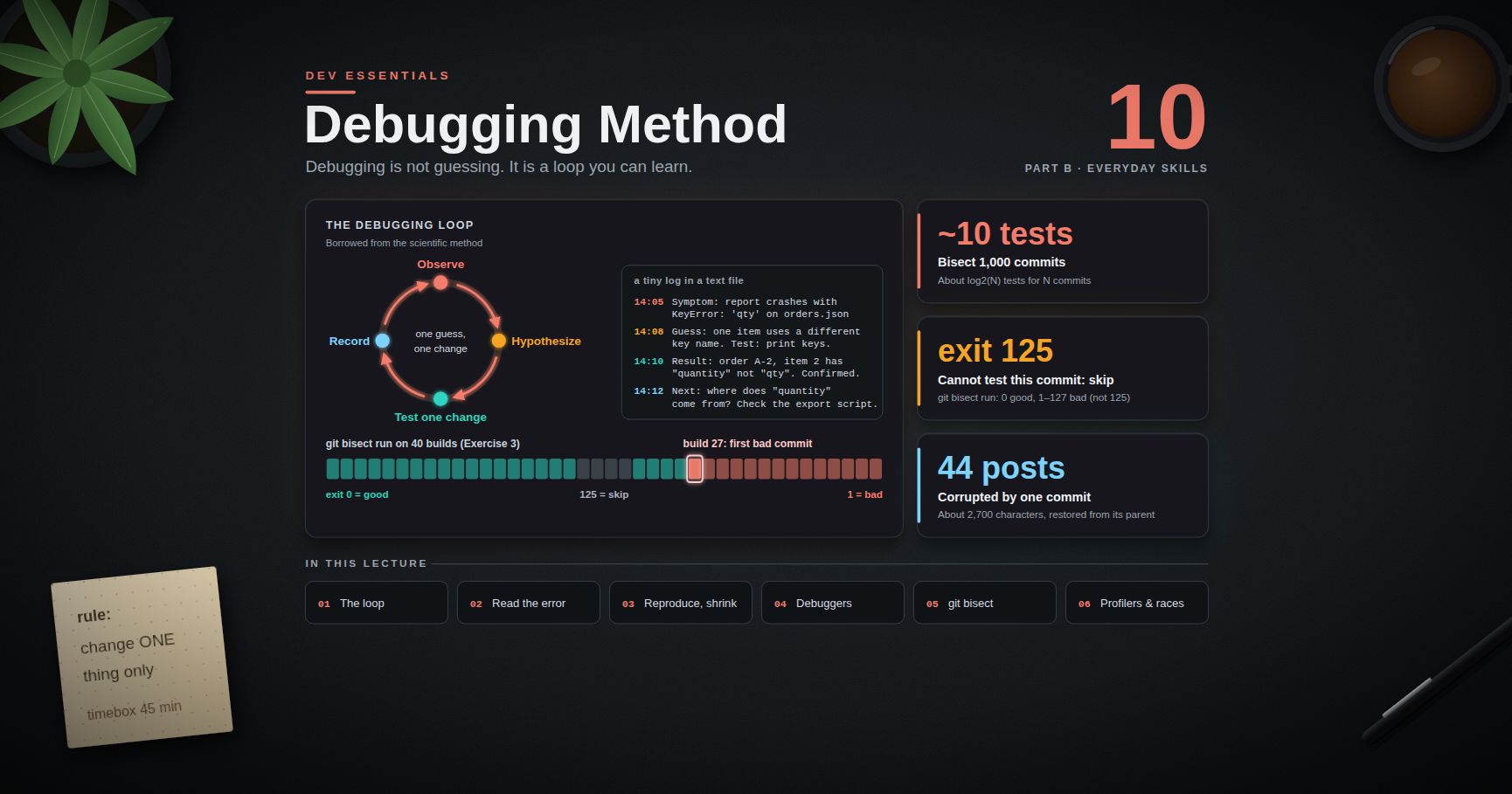
When something worked last month and is broken now, git bisect does a binary search over the commits in between. Run git bisect start, mark the broken commit with git bisect bad and a known-good one with git bisect good v1.4.0; Git checks out the middle commit; you test it and answer good or bad; repeat. About 1,000 commits need only about 10 steps. Automate it with git bisect run <command>: exit code 0 means good, 125 means "cannot test, skip", and any other code from 1 to 127 means bad. Finish with git bisect reset. Dev Essentials 10 · Debugging covers bisect as part of a full debugging method.
Practice Exercises
Each exercise starts from a fresh lab (Chapter 2). Break it on purpose, then rescue it. In PowerShell, create or change files with Set-Content / Add-Content -Encoding Ascii instead of echo … >, because > in Windows PowerShell 5.1 writes UTF-16 (see Dev Essentials 01 · Text Encoding).
Exercise 1 — Undo reset --hard
Run git reset --hard HEAD~3. git log --oneline now shows one commit. Get all four back.
Solution
1
2
3
4
git reflog -3
git reset --hard 'HEAD@{1}' # the position just before the reset (or the "Add line 4" hash)
git log --oneline # four commits again
Exercise 2 — Delete an unmerged branch, then recover it
Create a branch feature with one commit, go back to main, force-delete feature, then recover it.
Solution
1
2
3
4
5
6
7
8
9
git switch -c feature
echo "feature work" > feature.txt
git add feature.txt
git commit -m "Add feature file"
git switch main
git branch -d feature # refused: not fully merged
git branch -D feature # prints: Deleted branch feature (was <sha>).
git branch feature <sha> # use the sha from that line; the commit is back
Lost the message? git reflog | grep "Add feature file" (PowerShell: git reflog | Select-String "Add feature file") shows the commit's hash.
Exercise 3 — Revert on a shared branch, and see a lease protect a teammate
Create a local "remote", push to it, let a "teammate" push, then try to force-push without fetching.
Solution
1
2
3
4
5
6
7
8
9
10
11
12
13
14
15
16
17
18
19
20
git init --bare -b main ../lab-remote.git # -b main so clones check out main
git remote add origin ../lab-remote.git
git push -u origin main
# a teammate clones and pushes a new file
git clone ../lab-remote.git ../lab-teammate
cd ../lab-teammate
git config user.name "Teammate"
git config user.email "mate@example.com"
echo "docs" > README.md
git add README.md
git commit -m "Add README"
git push
cd ../rescue-lab
# you revert "Add line 4" without fetching first
git revert --no-edit HEAD
git push # rejected: the remote has work you do not have
git push --force-with-lease # rejected too: "stale info" — the lease saved the README commit
git pull --rebase # integrate the teammate's commit
git push # now a normal push works
A plain --force at the second push would have deleted the teammate's README commit from the remote.
Exercise 4 — Stash safely while "another session" stashes too
Stash your change with a tag. Then make and stash a second change with a different tag (pretend another tool did it). Restore your change by SHA and drop only your entry.
Solution
1
2
3
4
5
6
7
8
9
10
echo "my change" >> notes.txt
git stash push -u -m "mine-0925"
git stash list --format='%H %gs' # copy the SHA of "On main: mine-0925"
echo "other change" >> notes.txt
git stash push -u -m "other-tool-0925" # now "mine" is stash@{1}
git stash apply <mine-sha> # brings back "my change" only
git stash list --format='%gd %gs' # find the current position of mine-0925
git stash drop 'stash@{1}'
git stash list # only other-tool-0925 is left
A bare git stash pop at the apply step would have applied and dropped the other entry.
Exercise 5 — Fixup + autosquash
On a new branch, add a file with a typo, add another commit, then fold a typo fix into the first commit.
Solution
1
2
3
4
5
6
7
8
9
10
11
12
13
git switch -c tidy
echo "buy mlik" > todo.txt
git add todo.txt
git commit -m "Add todo list"
echo "line 5" >> notes.txt
git commit -am "Add line 5"
sed -i 's/mlik/milk/' todo.txt # PowerShell: Set-Content todo.txt 'buy milk' -Encoding Ascii
git commit -a --fixup=HEAD~1 # HEAD~1 is "Add todo list"
git log --oneline main.. # 3 commits, one starts with "fixup!"
git rebase --autosquash main # Git 2.44+; older Git: git rebase -i --autosquash main
git log --oneline main.. # 2 commits
git show HEAD~1:todo.txt # buy milk
Exercise 6 — Worktree pitfalls, hands-on
Add a worktree, try to check out main in it, remove it while dirty, then clean up a hand-deleted worktree. Finally, commit in detached HEAD and rescue that commit.
Solution
1
2
3
4
5
6
7
8
9
10
11
12
13
14
15
16
17
18
19
20
git worktree add -b hotfix ../lab-hotfix main
cd ../lab-hotfix
git switch main # fatal: 'main' is already used by worktree at '.../rescue-lab'
echo "tmp" > scratch.txt
cd ../rescue-lab
git worktree remove ../lab-hotfix # refused: contains modified or untracked files
git worktree remove --force ../lab-hotfix # removes it
git worktree add -b temp ../lab-temp
rm -rf ../lab-temp # PowerShell: Remove-Item -Recurse -Force ..\lab-temp
git worktree list # lab-temp is marked "prunable"
git worktree prune # now it is gone
git switch --detach HEAD~2
echo "experiment" >> notes.txt
git commit -am "Experiment"
git switch main # warns: leaving 1 commit behind
git reflog -3 # find "commit: Experiment"
git branch experiment <sha>
Cheat-sheet
| Symptom | Command |
|---|---|
Commits vanished after reset --hard |
git reflog → git reset --hard 'HEAD@{1}' |
| Rebase went wrong | git reset --hard 'branch@{1}' (or ORIG_HEAD right after) |
| Deleted a branch | git branch name <sha> (sha from "Deleted branch … (was …)" or reflog) |
| Discard edits / unstage a file | git restore file / git restore --staged file |
| Undo last local commit, keep work | git reset --soft HEAD~1 |
| Undo a pushed commit | git revert <sha> |
| Stash safely | git stash push -u -m "tag" → git stash apply <sha> → drop by re-found index |
| Commits made in detached HEAD | git switch -c name (or git branch name <sha> from reflog) |
| Copy a commit to another branch | git cherry-pick -x <sha> |
| Fold a fix into an older commit | git commit --fixup=<sha> → git rebase --autosquash <base> |
| Force-push safely | git push --force-with-lease --force-if-includes |
| Nothing in the reflog | git fsck --lost-found (add --no-reflogs to widen) |
| Branch "already used by worktree" | git worktree list → work elsewhere or git worktree remove |
| Stale worktree entry | git worktree prune |
| Find the commit that broke it | git bisect start / good / bad / run / reset |
What's next
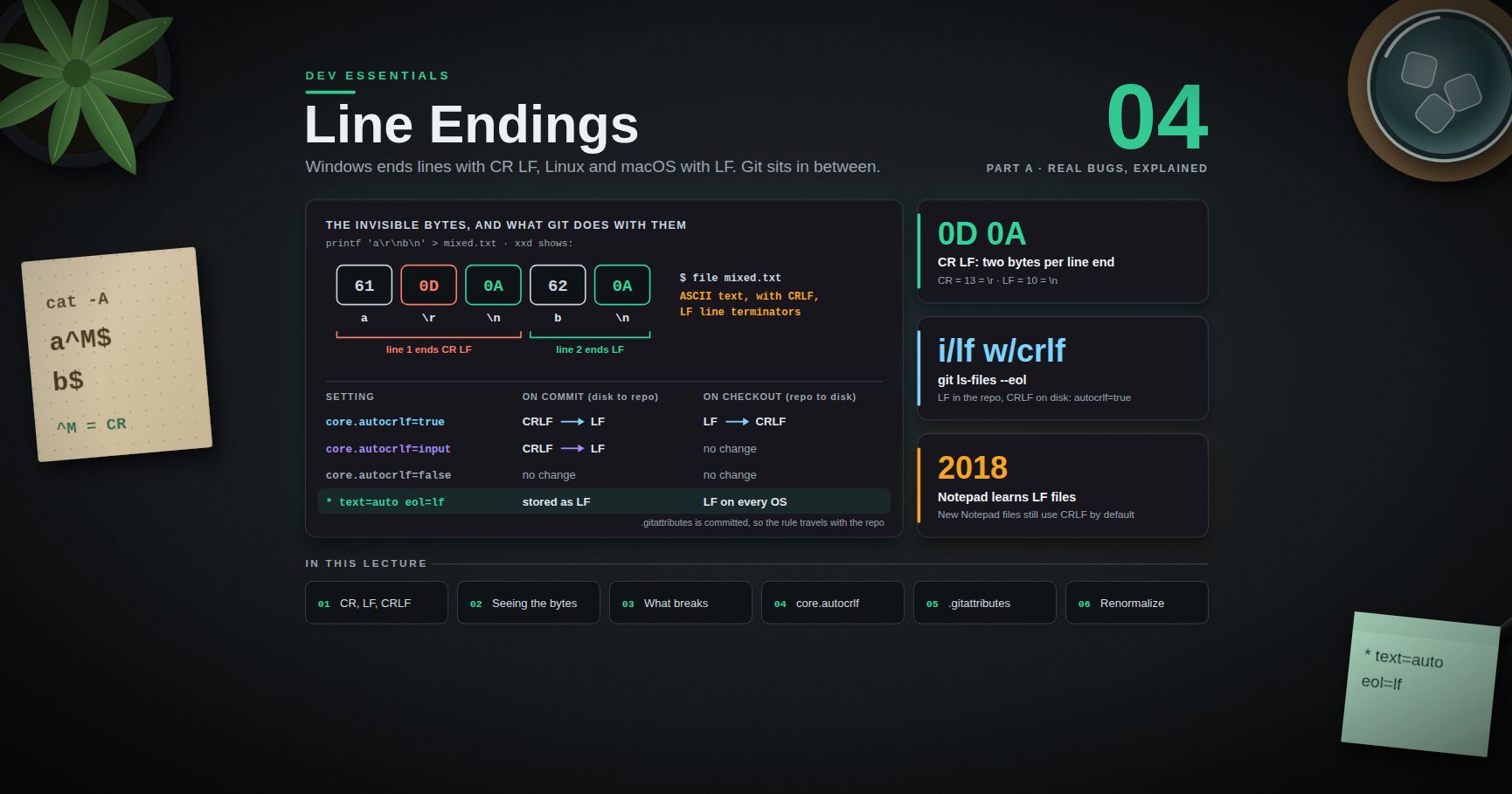
Dev Essentials 04 · Line Endings explains why a file can show "every line changed" when nothing really changed: CRLF vs LF, core.autocrlf, and .gitattributes — another Git surprise with a clean fix.
References
- git-reflog, git-reset, git-revert
- git-restore and git — "Reset, restore and revert"
- git-stash and git-checkout — Detached HEAD
- git-rebase and git-commit (
--fixup) - git-push (
--force-with-lease,--force-if-includes) - git-fsck and git-gc
- git-worktree and git-bisect
- Pro Git — Reset Demystified
- Highlights from Git 2.44 (GitHub Blog)
- VS Code — Git branches and worktrees
Note: this post is in progress. Planned additions:
git rererefor repeated conflicts, a fullgit switch/git restoreflag reference, and a diagram of the three trees during eachresetmode.